> ## Documentation Index
> Fetch the complete documentation index at: https://docs.junojourney.com/llms.txt
> Use this file to discover all available pages before exploring further.
# Appearance
> Set your organization's logo, colors, homepage, academy, catalog, and course look in one place, with live previews.
export const RelatedPages = ({pages = []}) => {
if (pages.length === 0) return null;
return <>
Related articles
{pages.map(page => )}
;
};
export const RoleBadge = ({roles = []}) => {
const colorMap = {
Admin: "yellow",
Manager: "blue",
Learner: "green",
"Co-editor": "purple"
};
return <>
{roles.map(role => {role}{" "})}
;
};
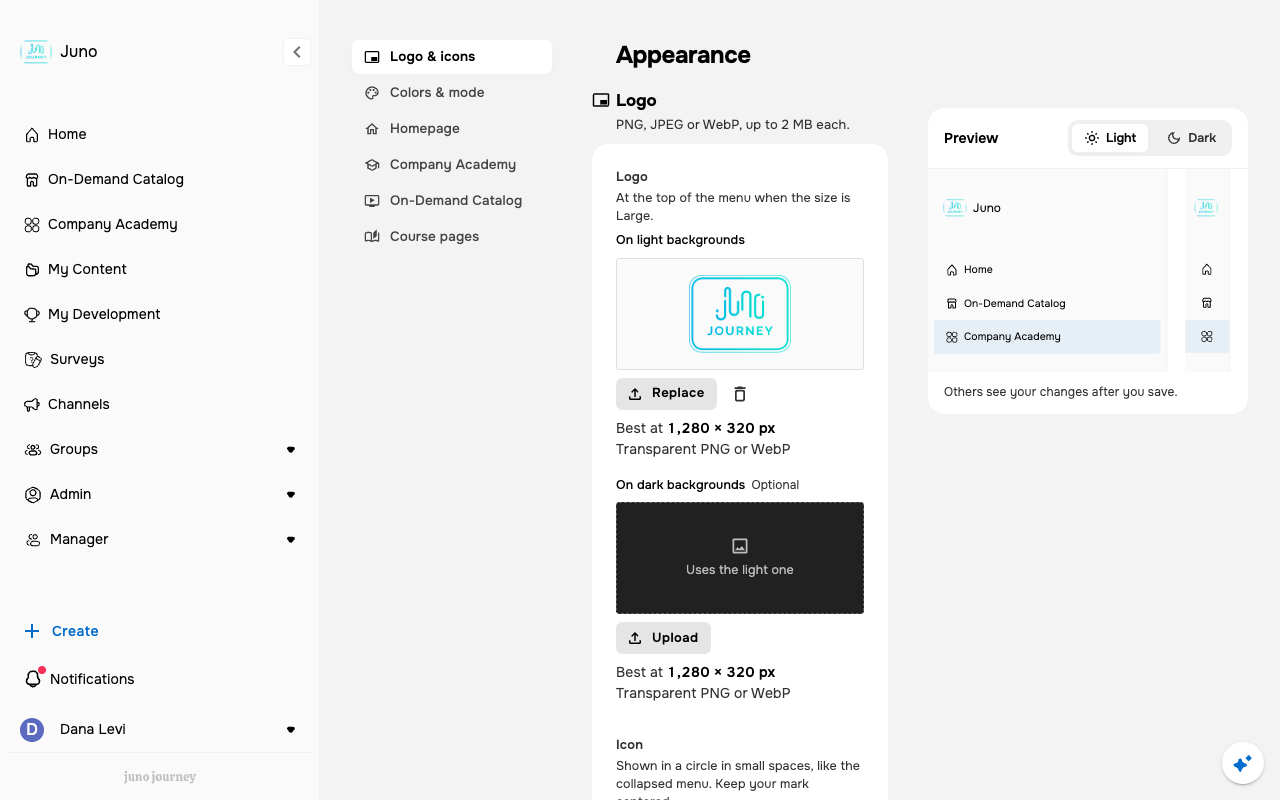
**Admin → Appearance** is one place for your organization's whole look in Juno: logo and icons, brand colors, the homepage, the Company Academy and catalog headers, and how course pages look. Each group shows a live preview built from the real product, so you see the change before anyone else does. This may not be enabled for your organization. Until it is, Juno support sets these for you.
 ***
## How the page works
* The left index lists the groups: **Logo & icons**, **Colors & mode**, **Homepage**, your academy and catalog (named as in your sidebar, shown only when your organization has that module), and **Course pages**.
* You can move between groups without losing edits. Groups you changed are marked, and one **Save** / **Discard** bar covers them all. Leaving the page with unsaved changes asks you to confirm.
* Each preview follows your draft. Switch the preview between light and dark to check both.
***
## What you can set
| Group | What's in it |
| - | - |
| **Logo & icons** | Your logo, dark-mode logo, square icon, dark-mode icon, and welcome logo, with a **Small** or **Large** logo size. The browser tab's icon and name, with a live tab preview, and the image shown when someone shares a Juno link |
| **Colors & mode** | **Brand colors**, the main color in dark mode, and **Light & dark mode** |
| **Homepage** | The homepage colors and character. There is no character unless you upload one |
| **Academy and catalog** | The **Header** behind the title and search: show or hide the title, and its color. Edit the title and description text in [Text & Labels](/admin/customization) |
| **Course pages** | **Journey colors**, **Course themes**, and **Default covers** for internal content that has no cover of its own |
A new browser tab icon reaches signed-out pages, such as the sign-in page, within about 20 minutes. Signed-in pages update when you save.
This documentation is built and hosted on [Mintlify](https://mintlify.com), a developer documentation platform.
***
## How the page works
* The left index lists the groups: **Logo & icons**, **Colors & mode**, **Homepage**, your academy and catalog (named as in your sidebar, shown only when your organization has that module), and **Course pages**.
* You can move between groups without losing edits. Groups you changed are marked, and one **Save** / **Discard** bar covers them all. Leaving the page with unsaved changes asks you to confirm.
* Each preview follows your draft. Switch the preview between light and dark to check both.
***
## What you can set
| Group | What's in it |
| - | - |
| **Logo & icons** | Your logo, dark-mode logo, square icon, dark-mode icon, and welcome logo, with a **Small** or **Large** logo size. The browser tab's icon and name, with a live tab preview, and the image shown when someone shares a Juno link |
| **Colors & mode** | **Brand colors**, the main color in dark mode, and **Light & dark mode** |
| **Homepage** | The homepage colors and character. There is no character unless you upload one |
| **Academy and catalog** | The **Header** behind the title and search: show or hide the title, and its color. Edit the title and description text in [Text & Labels](/admin/customization) |
| **Course pages** | **Journey colors**, **Course themes**, and **Default covers** for internal content that has no cover of its own |
A new browser tab icon reaches signed-out pages, such as the sign-in page, within about 20 minutes. Signed-in pages update when you save.
This documentation is built and hosted on [Mintlify](https://mintlify.com), a developer documentation platform.