> ## Documentation Index
> Fetch the complete documentation index at: https://docs.junojourney.com/llms.txt
> Use this file to discover all available pages before exploring further.
# Training Analytics
> Per-training analytics — track learner progress, completion, scores, and section/question performance.
export const RelatedPages = ({pages = []}) => {
if (pages.length === 0) return null;
return <>
Related articles
{pages.map(page => )}
;
};
export const InternalNote = ({children}) => {
const [isInternal, setIsInternal] = useState(false);
useEffect(() => {
const user = window.__mintlify_user__;
if (user?.groups?.includes("internal")) setIsInternal(true);
}, []);
if (!isInternal) return null;
return
🔒 Internal Note
{children}
;
};
export const RoleBadge = ({roles = []}) => {
const colorMap = {
Admin: "yellow",
Manager: "blue",
Learner: "green",
"Co-editor": "purple"
};
return <>
{roles.map(role => {role}{" "})}
;
};
export const FeatureAvailability = ({module, feature}) => {
const label = feature || module;
return
{label ? <>This feature requires the {label} module. : <>This feature may not be enabled for your organization. }
If you don't see it in Juno, contact your administrator.
;
};
## Overview
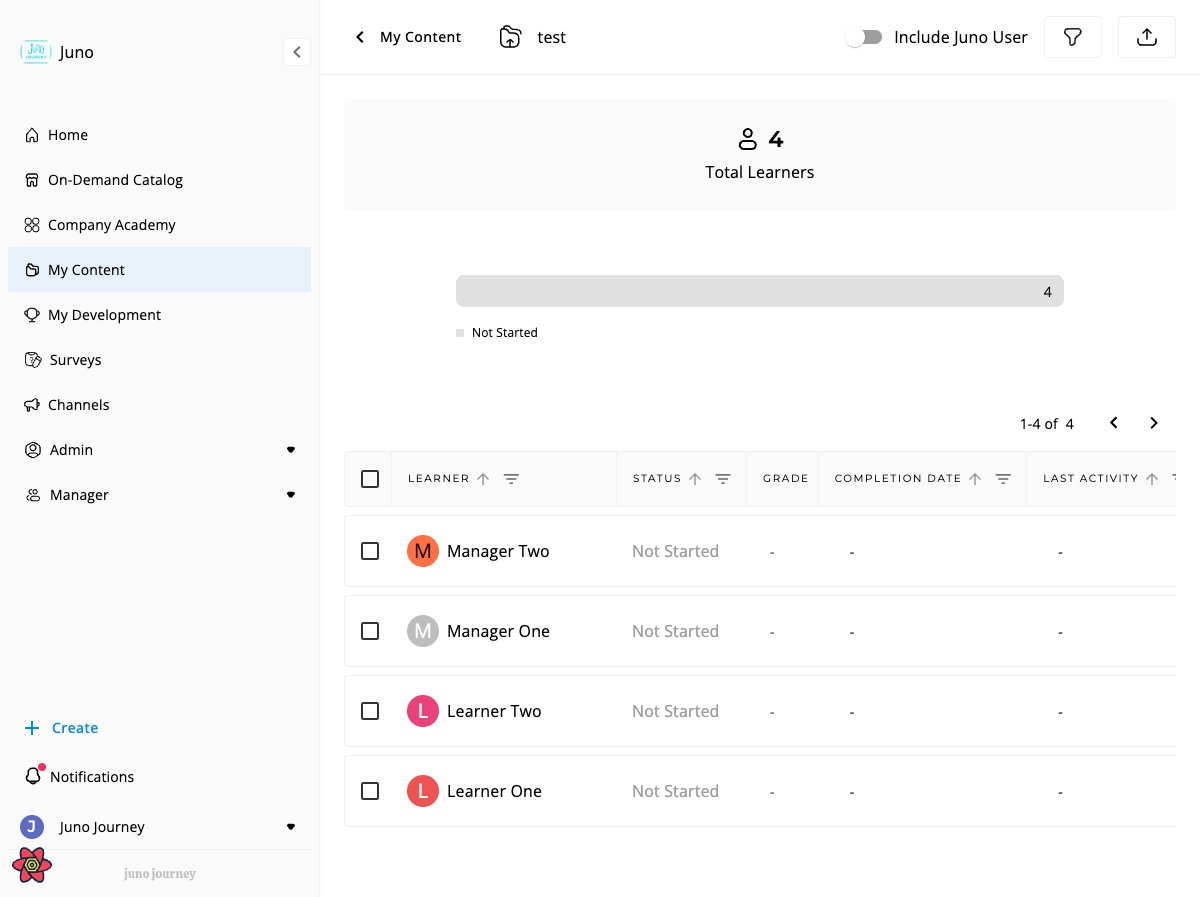
Every course, quiz, SCORM package, Journey, and survey in Juno has a dedicated **analytics view** — a multi-tab dashboard showing learner progress, scores, completion rates, and more.
 ***
## How to access
* **From the unit editor** — click the **Analytics** icon in the sidebar
* **From Admin → Content** — navigate to Learning Management, click a unit, then open the Analytics tab
* **Managers** see the same analytics views scoped to their direct reports
***
## Analytics tabs
Which tabs appear depends on the content type:
| Tab | Course | Quiz | SCORM | Journey | Survey |
| -------------- | ------- | ------- | ----- | ------- | ------ |
| **Learners** | ✓ | ✓ | ✓ | ✓ | ✓ |
| **Sections** | ✓ | - | - | - | - |
| **Responses** | ✓\* | ✓ | - | - | ✓ |
| **Steps** | - | - | - | ✓ | - |
| **Signatures** | ✓\*\* | ✓\*\* | - | - | - |
| **Validation** | ✓\*\*\* | ✓\*\*\* | - | - | - |
| **Respondent** | - | - | - | - | ✓ |
\* If the course has questions.
\*\* If the content has signature questions.
\*\*\* If the content has open questions with assigned validators.
***
## Learners tab
The main analytics view. Shows an overview bar, KPI cards, and a detailed learner table.
### KPI cards
| KPI | Course | Quiz | SCORM | Journey | Survey |
| ------------------------- | ------ | ---- | ----- | ------- | ------ |
| **Total Users** | ✓ | ✓ | ✓ | ✓ | ✓ |
| **Avg. Progress** | ✓ | - | - | ✓ | - |
| **Avg. Score** | - | ✓ | - | - | - |
| **Avg. Time to Complete** | ✓ | ✓ | - | ✓ | - |
| **Avg. Review Score** | ✓† | ✓† | ✓† | - | - |
| **Past Due** | ✓‡ | ✓‡ | ✓‡ | ✓‡ | - |
† Only when the unit is inside a Journey that has review data.
‡ Requires the due-date feature to be enabled and at least one learner with an expired due date.
### Status breakdown bar
A stacked bar shows how learners are distributed across statuses. Click any segment to filter the table to that status.
| Status | Color | Meaning |
| ------------------------ | ------ | --------------------------------------- |
| **Completed / Passed** | Green | Learner finished successfully |
| **In Progress** | Yellow | Started but not yet finished |
| **Not Started** | Grey | Enrolled but hasn't opened the content |
| **Didn't Pass / Failed** | Red | Quiz submitted but below passing grade |
| **In Review** | Purple | Open questions pending validator review |
### Learner table columns
| Column | What it shows | Course | Quiz | SCORM | Journey | Survey |
| ----------------------- | ------------------------------------------------------ | ------ | ---- | ----- | ------- | ------ |
| **User** | Learner name and avatar | ✓ | ✓ | ✓ | ✓ | ✓ |
| **Status** | Current progress state | ✓ | ✓ | ✓ | ✓ | ✓ |
| **Progress** | % of content completed | ✓ | - | - | ✓ | - |
| **Grade** | Quiz score (%) | - | ✓ | - | - | - |
| **SCORM Grade** | Grade reported by SCORM package | - | - | ✓ | - | - |
| **SCORM Interactions** | Number of tracked interactions | - | - | ✓ | - | - |
| **Grades Released** | Whether results were sent to learner | - | ✓\* | - | - | - |
| **Attempts** | Number of attempts used (click to see attempt history) | - | ✓ | - | - | - |
| **Completion Date** | When the learner finished | ✓ | - | ✓ | ✓ | ✓ |
| **End Time** | When quiz was submitted | - | ✓ | - | - | - |
| **Time Spent** | Total time in the content | ✓ | ✓ | - | ✓ | - |
| **Last Activity** | Most recent interaction date | ✓ | ✓ | ✓ | ✓ | ✓ |
| **Due Date** | Assignment deadline | ✓ | ✓ | ✓ | ✓ | - |
| **Version Consumed** | Which published version the learner saw | ✓ | ✓ | - | - | - |
| **Consumption Context** | What the survey was about (course, event, user) | - | - | - | - | ✓\*\* |
\* Only visible when grade reveal is set to "Let me choose when to send results."
\*\* Only for Feedback and Engagement survey types.
### Table filters
| Filter | What it filters | Course | Quiz | SCORM | Journey | Survey |
| ------------------- | ----------------------- | ------ | ---- | ----- | ------- | ------ |
| **Status** | Progress state | ✓ | ✓ | ✓ | ✓ | ✓ |
| **User** | Search by learner name | ✓ | ✓ | ✓ | ✓ | ✓\* |
| **Completion date** | Date range | ✓ | - | ✓ | ✓ | ✓ |
| **End time** | When quiz was submitted | - | ✓ | - | - | - |
| **Last activity** | Most recent interaction | ✓ | ✓ | ✓ | ✓ | ✓ |
| **Attempts** | Number of attempts used | - | ✓ | - | - | - |
| **Due date** | Due date status | ✓ | ✓ | ✓ | ✓ | - |
| **Context** | Consumption context | - | - | - | - | ✓ |
\* User filter is disabled for anonymous surveys.
### How "Time Spent" is measured
The **Time Spent** column counts **active engagement** with content — not just the time the tab was open.
#### Same mechanism for courses, quizzes, and journey steps
The same tracking runs for every consumable unit type — courses, quizzes, SCORM (engagement portion), blog posts, journey steps. There is no quiz-specific tracker. The only difference between unit types is how the unit is **structured** into sections (see [Course vs. quiz windowing](#course-vs-quiz-windowing) below).
#### What gets counted
While a learner is on a content section, the browser sends a small "still here" event every **20 seconds**. Each event represents 20 seconds of consumption attributed to that section, that user, and (when applicable) that path / consumption context.
When the learner leaves a section (navigates away, closes the unit), any leftover time below the next 20-second tick is flushed in one final event — so a 47-second visit counts as 47 seconds, not 40.
#### Course vs. quiz windowing
Tracking is **per section**, not per unit. Each time the learner lands on a new section, a fresh window starts.
| Unit type | Typical section layout | What this means for Time Spent |
| --------------------- | -------------------------------------------------------------- | ---------------------------------------------------------------------------------------------------------------------------------------------- |
| **Course** | Multiple sections (text, video, embedded quizzes, etc.) | Each section gets its own 20s heartbeat window. Navigating to the next section starts a new window — natural breaks, no cap issues |
| **Quiz (standalone)** | Usually one continuous section (the question list) | The learner stays on the same section for the whole attempt → one long window. The 60-minute cap (see below) becomes relevant for long quizzes |
| **Journey** | One section per step, mapped to the underlying unit's sections | Same as the underlying unit (course/quiz/SCORM) for each step |
| **SCORM** | One section wrapper | SCORM's own engagement tracker reports its data; the section heartbeat tracks time on the SCORM player |
#### What does NOT get counted
| Situation | Counted? | Why |
| ------------------------------------------------------ | ---------------- | ------------------------------------------------------------------------------------------------------------------------------------ |
| Learner is reading and scrolling | ✓ | Mouse / keyboard / touch counts as active |
| Learner walked away for 10+ minutes | ✗ | Idle detection pauses tracking after **10 minutes of no input** |
| Tab is in background but learner returns within 10 min | ✓ | Idle is input-based, not focus-based — keyboard/mouse on another window won't reset, but coming back triggers it on next interaction |
| Section visit longer than 60 minutes in one sitting | Capped | See [60-minute section cap](#60-minute-section-cap) below |
| Learner is on the intro / summary / edit screen | ✗ | Only the **consumption view** of a section emits events |
| Quiz countdown is running but learner is idle | ✗ for Time Spent | The quiz's own [time limit](/learning/quizzes#time-limit-behavior) is wall-clock; Time Spent counts engagement only |
#### 60-minute section cap
A single section window caps at **60 minutes** of tracked time. After that, the heartbeat keeps running but **stops sending events** — additional time is not counted.
The window **resets** when:
| Trigger | Resets? |
| ------------------------------------------------------------------------------------------------- | ---------------------------------------------------------------- |
| Learner navigates to a **different section** within the same unit (e.g. next section in a course) | ✓ Fresh 60-min window starts |
| Learner **closes and reopens** the unit | ✓ Fresh window starts |
| Learner goes idle and comes back | ✗ Same window — idle pauses heartbeats but doesn't reset the cap |
| Learner refreshes the browser tab | ✓ Fresh window starts |
**Practical impact:**
* **Courses** rarely hit the cap because each section is its own window.
* **Quizzes** with a long time limit (e.g. 90 or 120 minutes) and a single continuous question list can hit it. A learner who stays in a 90-min quiz will have Time Spent capped at \~60 min even with constant interaction. The quiz submission still works as expected — only the reported engagement is capped.
The cap exists as a safety net against runaway tabs (e.g. a tab left open for days). It is not a session timeout — nothing happens to the learner; only the analytics column stops accumulating.
#### Resuming after going idle
When the learner becomes idle, the heartbeat stops. As soon as they move the mouse, press a key, or tap the screen, the heartbeat resumes on the next 20-second boundary. No event is sent for the idle gap.
This means a learner who opens a 45-minute course, takes a 30-minute call, and comes back will see their **Time Spent** reflect only the time they were actually interacting — not the full wall-clock duration.
#### Time Spent vs. time limit
For quizzes with a [time limit](/learning/quizzes#time-limit-behavior), the two are **independent**:
| Metric | What it measures | Pauses on idle? |
| ---------------------------- | ------------------------------- | -------------------- |
| **Time Spent** (this column) | Active engagement with the quiz | ✓ Yes |
| **Time limit countdown** | Wall-clock from first open | ✗ No — keeps running |
A learner can have **Time Spent = 12 min** on a quiz with a **60-min time limit** if they were idle most of the attempt. Conversely, a learner with multiple attempts can have **Time Spent > 60 min** total even with a 60-min-per-attempt limit.
Implementation: heartbeat lives in [`useSectionConsumptionReporting`](https://github.com/anthropics/monorepo/blob/release/apps/front/src/core/units/hooks/useSectionConsumptionReporting.ts), driven by [`useIsUserIdle`](https://github.com/anthropics/monorepo/blob/release/apps/front/src/core/hooks/UseIsUserIdle.ts) (wraps `react-idle-timer`, default 600000 ms = 10 min).
Same tracker for courses + quizzes — `useUnitAnalytics` is mounted from `UnitMain.tsx:77` regardless of `unit.type`. Per-section memo (`useMemo(() => Date.now(), [sectionId])`) is what resets the cap window — a quiz that is one continuous section never resets until the unit unmounts.
Constants in `apps/front/src/juno-api/xapiConfig.ts`:
* `CONSUMPTION_INTERVAL_IN_MS` = 20s heartbeat
* `MAX_SECTION_CONSUMPTION_TIME` = 1000 × 60 × 60 = 1h cap (skips `sendConsumptionStatement` once `Date.now() - consumptionStartTime` exceeds it; interval keeps ticking silently)
* `MINIMUM_TIME_TO_COUNT_CONSUME_EVENT` = 900ms unmount-flush floor (not gated by the cap, so a small leftover can still trickle through after 60min)
Events flow through `xapi.sendConsumptionStatement` → BigQuery (`LearningActivitiesTable`, `UnitConsumptionAnalyticsTable`, `UserUnitsTimeSpentTable`). Aggregations live in `UnitAnalyticsTimeSpentServiceV2`.
Known caveats: (1) idle is input-only — `react-idle-timer` does not listen to `visibilitychange`, so a backgrounded tab with no input ticks for the full 10 min before pausing; (2) idle timer is per-hook instance, so each mounted consumption hook runs its own timer.
### User attribute filters
Filter analytics by learner attributes:
* Location, Department, Position, Job Title
* HR Business Partner, Role, Employee Type
* Groups, Company, Ancestors
### Filter out inactive users
A toggle in the user attribute filters panel that hides **deactivated and deleted users** from the analytics view. Inactive users are people whose accounts were deactivated or deleted in [User Management](/admin/managing-users) — their `inactive` flag is set to `true`.
When the toggle is on, the same scope is applied consistently across:
* The **Learners** table and KPI cards
* The **Steps** table (Journey analytics)
* The user-attribute **filter popover** (so dropdown options only reflect active users)
* The **export** file generated from the toolbar
Use this toggle when you want analytics to reflect only your current, active workforce — for example, when reporting completion rates to leadership and you don't want totals skewed by people who have since left the organization. Turn it off to audit historical participation, including former employees.
The toggle state persists per user across analytics pages until you change it.
***
## Sections view
Courses only.
Shows completion breakdown per section: Completed, In Progress, Not Started. Click a section to drill into individual learner progress within that section.
***
## Responses view
Courses with questions, quizzes, and surveys.
Question-by-question analytics showing response distribution:
| Count | Meaning |
| --------------------- | ----------------------------- |
| **Correct** | Answered correctly |
| **Incorrect** | Answered incorrectly |
| **Partially Correct** | Some correct answers selected |
| **In Review** | Pending validator review |
Click a question to see individual learner responses.
***
## Steps view
Journeys only.
Shows per-step progress for each unit in the Journey. Click a step to open the analytics view for that specific unit.
***
## Validation view
Appears when content has open questions with assigned validators.
Grading interface where validators review and score open-ended responses. Supports three validation modes:
| Mode | How it works |
| ------------- | ---------------------------------------------------- |
| **Manual** | Validator reads and grades each response |
| **Auto** | AI validates the response automatically |
| **Recommend** | AI suggests a grade, validator confirms or overrides |
The Validation tab is disabled until the learner has submitted.
***
## Survey-specific features
### Anonymous respondents
When a survey has anonymous mode enabled:
* User names display as **"Anonymous User"**
* Avatar photos are hidden
* User filter is disabled
* Respondent IDs are encrypted
### Consumption context
For **Feedback** and **Engagement** survey types, the analytics view tracks what the survey was about — such as a specific course, event, or user. This appears as:
* A **Consumption Context** column in the learner table
* A **Context filter** to narrow results by context
### Respondent tab
Unique to surveys. View an individual respondent's full set of answers. For surveys with consumption context, you can filter respondents by the context they responded in.
### Who can open survey analytics
Which surveys appear in your analytics view depends on your role:
| Role | Surveys you can open analytics for |
| ------------------------- | ------------------------------------------------------------------------------------- |
| **Super Admin** | All surveys in the tenant |
| **Admin / Content Admin** | Surveys you created, surveys you co-edit, and surveys marked **Available for Admins** |
| **Manager / Learner** | No access to survey analytics |
Super Admin analytics access mirrors the surveys list — if you can see a survey in **Surveys** as a Super Admin, you can also open its analytics. Other admins still need to be the creator, a co-editor, or have the survey marked **Available for Admins**.
***
## Version selector
When a course or quiz has multiple published versions, use the version selector to view analytics for a specific version or all versions combined.
Requires the analytics versions feature flag to be enabled.
***
## Exporting analytics data
Click the **export icon** in the learner table toolbar to generate an Excel/Sheets file containing:
* **Main sheet** — learner data and question answers (for courses and quizzes)
* **Dictionary sheet** — column definitions and data descriptions
* **SCORM interactions sheet** — detailed SCORM interaction data (SCORM content only)
* **Journey export** — generates one sheet per step in the Journey
***
## Manager vs. Admin scope
| Role | What they see |
| ------------- | --------------------------------------------------- |
| **Admin** | All learners across the organization |
| **Manager** | Only their direct reports |
| **Co-editor** | All learners (same as admin for that specific unit) |
Analytics view access is the permission gate for actions. No separate role check on the action endpoints — if you can see the analytics page, you can perform actions.
Key files: `AnalyticsContainerV2.tsx`, `AnalyticsRouter.tsx`, `columnOptions.tsx`.
***
## How to access
* **From the unit editor** — click the **Analytics** icon in the sidebar
* **From Admin → Content** — navigate to Learning Management, click a unit, then open the Analytics tab
* **Managers** see the same analytics views scoped to their direct reports
***
## Analytics tabs
Which tabs appear depends on the content type:
| Tab | Course | Quiz | SCORM | Journey | Survey |
| -------------- | ------- | ------- | ----- | ------- | ------ |
| **Learners** | ✓ | ✓ | ✓ | ✓ | ✓ |
| **Sections** | ✓ | - | - | - | - |
| **Responses** | ✓\* | ✓ | - | - | ✓ |
| **Steps** | - | - | - | ✓ | - |
| **Signatures** | ✓\*\* | ✓\*\* | - | - | - |
| **Validation** | ✓\*\*\* | ✓\*\*\* | - | - | - |
| **Respondent** | - | - | - | - | ✓ |
\* If the course has questions.
\*\* If the content has signature questions.
\*\*\* If the content has open questions with assigned validators.
***
## Learners tab
The main analytics view. Shows an overview bar, KPI cards, and a detailed learner table.
### KPI cards
| KPI | Course | Quiz | SCORM | Journey | Survey |
| ------------------------- | ------ | ---- | ----- | ------- | ------ |
| **Total Users** | ✓ | ✓ | ✓ | ✓ | ✓ |
| **Avg. Progress** | ✓ | - | - | ✓ | - |
| **Avg. Score** | - | ✓ | - | - | - |
| **Avg. Time to Complete** | ✓ | ✓ | - | ✓ | - |
| **Avg. Review Score** | ✓† | ✓† | ✓† | - | - |
| **Past Due** | ✓‡ | ✓‡ | ✓‡ | ✓‡ | - |
† Only when the unit is inside a Journey that has review data.
‡ Requires the due-date feature to be enabled and at least one learner with an expired due date.
### Status breakdown bar
A stacked bar shows how learners are distributed across statuses. Click any segment to filter the table to that status.
| Status | Color | Meaning |
| ------------------------ | ------ | --------------------------------------- |
| **Completed / Passed** | Green | Learner finished successfully |
| **In Progress** | Yellow | Started but not yet finished |
| **Not Started** | Grey | Enrolled but hasn't opened the content |
| **Didn't Pass / Failed** | Red | Quiz submitted but below passing grade |
| **In Review** | Purple | Open questions pending validator review |
### Learner table columns
| Column | What it shows | Course | Quiz | SCORM | Journey | Survey |
| ----------------------- | ------------------------------------------------------ | ------ | ---- | ----- | ------- | ------ |
| **User** | Learner name and avatar | ✓ | ✓ | ✓ | ✓ | ✓ |
| **Status** | Current progress state | ✓ | ✓ | ✓ | ✓ | ✓ |
| **Progress** | % of content completed | ✓ | - | - | ✓ | - |
| **Grade** | Quiz score (%) | - | ✓ | - | - | - |
| **SCORM Grade** | Grade reported by SCORM package | - | - | ✓ | - | - |
| **SCORM Interactions** | Number of tracked interactions | - | - | ✓ | - | - |
| **Grades Released** | Whether results were sent to learner | - | ✓\* | - | - | - |
| **Attempts** | Number of attempts used (click to see attempt history) | - | ✓ | - | - | - |
| **Completion Date** | When the learner finished | ✓ | - | ✓ | ✓ | ✓ |
| **End Time** | When quiz was submitted | - | ✓ | - | - | - |
| **Time Spent** | Total time in the content | ✓ | ✓ | - | ✓ | - |
| **Last Activity** | Most recent interaction date | ✓ | ✓ | ✓ | ✓ | ✓ |
| **Due Date** | Assignment deadline | ✓ | ✓ | ✓ | ✓ | - |
| **Version Consumed** | Which published version the learner saw | ✓ | ✓ | - | - | - |
| **Consumption Context** | What the survey was about (course, event, user) | - | - | - | - | ✓\*\* |
\* Only visible when grade reveal is set to "Let me choose when to send results."
\*\* Only for Feedback and Engagement survey types.
### Table filters
| Filter | What it filters | Course | Quiz | SCORM | Journey | Survey |
| ------------------- | ----------------------- | ------ | ---- | ----- | ------- | ------ |
| **Status** | Progress state | ✓ | ✓ | ✓ | ✓ | ✓ |
| **User** | Search by learner name | ✓ | ✓ | ✓ | ✓ | ✓\* |
| **Completion date** | Date range | ✓ | - | ✓ | ✓ | ✓ |
| **End time** | When quiz was submitted | - | ✓ | - | - | - |
| **Last activity** | Most recent interaction | ✓ | ✓ | ✓ | ✓ | ✓ |
| **Attempts** | Number of attempts used | - | ✓ | - | - | - |
| **Due date** | Due date status | ✓ | ✓ | ✓ | ✓ | - |
| **Context** | Consumption context | - | - | - | - | ✓ |
\* User filter is disabled for anonymous surveys.
### How "Time Spent" is measured
The **Time Spent** column counts **active engagement** with content — not just the time the tab was open.
#### Same mechanism for courses, quizzes, and journey steps
The same tracking runs for every consumable unit type — courses, quizzes, SCORM (engagement portion), blog posts, journey steps. There is no quiz-specific tracker. The only difference between unit types is how the unit is **structured** into sections (see [Course vs. quiz windowing](#course-vs-quiz-windowing) below).
#### What gets counted
While a learner is on a content section, the browser sends a small "still here" event every **20 seconds**. Each event represents 20 seconds of consumption attributed to that section, that user, and (when applicable) that path / consumption context.
When the learner leaves a section (navigates away, closes the unit), any leftover time below the next 20-second tick is flushed in one final event — so a 47-second visit counts as 47 seconds, not 40.
#### Course vs. quiz windowing
Tracking is **per section**, not per unit. Each time the learner lands on a new section, a fresh window starts.
| Unit type | Typical section layout | What this means for Time Spent |
| --------------------- | -------------------------------------------------------------- | ---------------------------------------------------------------------------------------------------------------------------------------------- |
| **Course** | Multiple sections (text, video, embedded quizzes, etc.) | Each section gets its own 20s heartbeat window. Navigating to the next section starts a new window — natural breaks, no cap issues |
| **Quiz (standalone)** | Usually one continuous section (the question list) | The learner stays on the same section for the whole attempt → one long window. The 60-minute cap (see below) becomes relevant for long quizzes |
| **Journey** | One section per step, mapped to the underlying unit's sections | Same as the underlying unit (course/quiz/SCORM) for each step |
| **SCORM** | One section wrapper | SCORM's own engagement tracker reports its data; the section heartbeat tracks time on the SCORM player |
#### What does NOT get counted
| Situation | Counted? | Why |
| ------------------------------------------------------ | ---------------- | ------------------------------------------------------------------------------------------------------------------------------------ |
| Learner is reading and scrolling | ✓ | Mouse / keyboard / touch counts as active |
| Learner walked away for 10+ minutes | ✗ | Idle detection pauses tracking after **10 minutes of no input** |
| Tab is in background but learner returns within 10 min | ✓ | Idle is input-based, not focus-based — keyboard/mouse on another window won't reset, but coming back triggers it on next interaction |
| Section visit longer than 60 minutes in one sitting | Capped | See [60-minute section cap](#60-minute-section-cap) below |
| Learner is on the intro / summary / edit screen | ✗ | Only the **consumption view** of a section emits events |
| Quiz countdown is running but learner is idle | ✗ for Time Spent | The quiz's own [time limit](/learning/quizzes#time-limit-behavior) is wall-clock; Time Spent counts engagement only |
#### 60-minute section cap
A single section window caps at **60 minutes** of tracked time. After that, the heartbeat keeps running but **stops sending events** — additional time is not counted.
The window **resets** when:
| Trigger | Resets? |
| ------------------------------------------------------------------------------------------------- | ---------------------------------------------------------------- |
| Learner navigates to a **different section** within the same unit (e.g. next section in a course) | ✓ Fresh 60-min window starts |
| Learner **closes and reopens** the unit | ✓ Fresh window starts |
| Learner goes idle and comes back | ✗ Same window — idle pauses heartbeats but doesn't reset the cap |
| Learner refreshes the browser tab | ✓ Fresh window starts |
**Practical impact:**
* **Courses** rarely hit the cap because each section is its own window.
* **Quizzes** with a long time limit (e.g. 90 or 120 minutes) and a single continuous question list can hit it. A learner who stays in a 90-min quiz will have Time Spent capped at \~60 min even with constant interaction. The quiz submission still works as expected — only the reported engagement is capped.
The cap exists as a safety net against runaway tabs (e.g. a tab left open for days). It is not a session timeout — nothing happens to the learner; only the analytics column stops accumulating.
#### Resuming after going idle
When the learner becomes idle, the heartbeat stops. As soon as they move the mouse, press a key, or tap the screen, the heartbeat resumes on the next 20-second boundary. No event is sent for the idle gap.
This means a learner who opens a 45-minute course, takes a 30-minute call, and comes back will see their **Time Spent** reflect only the time they were actually interacting — not the full wall-clock duration.
#### Time Spent vs. time limit
For quizzes with a [time limit](/learning/quizzes#time-limit-behavior), the two are **independent**:
| Metric | What it measures | Pauses on idle? |
| ---------------------------- | ------------------------------- | -------------------- |
| **Time Spent** (this column) | Active engagement with the quiz | ✓ Yes |
| **Time limit countdown** | Wall-clock from first open | ✗ No — keeps running |
A learner can have **Time Spent = 12 min** on a quiz with a **60-min time limit** if they were idle most of the attempt. Conversely, a learner with multiple attempts can have **Time Spent > 60 min** total even with a 60-min-per-attempt limit.
Implementation: heartbeat lives in [`useSectionConsumptionReporting`](https://github.com/anthropics/monorepo/blob/release/apps/front/src/core/units/hooks/useSectionConsumptionReporting.ts), driven by [`useIsUserIdle`](https://github.com/anthropics/monorepo/blob/release/apps/front/src/core/hooks/UseIsUserIdle.ts) (wraps `react-idle-timer`, default 600000 ms = 10 min).
Same tracker for courses + quizzes — `useUnitAnalytics` is mounted from `UnitMain.tsx:77` regardless of `unit.type`. Per-section memo (`useMemo(() => Date.now(), [sectionId])`) is what resets the cap window — a quiz that is one continuous section never resets until the unit unmounts.
Constants in `apps/front/src/juno-api/xapiConfig.ts`:
* `CONSUMPTION_INTERVAL_IN_MS` = 20s heartbeat
* `MAX_SECTION_CONSUMPTION_TIME` = 1000 × 60 × 60 = 1h cap (skips `sendConsumptionStatement` once `Date.now() - consumptionStartTime` exceeds it; interval keeps ticking silently)
* `MINIMUM_TIME_TO_COUNT_CONSUME_EVENT` = 900ms unmount-flush floor (not gated by the cap, so a small leftover can still trickle through after 60min)
Events flow through `xapi.sendConsumptionStatement` → BigQuery (`LearningActivitiesTable`, `UnitConsumptionAnalyticsTable`, `UserUnitsTimeSpentTable`). Aggregations live in `UnitAnalyticsTimeSpentServiceV2`.
Known caveats: (1) idle is input-only — `react-idle-timer` does not listen to `visibilitychange`, so a backgrounded tab with no input ticks for the full 10 min before pausing; (2) idle timer is per-hook instance, so each mounted consumption hook runs its own timer.
### User attribute filters
Filter analytics by learner attributes:
* Location, Department, Position, Job Title
* HR Business Partner, Role, Employee Type
* Groups, Company, Ancestors
### Filter out inactive users
A toggle in the user attribute filters panel that hides **deactivated and deleted users** from the analytics view. Inactive users are people whose accounts were deactivated or deleted in [User Management](/admin/managing-users) — their `inactive` flag is set to `true`.
When the toggle is on, the same scope is applied consistently across:
* The **Learners** table and KPI cards
* The **Steps** table (Journey analytics)
* The user-attribute **filter popover** (so dropdown options only reflect active users)
* The **export** file generated from the toolbar
Use this toggle when you want analytics to reflect only your current, active workforce — for example, when reporting completion rates to leadership and you don't want totals skewed by people who have since left the organization. Turn it off to audit historical participation, including former employees.
The toggle state persists per user across analytics pages until you change it.
***
## Sections view
Courses only.
Shows completion breakdown per section: Completed, In Progress, Not Started. Click a section to drill into individual learner progress within that section.
***
## Responses view
Courses with questions, quizzes, and surveys.
Question-by-question analytics showing response distribution:
| Count | Meaning |
| --------------------- | ----------------------------- |
| **Correct** | Answered correctly |
| **Incorrect** | Answered incorrectly |
| **Partially Correct** | Some correct answers selected |
| **In Review** | Pending validator review |
Click a question to see individual learner responses.
***
## Steps view
Journeys only.
Shows per-step progress for each unit in the Journey. Click a step to open the analytics view for that specific unit.
***
## Validation view
Appears when content has open questions with assigned validators.
Grading interface where validators review and score open-ended responses. Supports three validation modes:
| Mode | How it works |
| ------------- | ---------------------------------------------------- |
| **Manual** | Validator reads and grades each response |
| **Auto** | AI validates the response automatically |
| **Recommend** | AI suggests a grade, validator confirms or overrides |
The Validation tab is disabled until the learner has submitted.
***
## Survey-specific features
### Anonymous respondents
When a survey has anonymous mode enabled:
* User names display as **"Anonymous User"**
* Avatar photos are hidden
* User filter is disabled
* Respondent IDs are encrypted
### Consumption context
For **Feedback** and **Engagement** survey types, the analytics view tracks what the survey was about — such as a specific course, event, or user. This appears as:
* A **Consumption Context** column in the learner table
* A **Context filter** to narrow results by context
### Respondent tab
Unique to surveys. View an individual respondent's full set of answers. For surveys with consumption context, you can filter respondents by the context they responded in.
### Who can open survey analytics
Which surveys appear in your analytics view depends on your role:
| Role | Surveys you can open analytics for |
| ------------------------- | ------------------------------------------------------------------------------------- |
| **Super Admin** | All surveys in the tenant |
| **Admin / Content Admin** | Surveys you created, surveys you co-edit, and surveys marked **Available for Admins** |
| **Manager / Learner** | No access to survey analytics |
Super Admin analytics access mirrors the surveys list — if you can see a survey in **Surveys** as a Super Admin, you can also open its analytics. Other admins still need to be the creator, a co-editor, or have the survey marked **Available for Admins**.
***
## Version selector
When a course or quiz has multiple published versions, use the version selector to view analytics for a specific version or all versions combined.
Requires the analytics versions feature flag to be enabled.
***
## Exporting analytics data
Click the **export icon** in the learner table toolbar to generate an Excel/Sheets file containing:
* **Main sheet** — learner data and question answers (for courses and quizzes)
* **Dictionary sheet** — column definitions and data descriptions
* **SCORM interactions sheet** — detailed SCORM interaction data (SCORM content only)
* **Journey export** — generates one sheet per step in the Journey
***
## Manager vs. Admin scope
| Role | What they see |
| ------------- | --------------------------------------------------- |
| **Admin** | All learners across the organization |
| **Manager** | Only their direct reports |
| **Co-editor** | All learners (same as admin for that specific unit) |
Analytics view access is the permission gate for actions. No separate role check on the action endpoints — if you can see the analytics page, you can perform actions.
Key files: `AnalyticsContainerV2.tsx`, `AnalyticsRouter.tsx`, `columnOptions.tsx`.