> ## Documentation Index
> Fetch the complete documentation index at: https://docs.junojourney.com/llms.txt
> Use this file to discover all available pages before exploring further.
# Channels
> Curated content collections for teams and communities — courses, topics, and collaboration.
export const FeatureAvailability = ({module, feature}) => {
const label = feature || module;
return
{label ? <>This feature requires the {label} module. : <>This feature may not be enabled for your organization. }
If you don't see it in Juno, contact your administrator.
;
};
## What are channels?
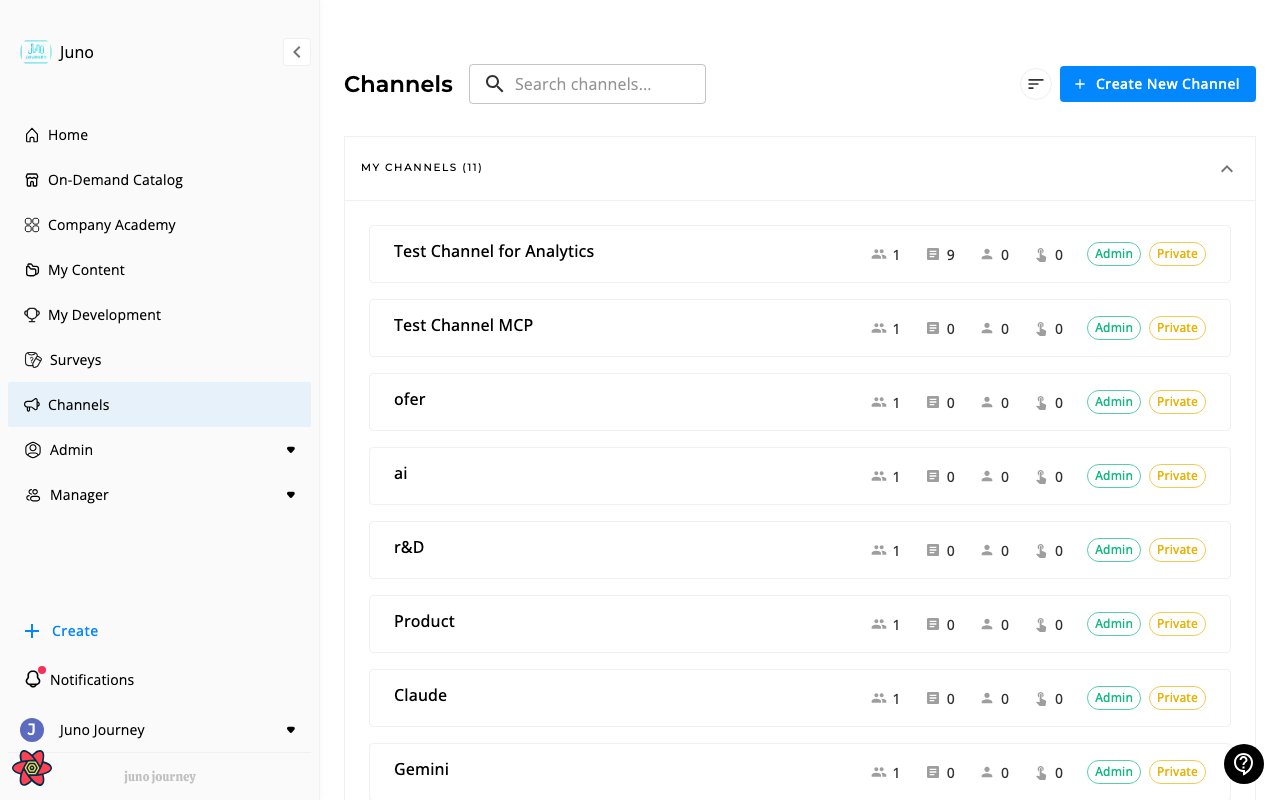
**Channels** are curated content collections organized around a theme, team, or initiative. They group courses, articles, and documents for easy discovery. Access them at **Channels** (`/channels`).
 ***
## Inside a channel
* **Overview** — a welcome page with a custom description, goals, or quick links for the channel
* **Content** — courses and units organized by topics
* **Topics** — hierarchical categories within the channel
* **Members** — who has access
***
## Channel overview
The **Overview** is a customizable landing page that members see when they open a channel. Use it to explain the channel's purpose, highlight featured content, link to important resources, or set expectations for new members.
**When to use it:**
* Onboarding new members to a team or topic-specific channel
* Pinning ground rules, goals, or schedules at the top of a channel
* Linking to a kickoff video, syllabus, or external resource
**Configure the overview:**
1. Open the channel
2. Go to channel settings → **Advanced settings**
3. Edit the **Overview** field with a description, instructions, or links
4. Save
The overview appears at the top of the channel for all members. Update it any time as the channel evolves.
***
## Channel types
| Type | Visibility |
| ----------- | ------------------------------ |
| **Public** | All users in your organization |
| **Private** | Invited members only |
***
## Creating a channel
1. Go to **Channels** → **Create Channel**
2. Set name, description, and icon
3. Configure privacy (public/private)
4. Add members — manually or by group
5. Start adding content
***
## Roles
| Role | Capabilities |
| ----------- | ----------------------------------------------------- |
| **Creator** | Full control, can delete channel |
| **Admin** | Invite members, add/remove content |
| **Member** | View content; may contribute if channel policy allows |
***
## Member management
You can grow a channel's audience after it's created from the **Members** tab.
* **Manual invite** — add users individually by name or email
* **Invite a group** — pick one or more groups and every current and future member gains access
* **Auto-assign** — optionally include all users in the org
### Invite a group to a channel
Use this when you want a whole team, department, or cohort to follow a channel without picking users one by one. Anyone you add to the group later automatically gains channel access.
1. Open the channel and go to **Members** → **Invite**
2. Select the **Groups** tab in the invite dialog
3. Search for and select the groups you want to add
4. Select the role to assign (Member or Admin)
5. Select **Invite** to send the invitations
Group-based invites stay in sync with the group. Remove a user from the group and they lose channel access on the next sync, unless they were also invited directly.
***
## Slack integration
Channels can connect to a **Slack channel** for cross-posting. Contact your admin to enable this integration.
***
## Pinned channels
Pin your favorite channels for quick access from the [Knowledge Hub](/collaboration/knowledge-hub).
***
## Inside a channel
* **Overview** — a welcome page with a custom description, goals, or quick links for the channel
* **Content** — courses and units organized by topics
* **Topics** — hierarchical categories within the channel
* **Members** — who has access
***
## Channel overview
The **Overview** is a customizable landing page that members see when they open a channel. Use it to explain the channel's purpose, highlight featured content, link to important resources, or set expectations for new members.
**When to use it:**
* Onboarding new members to a team or topic-specific channel
* Pinning ground rules, goals, or schedules at the top of a channel
* Linking to a kickoff video, syllabus, or external resource
**Configure the overview:**
1. Open the channel
2. Go to channel settings → **Advanced settings**
3. Edit the **Overview** field with a description, instructions, or links
4. Save
The overview appears at the top of the channel for all members. Update it any time as the channel evolves.
***
## Channel types
| Type | Visibility |
| ----------- | ------------------------------ |
| **Public** | All users in your organization |
| **Private** | Invited members only |
***
## Creating a channel
1. Go to **Channels** → **Create Channel**
2. Set name, description, and icon
3. Configure privacy (public/private)
4. Add members — manually or by group
5. Start adding content
***
## Roles
| Role | Capabilities |
| ----------- | ----------------------------------------------------- |
| **Creator** | Full control, can delete channel |
| **Admin** | Invite members, add/remove content |
| **Member** | View content; may contribute if channel policy allows |
***
## Member management
You can grow a channel's audience after it's created from the **Members** tab.
* **Manual invite** — add users individually by name or email
* **Invite a group** — pick one or more groups and every current and future member gains access
* **Auto-assign** — optionally include all users in the org
### Invite a group to a channel
Use this when you want a whole team, department, or cohort to follow a channel without picking users one by one. Anyone you add to the group later automatically gains channel access.
1. Open the channel and go to **Members** → **Invite**
2. Select the **Groups** tab in the invite dialog
3. Search for and select the groups you want to add
4. Select the role to assign (Member or Admin)
5. Select **Invite** to send the invitations
Group-based invites stay in sync with the group. Remove a user from the group and they lose channel access on the next sync, unless they were also invited directly.
***
## Slack integration
Channels can connect to a **Slack channel** for cross-posting. Contact your admin to enable this integration.
***
## Pinned channels
Pin your favorite channels for quick access from the [Knowledge Hub](/collaboration/knowledge-hub).