> ## Documentation Index
> Fetch the complete documentation index at: https://docs.junojourney.com/llms.txt
> Use this file to discover all available pages before exploring further.
# Events Calendar
> Visual calendar view of all events — day, week, month, and 3-month views.
export const FeatureAvailability = ({module, feature}) => {
const label = feature || module;
return
{label ? <>This feature requires the {label} module. : <>This feature may not be enabled for your organization. }
If you don't see it in Juno, contact your administrator.
;
};
## Calendar views
The Events Calendar shows all scheduled sessions in a visual layout. Access it from **Create & Collaborate → Events Calendar**.
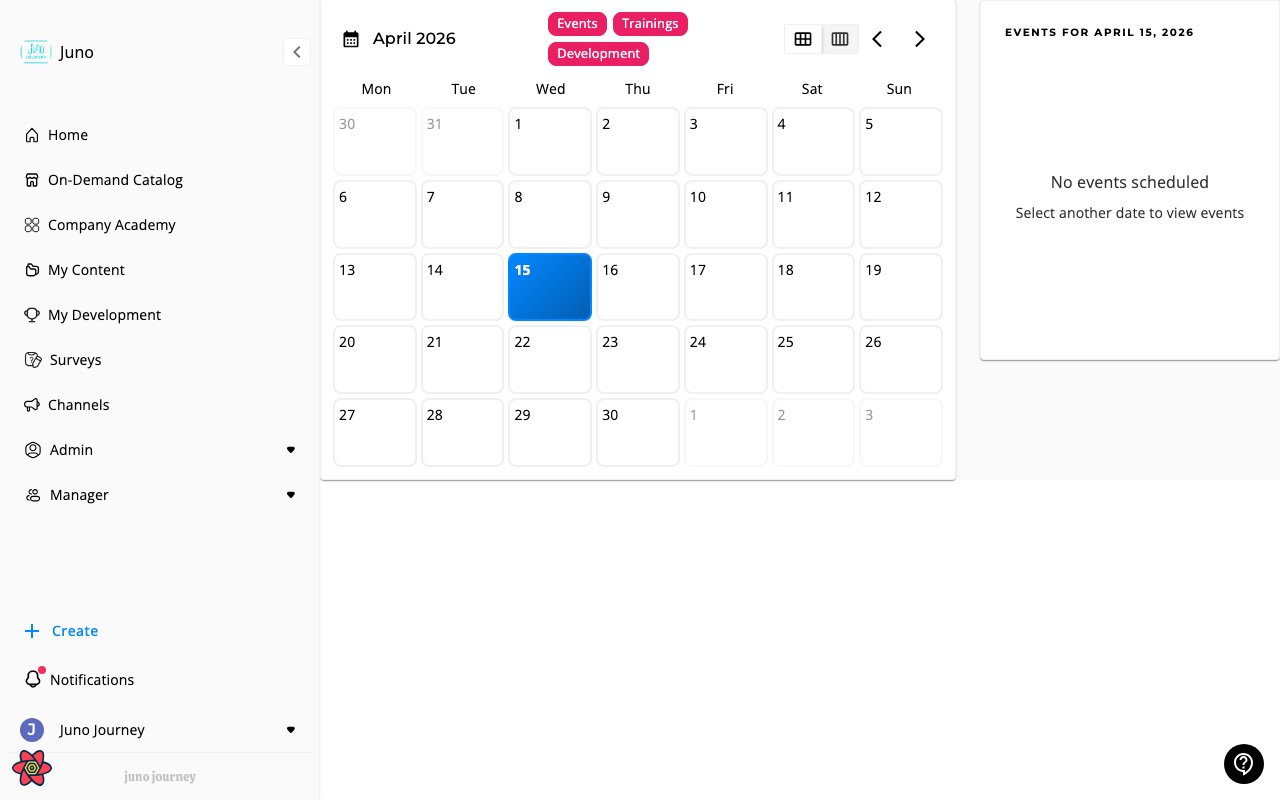 | View | What it shows |
| ----------- | --------------------------------------------- |
| **Day** | Single day hourly timeline |
| **Week** | 7-day grid (6 AM – 11 PM) with session blocks |
| **Month** | Full month with event indicators |
| **3-Month** | High-level overview across three months |
***
## Color coding
Events are color-coded by type: **Workshop** (indigo), **ILT** (amber), **Webinar** (green), **Event** (pink).
***
## Filtering
Open the sidebar filter panel to show or hide events by type, instructor, location, or room. You can also overlay your **Google Calendar** if connected — see [Calendar Sync](/events/calendar-sync).
### Quick filters in the sidebar
The events sidebar includes a quick-filter button next to the search box. Select the filter icon to expand a panel with chip-based filters that narrow the events list in place:
* **Type** — toggle one or more event types (**Workshop**, **ILT**, **Webinar**, **Event**). The sidebar only shows events whose type matches a selected chip.
* **Labels** — toggle one or more event labels configured for your account. Labels are color-coded; selecting a label dims unmatched events out of the list. When you have more than four labels, select **+N more** to open the overflow popover with the remaining labels.
A dot on the filter icon indicates that one or more chips are active. Select the same chip again to clear it, or collapse the panel to keep the active filters but hide the controls. Quick filters apply only to the sidebar list — calendar grid filtering still uses the main filter panel above.
***
## Session details
Click any session to open a details drawer: title, time, timezone, attendees, waitlist, video conference link, and RSVP buttons.
***
## For admins
Admins can manage events directly from the calendar:
* **Create sessions** — including recurring sessions (daily, weekly, monthly, yearly)
* **Reschedule** — drag sessions to new time slots
* **Check room availability** — see room calendars before scheduling
***
## Notifying attendees about session changes
When you edit a session's key details — such as date, time, timezone, location, room, or video conference link — Juno asks whether to notify the people already registered for that session.
After you save changes to a session's date, time, or location, a confirmation dialog appears with two options:
| Option | What it does |
| -------------------------- | --------------------------------------------------------------------------------------------------------------------------------------- |
| **Notify attendees** | Saves the changes and sends a notification to everyone registered for the session, including waitlisted users, summarizing what changed |
| **Save without notifying** | Saves the changes silently — useful for typo fixes or low-impact edits that don't need to interrupt learners |
The notification includes the session title, the fields that changed (before and after values), and a link back to the event so attendees can review the updates and re-confirm their RSVP if needed.
Use **Notify attendees** whenever a change affects whether or how someone joins — rescheduled times, a new room, or a different video conference provider. Skip the notification for cosmetic edits like fixing a typo in the description.
The same prompt appears when you edit sessions from the **Event detail page** (in the session header or the General settings tab) and from the **Events Calendar** drawer.
If attendees have connected Google Calendar or Microsoft Outlook, Juno also pushes the updated session to their external calendars regardless of which option you choose. This dialog only controls in-app, email, and chat notifications.
| View | What it shows |
| ----------- | --------------------------------------------- |
| **Day** | Single day hourly timeline |
| **Week** | 7-day grid (6 AM – 11 PM) with session blocks |
| **Month** | Full month with event indicators |
| **3-Month** | High-level overview across three months |
***
## Color coding
Events are color-coded by type: **Workshop** (indigo), **ILT** (amber), **Webinar** (green), **Event** (pink).
***
## Filtering
Open the sidebar filter panel to show or hide events by type, instructor, location, or room. You can also overlay your **Google Calendar** if connected — see [Calendar Sync](/events/calendar-sync).
### Quick filters in the sidebar
The events sidebar includes a quick-filter button next to the search box. Select the filter icon to expand a panel with chip-based filters that narrow the events list in place:
* **Type** — toggle one or more event types (**Workshop**, **ILT**, **Webinar**, **Event**). The sidebar only shows events whose type matches a selected chip.
* **Labels** — toggle one or more event labels configured for your account. Labels are color-coded; selecting a label dims unmatched events out of the list. When you have more than four labels, select **+N more** to open the overflow popover with the remaining labels.
A dot on the filter icon indicates that one or more chips are active. Select the same chip again to clear it, or collapse the panel to keep the active filters but hide the controls. Quick filters apply only to the sidebar list — calendar grid filtering still uses the main filter panel above.
***
## Session details
Click any session to open a details drawer: title, time, timezone, attendees, waitlist, video conference link, and RSVP buttons.
***
## For admins
Admins can manage events directly from the calendar:
* **Create sessions** — including recurring sessions (daily, weekly, monthly, yearly)
* **Reschedule** — drag sessions to new time slots
* **Check room availability** — see room calendars before scheduling
***
## Notifying attendees about session changes
When you edit a session's key details — such as date, time, timezone, location, room, or video conference link — Juno asks whether to notify the people already registered for that session.
After you save changes to a session's date, time, or location, a confirmation dialog appears with two options:
| Option | What it does |
| -------------------------- | --------------------------------------------------------------------------------------------------------------------------------------- |
| **Notify attendees** | Saves the changes and sends a notification to everyone registered for the session, including waitlisted users, summarizing what changed |
| **Save without notifying** | Saves the changes silently — useful for typo fixes or low-impact edits that don't need to interrupt learners |
The notification includes the session title, the fields that changed (before and after values), and a link back to the event so attendees can review the updates and re-confirm their RSVP if needed.
Use **Notify attendees** whenever a change affects whether or how someone joins — rescheduled times, a new room, or a different video conference provider. Skip the notification for cosmetic edits like fixing a typo in the description.
The same prompt appears when you edit sessions from the **Event detail page** (in the session header or the General settings tab) and from the **Events Calendar** drawer.
If attendees have connected Google Calendar or Microsoft Outlook, Juno also pushes the updated session to their external calendars regardless of which option you choose. This dialog only controls in-app, email, and chat notifications.