> ## Documentation Index
> Fetch the complete documentation index at: https://docs.junojourney.com/llms.txt
> Use this file to discover all available pages before exploring further.
# Public event registration
> Let people register for an event without a Juno account, and give the event a designed page.
export const RelatedPages = ({pages = []}) => {
if (pages.length === 0) return null;
return <>
Related articles
{pages.map(page => )}
;
};
export const RoleBadge = ({roles = []}) => {
const colorMap = {
Admin: "yellow",
Manager: "blue",
Learner: "green",
"Co-editor": "purple"
};
return <>
{roles.map(role => {role}{" "})}
;
};
Share a link that lets people register for an event without signing in to Juno. Visitors register with their name and email, and see the event's designed page if you've made one live. This may not be enabled for your organization.
 ***
## Turn on public registration
You need to manage the event (its creator, a co-editor, or an events admin). The **Public registration** tab only shows when your workspace has public event pages turned on.
Open the event and select **Settings**, then the **Public registration** tab.
Switch on **Let anyone with the link register**.
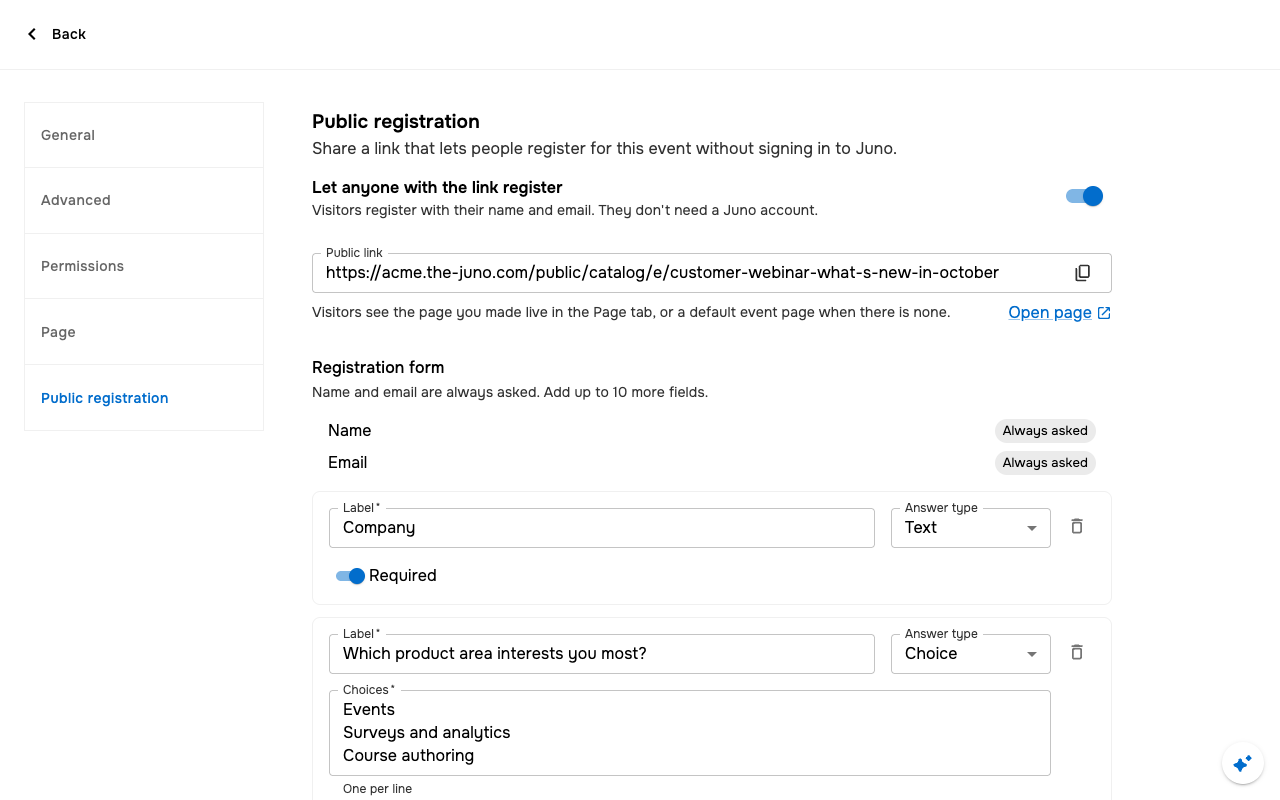
Name and email are always asked. Under **Registration form**, select **Add field** to ask up to 10 more questions. Each field has a **Label**, an **Answer type** (**Text** or **Choice**), and can be **Required**. A choice field takes up to 30 choices, one per line. Select **Save**.
Under **Public link**, select **Copy link**, or **Open page** to see what visitors see.
Visitors see the page you made live in the **Page** tab, or a default event page with the event's details and sessions when there is none. An archived event can't take public registrations.
***
## Design the event page
The **Page** tab holds the event's designed page: the page learners and visitors see when they open the event. Preview any version, make one live, or roll back to an earlier one. You can also add translated languages, like a channel or Company Academy page. Until a version is live, the event uses the default layout, and **Open learner view** shows it.
Your AI assistant designs the page: it saves each design as a draft version, and nothing goes live until you or the assistant makes it live. The page can show the event's sessions, a register button, the seats left, and a countdown to the next session, all kept up to date. See [MCP tools](/mcp/tools#events). This may not be enabled for your organization.
***
## Turn on public registration
You need to manage the event (its creator, a co-editor, or an events admin). The **Public registration** tab only shows when your workspace has public event pages turned on.
Open the event and select **Settings**, then the **Public registration** tab.
Switch on **Let anyone with the link register**.
Name and email are always asked. Under **Registration form**, select **Add field** to ask up to 10 more questions. Each field has a **Label**, an **Answer type** (**Text** or **Choice**), and can be **Required**. A choice field takes up to 30 choices, one per line. Select **Save**.
Under **Public link**, select **Copy link**, or **Open page** to see what visitors see.
Visitors see the page you made live in the **Page** tab, or a default event page with the event's details and sessions when there is none. An archived event can't take public registrations.
***
## Design the event page
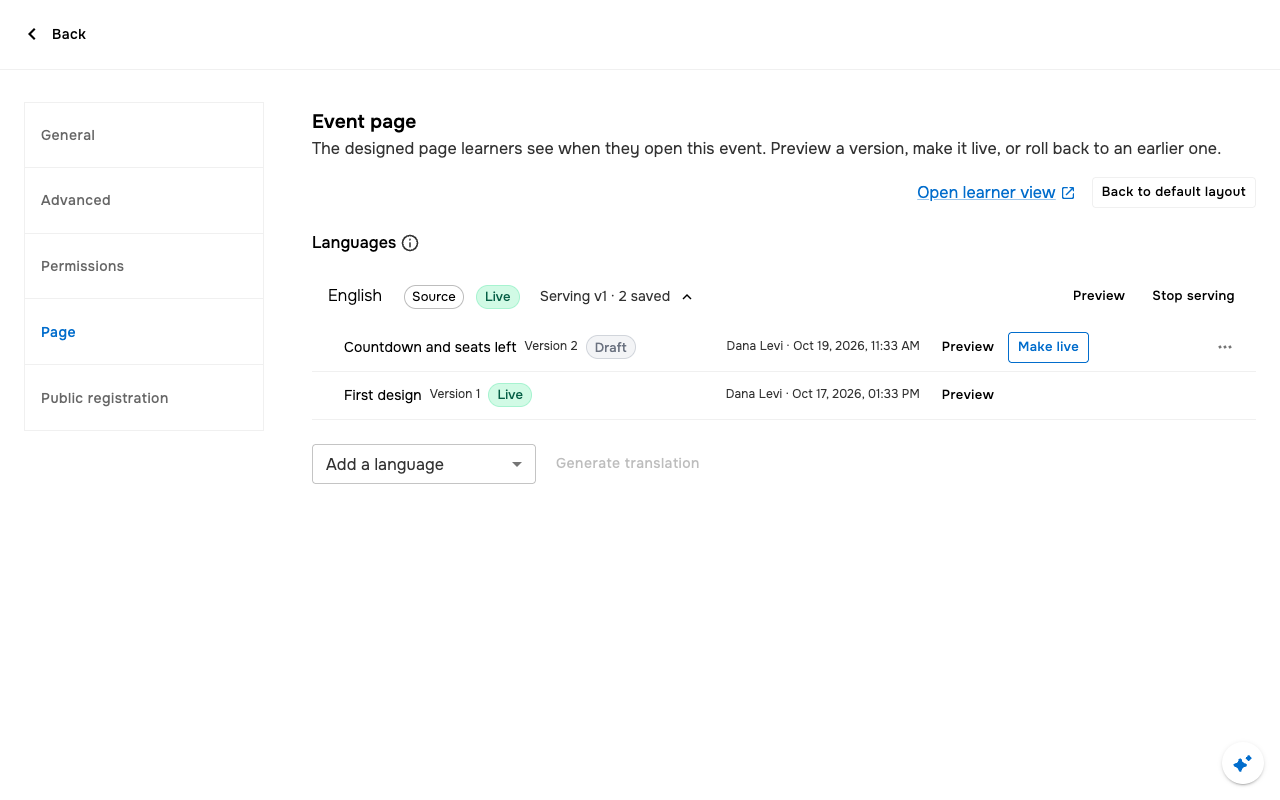
The **Page** tab holds the event's designed page: the page learners and visitors see when they open the event. Preview any version, make one live, or roll back to an earlier one. You can also add translated languages, like a channel or Company Academy page. Until a version is live, the event uses the default layout, and **Open learner view** shows it.
Your AI assistant designs the page: it saves each design as a draft version, and nothing goes live until you or the assistant makes it live. The page can show the event's sessions, a register button, the seats left, and a countdown to the next session, all kept up to date. See [MCP tools](/mcp/tools#events). This may not be enabled for your organization.
 ***
## Run events with your AI assistant
Your assistant can create, read, list, and update events you manage, and copy an existing event, through the Juno MCP server. See [MCP tools](/mcp/tools#events).
This documentation is built and hosted on [Mintlify](https://mintlify.com), a developer documentation platform.
***
## Run events with your AI assistant
Your assistant can create, read, list, and update events you manage, and copy an existing event, through the Juno MCP server. See [MCP tools](/mcp/tools#events).
This documentation is built and hosted on [Mintlify](https://mintlify.com), a developer documentation platform.