> ## Documentation Index
> Fetch the complete documentation index at: https://docs.junojourney.com/llms.txt
> Use this file to discover all available pages before exploring further.
# First Login
> How to log in to Juno for the first time and set up your profile.
export const SupportContact = () => {
return
Contact us at support@junojourney.com or use the support widget in Juno.
;
};
export const InternalNote = ({children}) => {
const [isInternal, setIsInternal] = useState(false);
useEffect(() => {
const user = window.__mintlify_user__;
if (user?.groups?.includes("internal")) setIsInternal(true);
}, []);
if (!isInternal) return null;
return
🔒 Internal Note
{children}
;
};
## Logging in
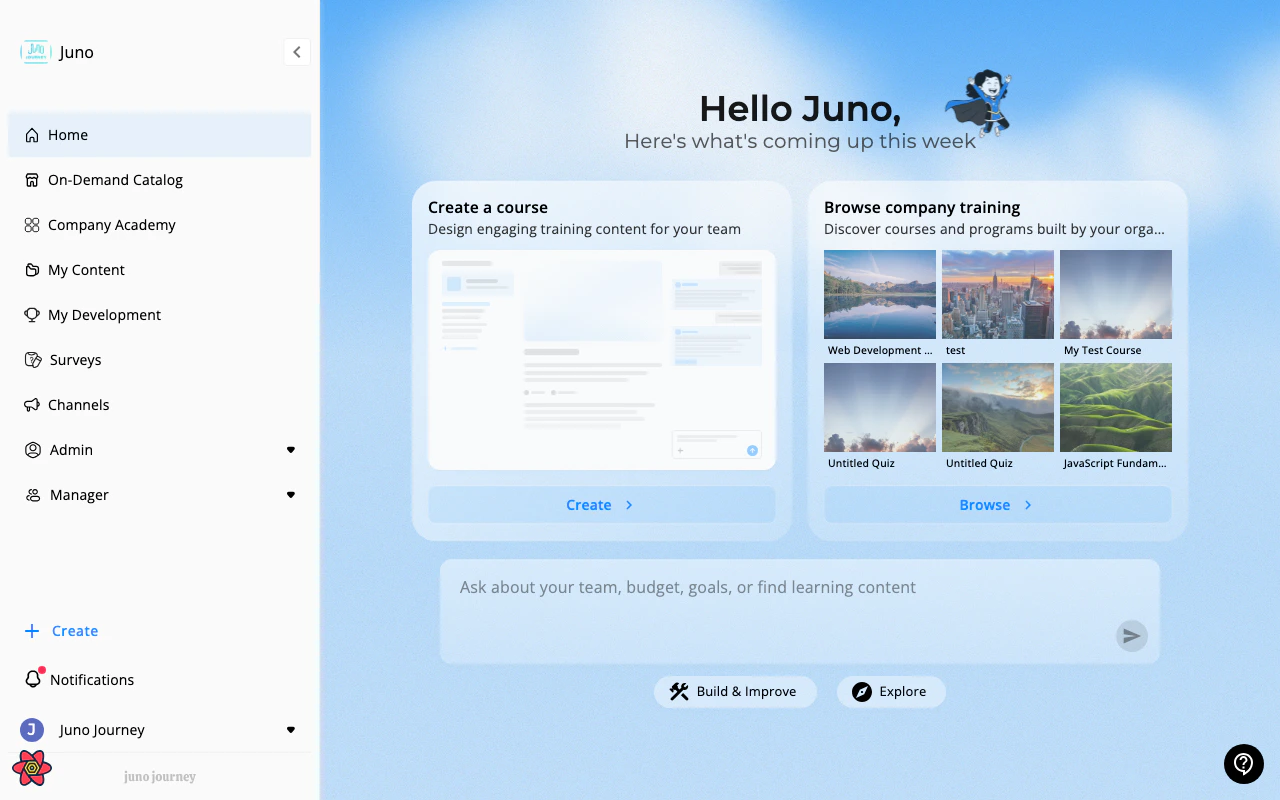
Your admin will provide you with a Juno URL. Navigate there in any browser.
You'll see one of two login options depending on how your organization has configured Juno:
If your organization uses SSO (Google, LinkedIn, or SAML-based providers):
You'll be redirected to your organization's identity provider.
Use your usual work credentials — no separate Juno password needed.
You'll be redirected back to Juno and land on your home dashboard.
SSO users bypass email verification. If SSO login fails, check admin panel → Integrations → SSO and confirm the tenant's SAML configuration is active. The tenant ID in the SSO config must match the org slug.
If your organization uses email/password login:
Use the email address your admin registered you with.
If this is your first time, use the "Forgot password" link to receive a password reset email. Check your spam folder if it doesn't arrive within a few minutes.
Enter your email and password to access your dashboard.
Password reset uses Firebase Auth. If the email doesn't arrive: check Firebase console → confirm the user exists under the correct tenant. Common issue: user was created under the wrong tenant.
## Your profile
Most profile attributes (name, department, job title, manager) are **synced automatically** from your organization's HR system. You don't need to set them up manually.
To view or update your profile, click your **avatar at the bottom-left of the sidebar**.
### What you can manage on your profile
| Section | What it is |
| ------------------------ | ---------------------------------------------------------------------------------------------------------------------------------------------------- |
| **Profile photo** | Upload an image — used across the platform (comments, leaderboards, mentions) |
| **Personal information** | View synced HR data (name, manager, department, job title) |
| **Skills** | Add the skills you have so the platform can recommend relevant content and goals — see [Competencies & Skills](/development/competencies-and-skills) |
| **Education** | Add degrees, schools, and graduation years |
| **Certifications** | Add external certifications (PMP, AWS, etc.) — separate from Juno-issued [Certifications](/learning/certifications) |
| **Projects** | Showcase work projects, side projects, and portfolio items |
| **Growth planning** | Quick access to your [Personal Development Plan](/development/personal-development-plan) and goals |
| **Language preferences** | UI language (en, fr, he, and more) |
| **Sign out** | Sign out of Juno on this device |
Your profile is also where the platform builds its recommendations — adding skills and goals here improves AI-powered content suggestions.
 ## Trouble logging in?
See [Login Issues](/troubleshooting/login-issues) for common problems and fixes.
## Trouble logging in?
See [Login Issues](/troubleshooting/login-issues) for common problems and fixes.