> ## Documentation Index
> Fetch the complete documentation index at: https://docs.junojourney.com/llms.txt
> Use this file to discover all available pages before exploring further.
# External Tools (LTI)
> Connect external LTI 1.3 tools — quizzes, simulations, interactive content — and track completion and grades in Juno.
export const RelatedPages = ({pages = []}) => {
if (pages.length === 0) return null;
return <>
Related articles
{pages.map(page => )}
;
};
export const VideoWalkthrough = ({src, alt, caption}) => {
return
 ;
};
export const Prerequisites = ({items = []}) => {
return
{items.length > 0 &&
;
};
export const Prerequisites = ({items = []}) => {
return
{items.length > 0 &&
{items.map((item, index) => - {item}
)}
}
;
};
export const RoleBadge = ({roles = []}) => {
const colorMap = {
Admin: "yellow",
Manager: "blue",
Learner: "green",
"Co-editor": "purple"
};
return <>
{roles.map(role => {role}{" "})}
;
};
export const FeatureAvailability = ({module, feature}) => {
const label = feature || module;
return
{label ? <>This feature requires the {label} module. : <>This feature may not be enabled for your organization. }
If you don't see it in Juno, contact your administrator.
;
};
External tools let you add learning that lives in another system — an interactive quiz, a simulation, a specialized content provider — and have it behave like any other Unit in Juno: learners launch it in one click, and their score comes back to mark the Unit complete.
## What is LTI?
**LTI** (Learning Tools Interoperability) is an education industry standard for connecting an LMS to external learning tools. Juno supports **LTI 1.3**, the current secure version built on OpenID Connect.
When you connect an LTI tool, Juno becomes the **platform**: it signs learners into the external tool (so they don't log in again) and receives their results back automatically.
An LTI tool appears in Juno as an **LTI Unit** — a single piece of learning you place inside a Journey, just like a course, video, or SCORM package.
```mermaid theme={null}
flowchart LR
L((Learner)) -->|opens the LTI Unit| J["Juno
(your LMS)"]
J ==>|"1 · Launch — secure sign-on:
who is learning + which activity"| T["External LTI tool
quiz · simulation · content"]
T ==>|"2 · Grade sent back →
Unit marked complete"| J
classDef juno fill:#a5d8ff,stroke:#2563eb;
classDef tool fill:#b2f2bb,stroke:#15803d;
class J juno
class T tool
```
***
## How a learner takes an LTI Unit
The learner opens the LTI Unit in a Journey and selects **Launch content**.
Juno signs the learner into the external tool and opens it in an embedded frame (or a new tab). No separate login is needed.
The learner works through the activity in the external tool at their own pace.
When the tool reports a result, Juno records the grade and marks the Unit complete — the Journey progress updates automatically.
***
## Completion and grading
The external tool decides when the activity is done and what score to send. Juno supports two evaluation methods, set when you create the LTI Unit:
| Method | How it works |
| --------------------------- | ----------------------------------------------------------------------------------------- |
| **By completion** (default) | The Unit is marked complete as soon as the tool reports the activity finished. |
| **By score** | The Unit is marked complete only when the returned grade meets the minimum score you set. |
The grade and completion are recorded against the learner's progress. If a learner finished the activity in the external tool but Juno still shows it incomplete, the tool may not have sent its result yet — see [Troubleshooting](#troubleshooting).
***
## Before you start
Connecting an LTI tool is a **two-way exchange**: you give Juno a few details about the tool, and Juno gives you back identifiers and URLs to paste into the tool. You only do this once per tool.
***
## Registering an external tool
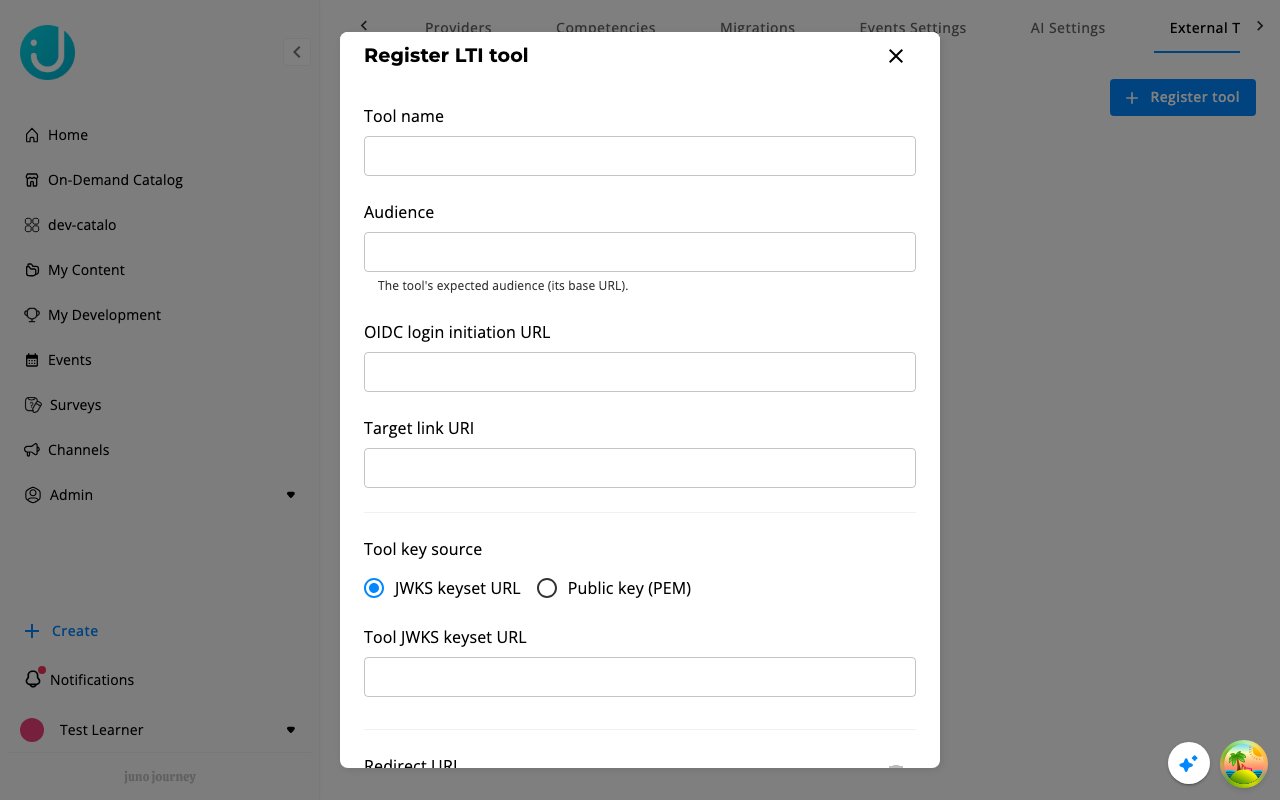
Go to **Admin → Settings → External Tools (LTI)** and select **Register tool**.
Fill in the tool name, its audience, OIDC login URL, target link (launch) URL, at least one redirect URI, and the tool's key source — either a **JWKS keyset URL** or a **public key (PEM)**. Save.
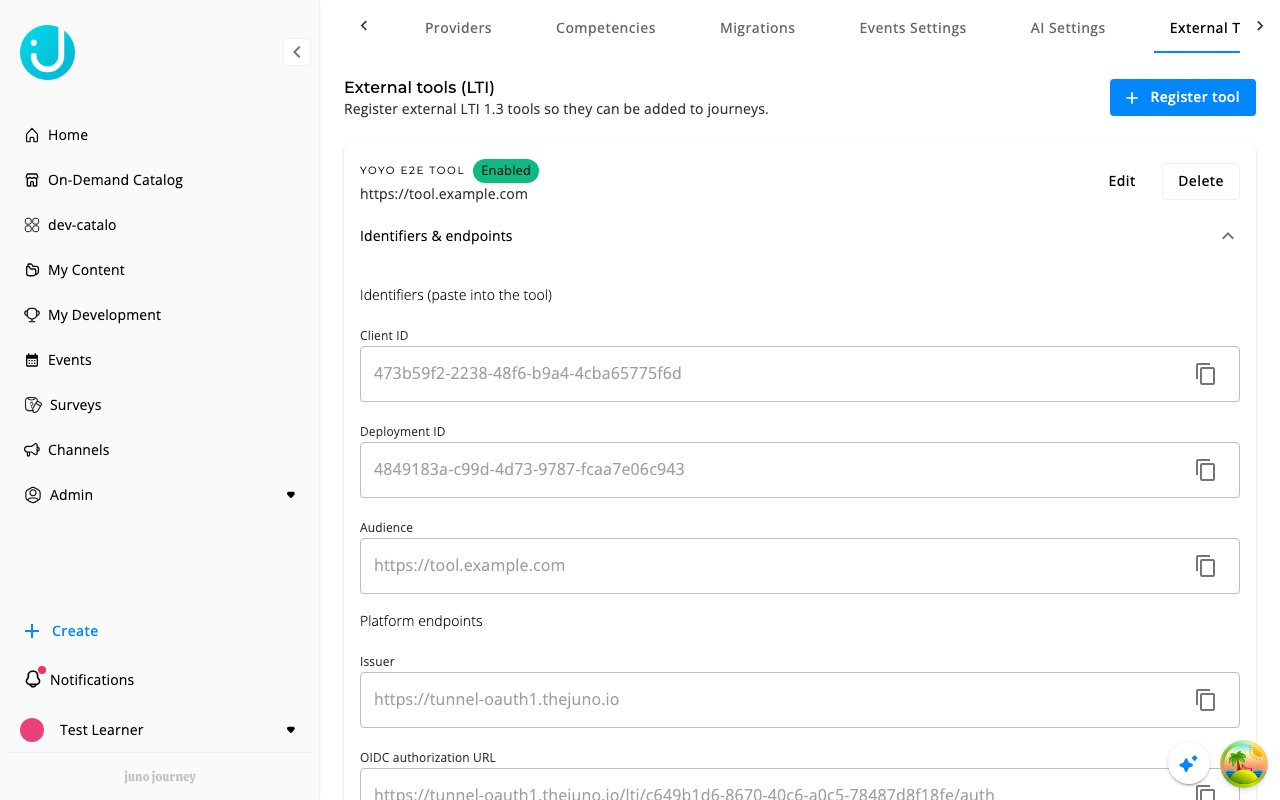
Expand **Identifiers & endpoints** on the saved tool. Copy the generated **Client ID**, **Deployment ID**, and the platform endpoint URLs (issuer, authorization, access token, public JWKS) into the external tool's LTI configuration.
Most tools provide a test launch. A successful test confirms both sides are wired correctly.
 After saving, expand **Identifiers & endpoints** on the tool to copy the generated Client ID, Deployment ID, and platform endpoint URLs into the external tool:
 Keep the registration **Enabled**. A disabled registration blocks launches for every LTI Unit that uses it.
***
## Adding an LTI Unit to a Journey
In the Journey builder, select **+** to add a step, then choose **LTI tool**.
Give the Unit a title, pick the **External tool** from the list of registered tools, and choose the completion evaluation method (**By completion** or **By score**). Add optional custom parameters if the tool needs them — for example, a Moodle activity published as an LTI tool requires its `id` custom property, shown on Moodle's published-content page.
Create the Unit. It becomes step content in the Journey and is ready for learners to launch.
LTI Units are added from inside a **Journey** (the step picker), not from the standalone **Create** menu.
***
## Editing an LTI Unit
In the Journey builder, select the **edit** control on the LTI step. The settings dialog opens with the Unit's title, external tool, completion evaluation, and custom parameters — changes take effect on the learner's next launch.
***
## Troubleshooting
| Issue | Solution |
| -------------------------------------------- | ------------------------------------------------------------------------------------------------------------------------------------------------------------------------------------------------------------------------------------------------------------------------------------------ |
| Launch fails or the tool shows an error | Re-check that the platform identifiers (Client ID, Deployment ID, issuer, authorization/token/JWKS URLs) were copied into the tool exactly as shown in **Identifiers & endpoints**. |
| "Registration is disabled" | Re-enable the registration in **Admin → Settings → External Tools (LTI)**. |
| Learner finished but the Unit isn't complete | The tool hasn't sent a result yet, or **By score** is set and the grade is below the minimum. Many tools send grades on a schedule rather than instantly — Moodle, for example, syncs roughly every 30 minutes. Confirm the tool sends grades and check the evaluation method on the Unit. |
| Grade arrives but completion doesn't show | The learner must have opened (started) the Unit so progress exists for the result to attach to. Have the learner open the Unit, then re-send the score. |
***
Keep the registration **Enabled**. A disabled registration blocks launches for every LTI Unit that uses it.
***
## Adding an LTI Unit to a Journey
In the Journey builder, select **+** to add a step, then choose **LTI tool**.
Give the Unit a title, pick the **External tool** from the list of registered tools, and choose the completion evaluation method (**By completion** or **By score**). Add optional custom parameters if the tool needs them — for example, a Moodle activity published as an LTI tool requires its `id` custom property, shown on Moodle's published-content page.
Create the Unit. It becomes step content in the Journey and is ready for learners to launch.
LTI Units are added from inside a **Journey** (the step picker), not from the standalone **Create** menu.
***
## Editing an LTI Unit
In the Journey builder, select the **edit** control on the LTI step. The settings dialog opens with the Unit's title, external tool, completion evaluation, and custom parameters — changes take effect on the learner's next launch.
***
## Troubleshooting
| Issue | Solution |
| -------------------------------------------- | ------------------------------------------------------------------------------------------------------------------------------------------------------------------------------------------------------------------------------------------------------------------------------------------ |
| Launch fails or the tool shows an error | Re-check that the platform identifiers (Client ID, Deployment ID, issuer, authorization/token/JWKS URLs) were copied into the tool exactly as shown in **Identifiers & endpoints**. |
| "Registration is disabled" | Re-enable the registration in **Admin → Settings → External Tools (LTI)**. |
| Learner finished but the Unit isn't complete | The tool hasn't sent a result yet, or **By score** is set and the grade is below the minimum. Many tools send grades on a schedule rather than instantly — Moodle, for example, syncs roughly every 30 minutes. Confirm the tool sends grades and check the evaluation method on the Unit. |
| Grade arrives but completion doesn't show | The learner must have opened (started) the Unit so progress exists for the result to attach to. Have the learner open the Unit, then re-send the score. |
***