> ## Documentation Index
> Fetch the complete documentation index at: https://docs.junojourney.com/llms.txt
> Use this file to discover all available pages before exploring further.
# Amazon
> Request books and other Amazon items with your budget, and pay at Amazon checkout with your voucher or gift card.
export const SupportContact = () => {
return
Contact us at support@junojourney.com or open Support from your profile menu in Juno.
;
};
export const RelatedPages = ({pages = []}) => {
if (pages.length === 0) return null;
return <>
Related articles
{pages.map(page => )}
;
};
export const FeatureAvailability = ({module, feature}) => {
const label = feature || module;
return
{label ? <>This feature requires the {label} module. : <>This feature may not be enabled for your organization. }
If you don't see it in Juno, contact your administrator.
;
};
## Overview
You can request books and other learning items from Amazon with your budget. Once approved, you pay at Amazon checkout with your voucher (a virtual credit card), or Juno sends you an Amazon gift card.
***
## How to request
* **Free content**: open the item's page in the On-Demand Catalog and click **Enroll**. No request or budget is needed.
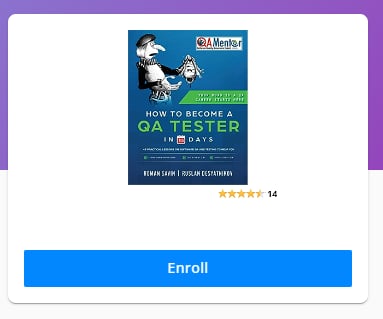 * **Paid content**: click **Enroll** to create a request and follow the steps in the pop-up. For items that aren't in the catalog, submit a [custom request](/budget/requests#custom-requests).
- **Multiple hardcover books**: create a separate request for each book. Amazon charges each book as a separate transaction.
- **Shipping costs**: for items that ship, such as hardcover books, check the shipping cost on Amazon first and include it in the amount you request.
***
## Pay with your voucher
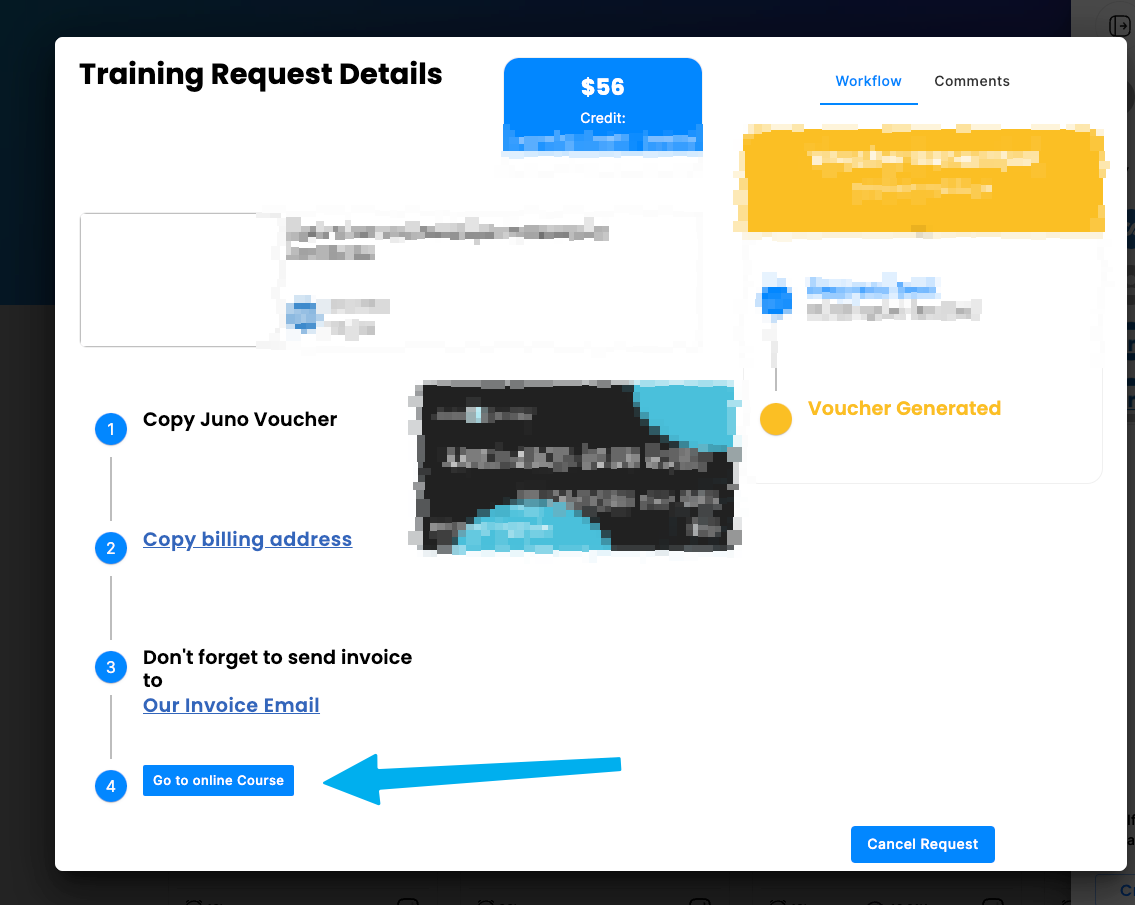
Once your request is approved, you get a voucher. It works like a regular credit card. You'll find the card details in the request dialog under **My Wallet**. See [Vouchers (Credit Cards)](/budget/vouchers) for how vouchers work.
In the request dialog, click **Go to online course**. Log in to Amazon, or create an account.
* **Paid content**: click **Enroll** to create a request and follow the steps in the pop-up. For items that aren't in the catalog, submit a [custom request](/budget/requests#custom-requests).
- **Multiple hardcover books**: create a separate request for each book. Amazon charges each book as a separate transaction.
- **Shipping costs**: for items that ship, such as hardcover books, check the shipping cost on Amazon first and include it in the amount you request.
***
## Pay with your voucher
Once your request is approved, you get a voucher. It works like a regular credit card. You'll find the card details in the request dialog under **My Wallet**. See [Vouchers (Credit Cards)](/budget/vouchers) for how vouchers work.
In the request dialog, click **Go to online course**. Log in to Amazon, or create an account.
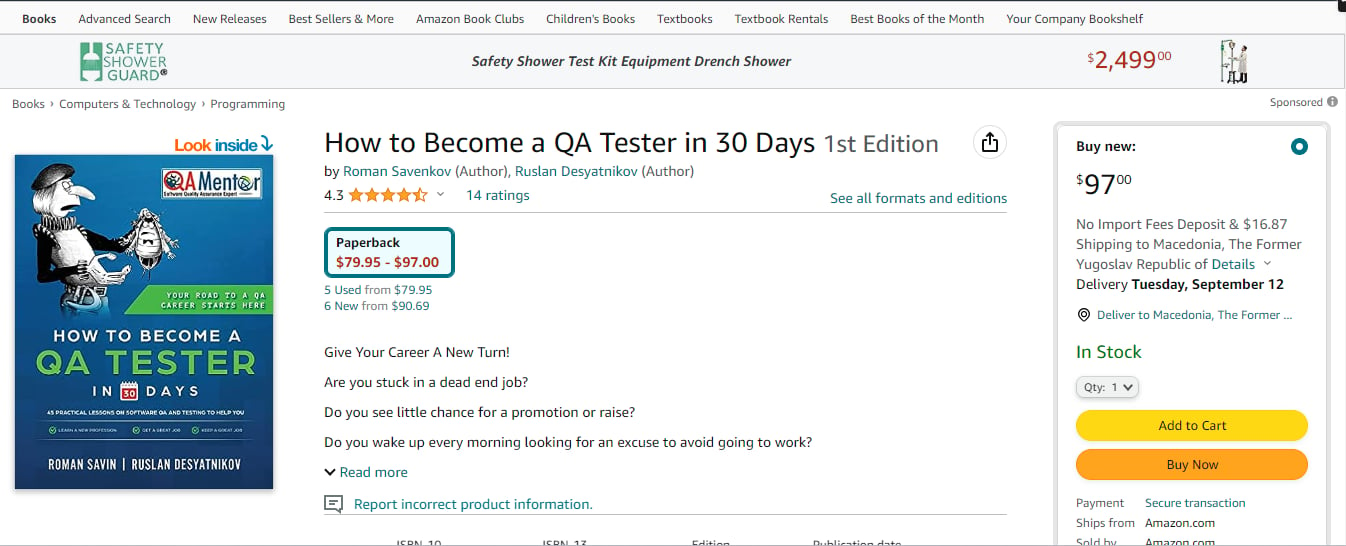
 On the item page, click **Buy Now**.
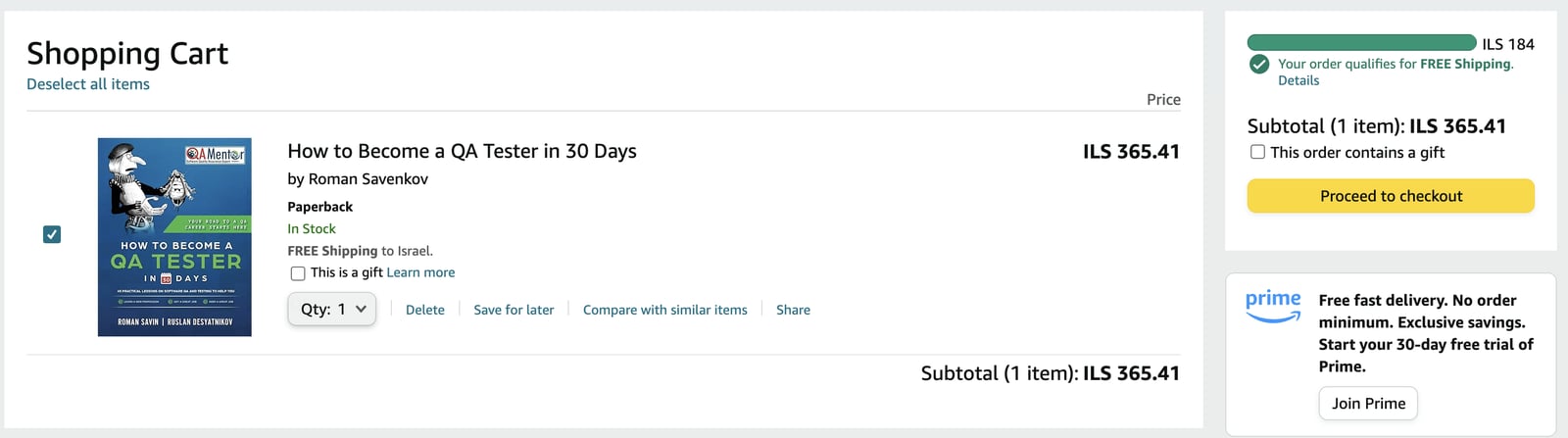
 If the item is in your cart, click **Proceed to checkout**.
 Under **Choose a shipping address**, select the address the item should go to. To ship to your office, click **Add a new address**.
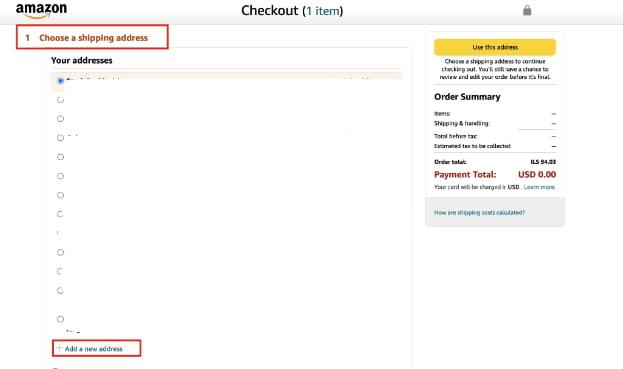 For physical items, double-check the shipping address. Change it if the item shouldn't go to your personal address.
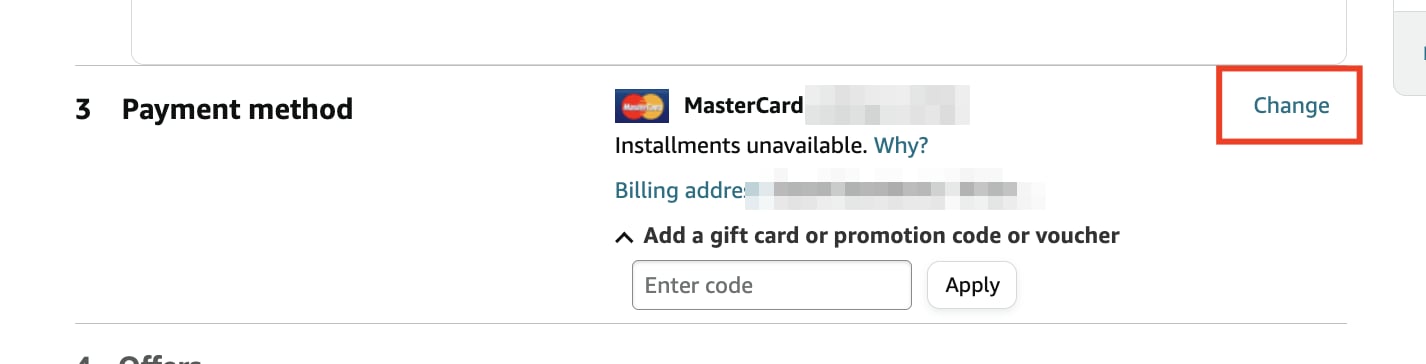
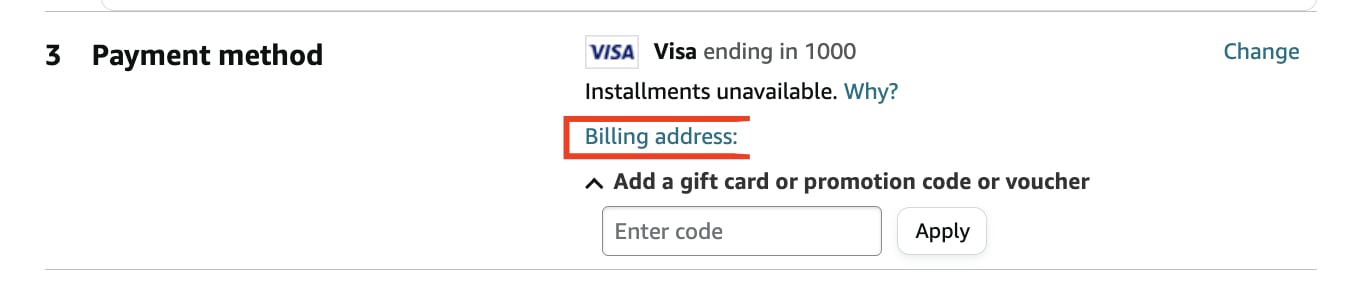
Under **Payment method**, click **Change**.
For physical items, double-check the shipping address. Change it if the item shouldn't go to your personal address.
Under **Payment method**, click **Change**.
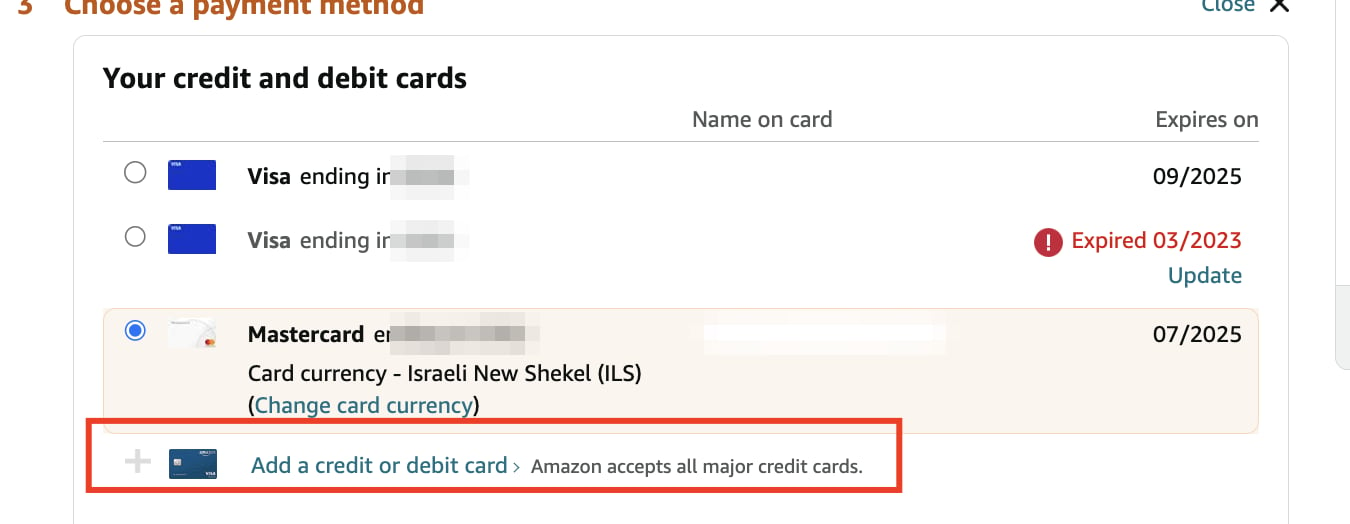
 Click **Add a credit or debit card**.
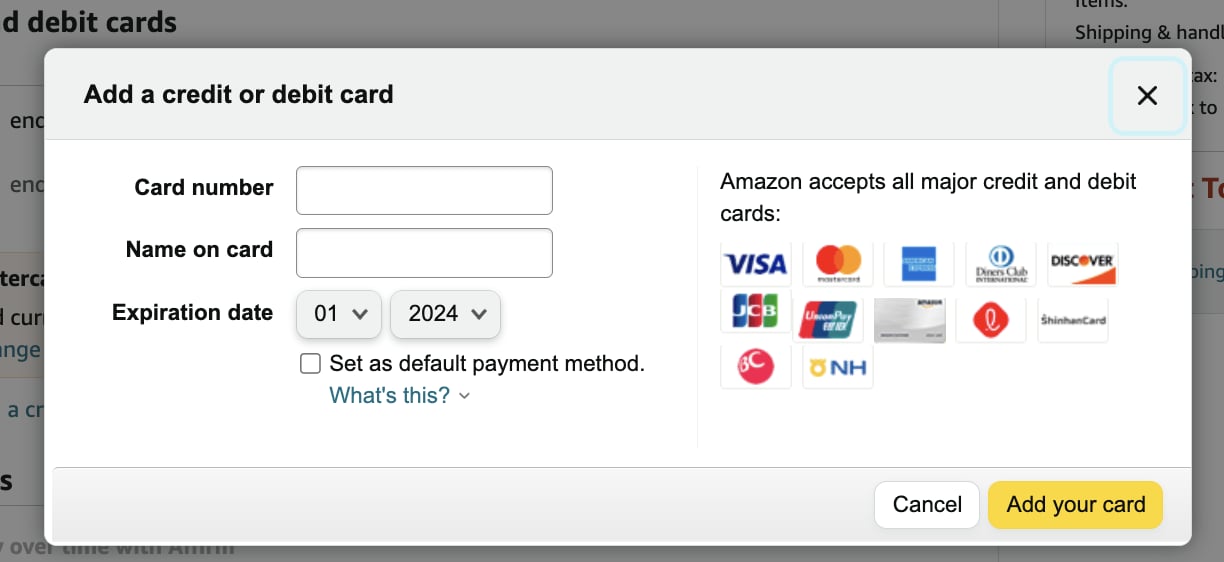
 Copy the card number, name, and expiration date from your voucher and paste them in.
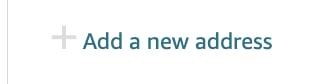
 Click **Billing address**, then **Add a new address**. Paste the billing address from your voucher (use **Copy billing address** in the request dialog) and click **Use this address**.
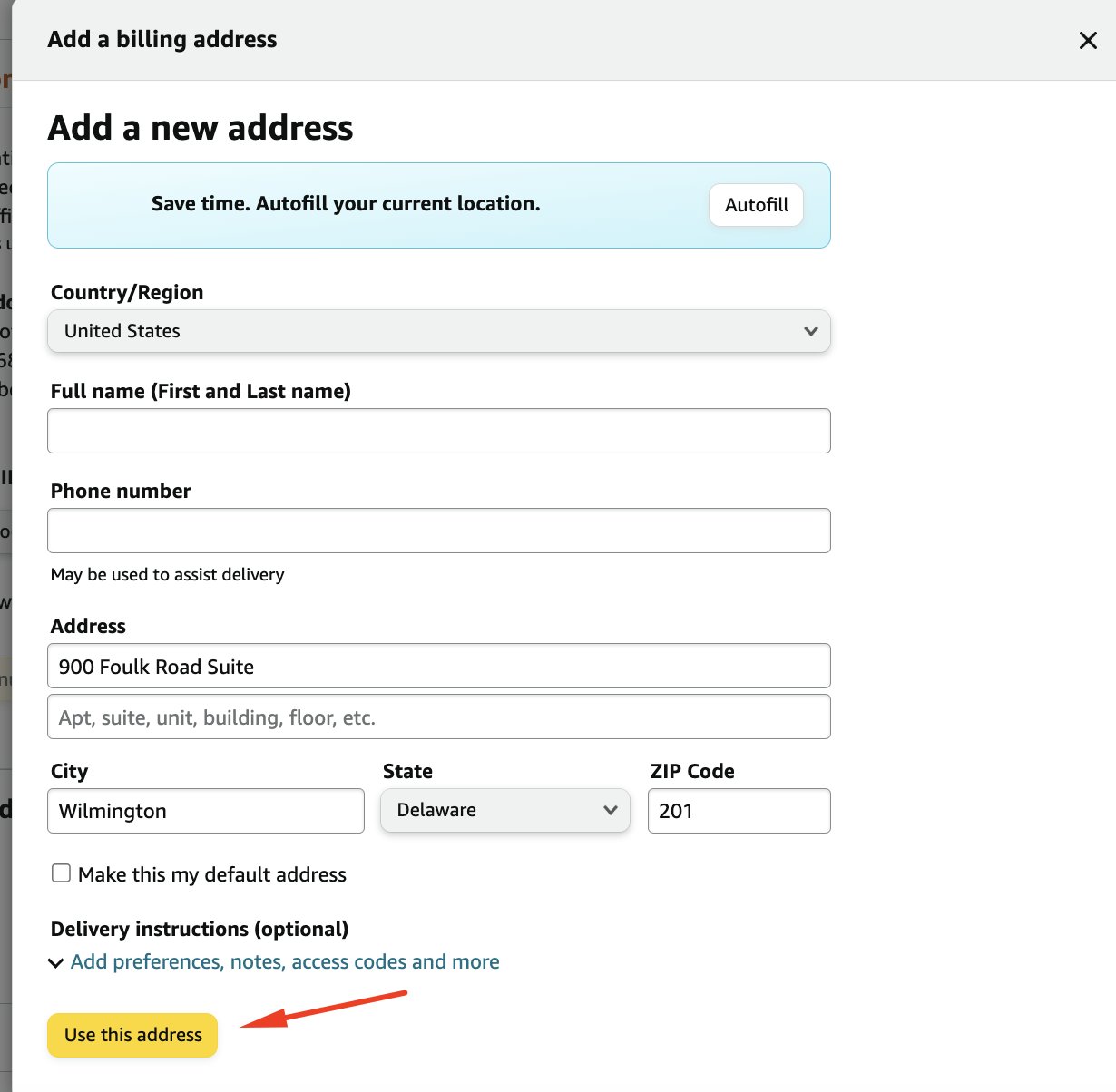 If you don't use the voucher's billing address, Amazon may decline the purchase.
Click **Continue** to complete your purchase.
If you don't use the voucher's billing address, Amazon may decline the purchase.
Click **Continue** to complete your purchase.
 ***
## Gift cards
In some cases, Juno sends an Amazon gift card instead of a voucher. When this happens:
* Your request status changes to **Purchase complete**, meaning Juno bought the gift card for you.
* You get an email with the gift card and instructions for redeeming it on Amazon.
If you don't see the gift card email, check your spam or junk folder.
***
## Invoice
After your purchase, Amazon emails you an invoice. Send it to Juno. To find the address, click **Our Invoice Email** at the bottom of the request dialog. See [Send your invoice](/budget/vouchers#send-your-invoice).
This documentation is built and hosted on [Mintlify](https://mintlify.com), a developer documentation platform.
***
## Gift cards
In some cases, Juno sends an Amazon gift card instead of a voucher. When this happens:
* Your request status changes to **Purchase complete**, meaning Juno bought the gift card for you.
* You get an email with the gift card and instructions for redeeming it on Amazon.
If you don't see the gift card email, check your spam or junk folder.
***
## Invoice
After your purchase, Amazon emails you an invoice. Send it to Juno. To find the address, click **Our Invoice Email** at the bottom of the request dialog. See [Send your invoice](/budget/vouchers#send-your-invoice).
This documentation is built and hosted on [Mintlify](https://mintlify.com), a developer documentation platform.