> ## Documentation Index
> Fetch the complete documentation index at: https://docs.junojourney.com/llms.txt
> Use this file to discover all available pages before exploring further.
# Coursera
> Audit Coursera courses for free, or request a course purchase or subscription with your budget.
export const SupportContact = () => {
return
Contact us at support@junojourney.com or open Support from your profile menu in Juno.
;
};
export const RelatedPages = ({pages = []}) => {
if (pages.length === 0) return null;
return <>
Related articles
{pages.map(page => )}
;
};
export const FeatureAvailability = ({module, feature}) => {
const label = feature || module;
return
{label ? <>This feature requires the {label} module. : <>This feature may not be enabled for your organization. }
If you don't see it in Juno, contact your administrator.
;
};
## Overview
Coursera offers courses, Projects, Specializations, and Professional Certificates taught by instructors from leading universities and companies. Depending on the course, a Coursera page in the On-Demand Catalog offers up to three options: **Audit** (free), **Purchase Course**, or a **Coursera Plus subscription**.
***
## Audit a course for free
If the course has an Audit option, you can take it without using your budget.
Audit access doesn't include a certificate, and it may not be available for Specializations or some courses.
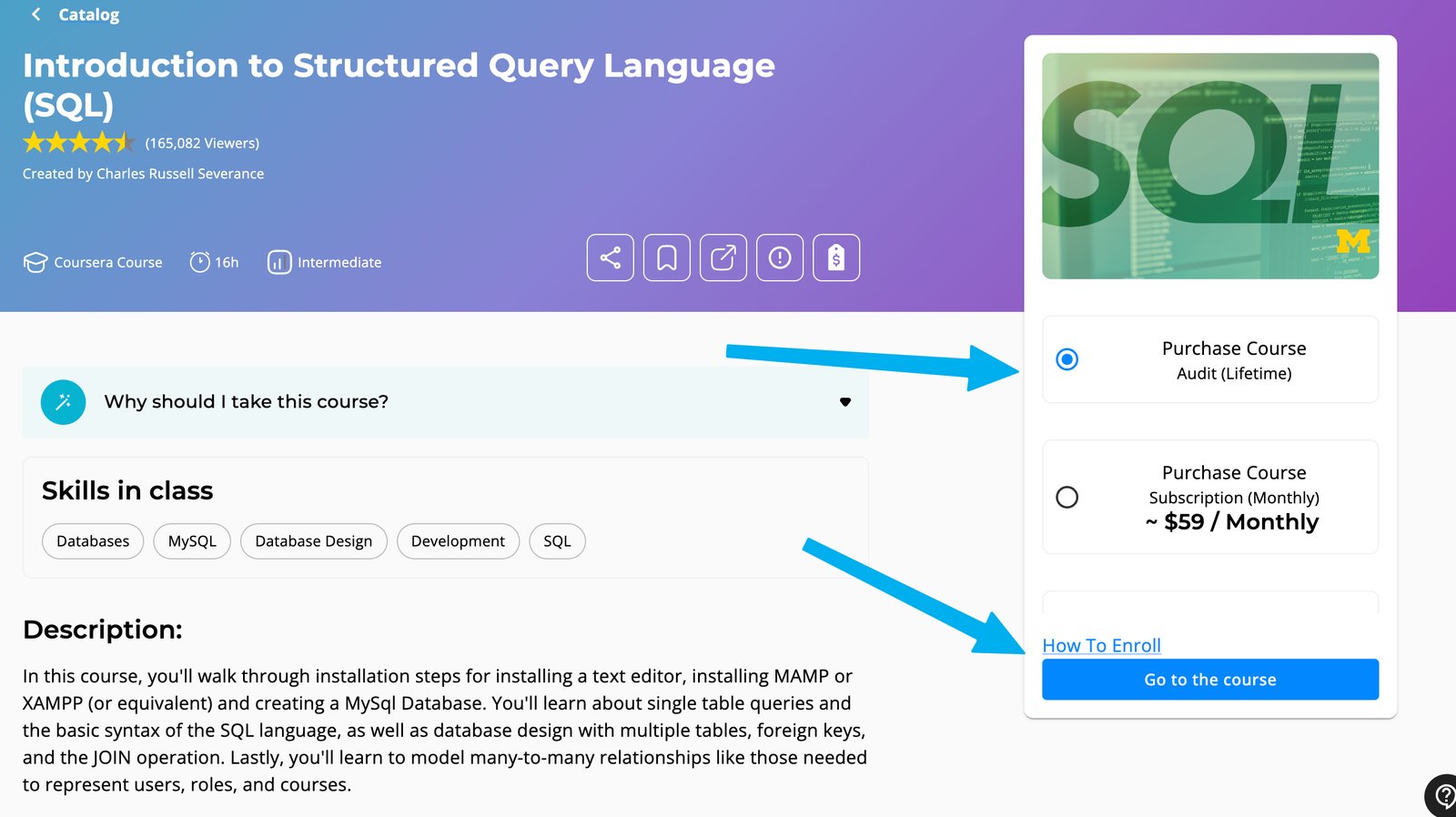
Open the course page in the On-Demand Catalog, select the **Audit** option, and click **Go to the course**.
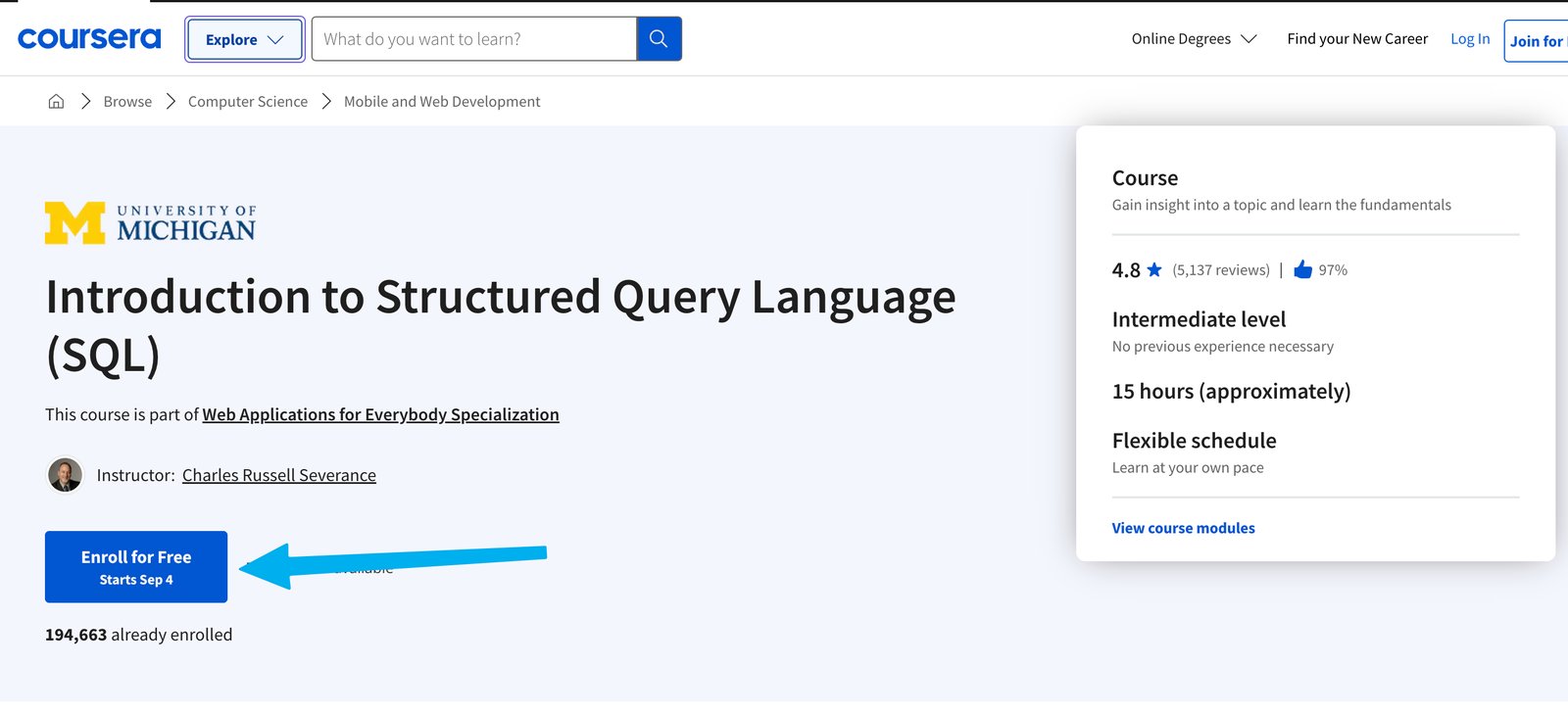
 On Coursera, sign in or create an account, then click **Enroll for Free**.
 In the window that opens, click **Audit** at the bottom.
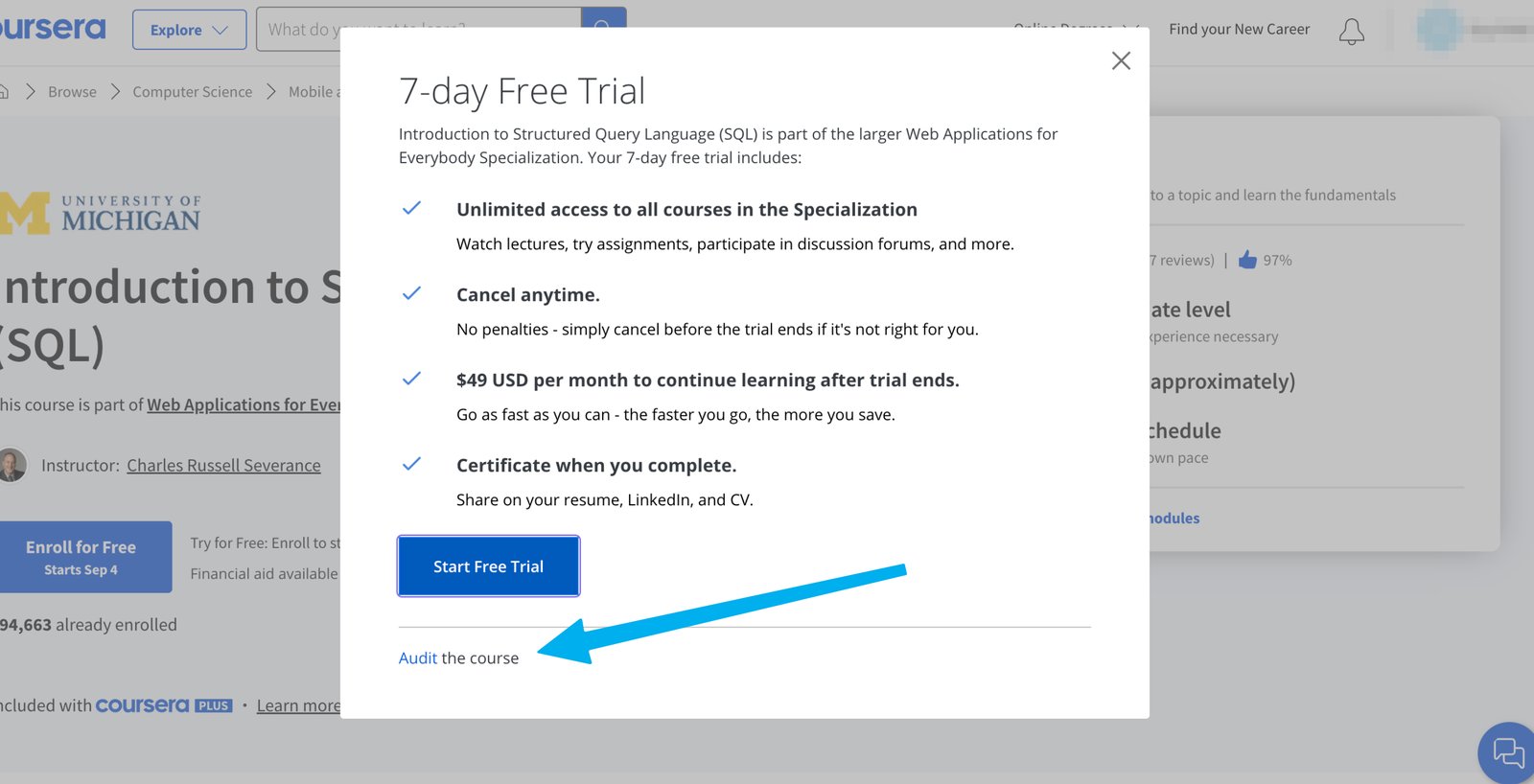 Clicking **Start Free Trial** instead of **Audit** starts a paid Coursera subscription when the trial ends.
***
## Request a course purchase
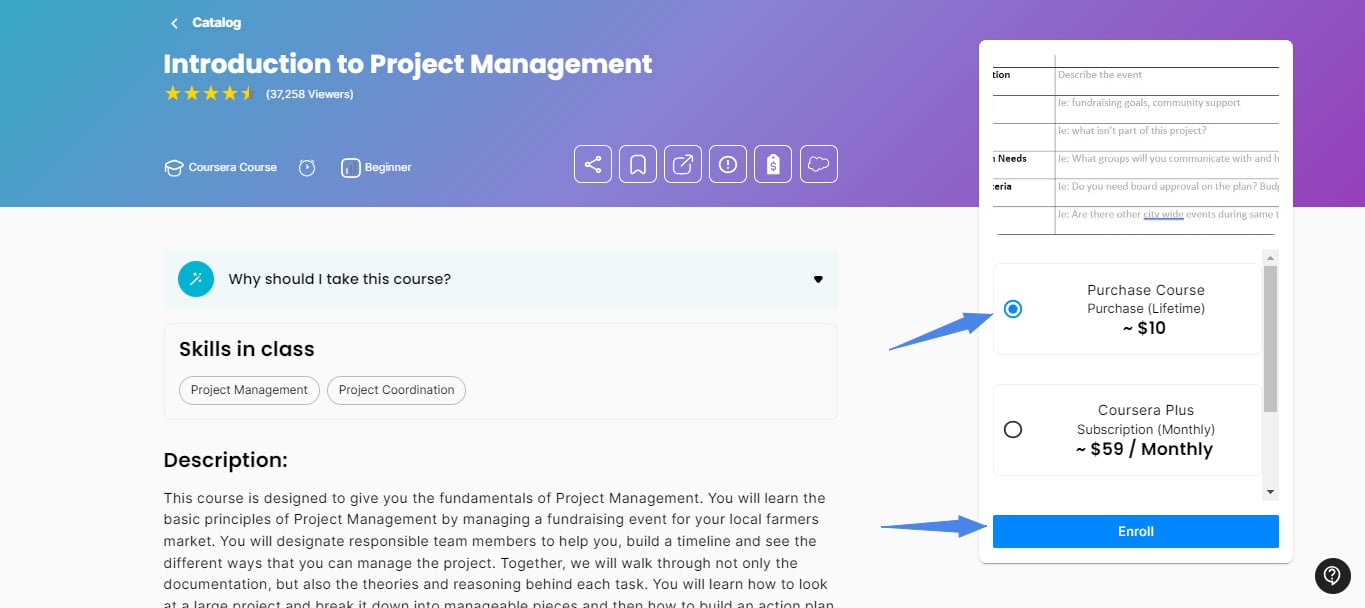
If the course can be bought on its own, select **Purchase Course** on the catalog page and click **Enroll** to create a request.
Clicking **Start Free Trial** instead of **Audit** starts a paid Coursera subscription when the trial ends.
***
## Request a course purchase
If the course can be bought on its own, select **Purchase Course** on the catalog page and click **Enroll** to create a request.
 ## Request a subscription
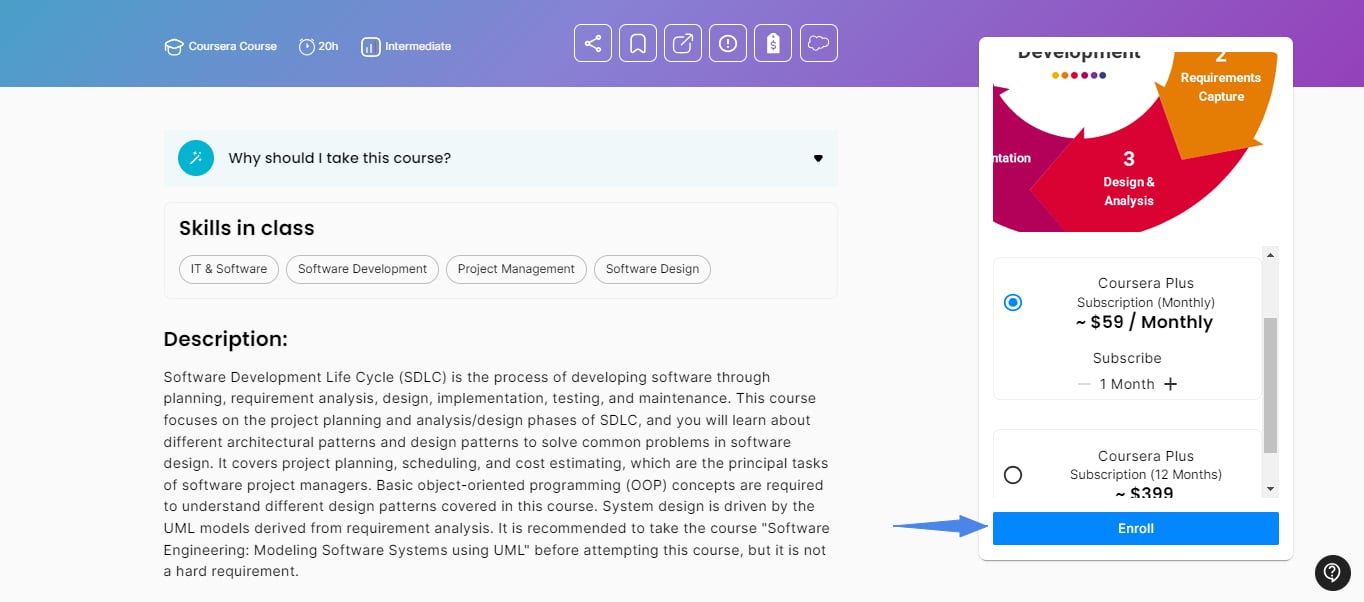
If the course requires a subscription, pick a Coursera Plus plan (monthly or annual) and click **Enroll** to create a request.
## Request a subscription
If the course requires a subscription, pick a Coursera Plus plan (monthly or annual) and click **Enroll** to create a request.
 If the course isn't in the catalog, submit a [custom request](/budget/requests#custom-requests) instead.
***
## After approval
Once your request is approved, it's fulfilled through the flow your organization uses for Coursera, typically a [provider voucher code](/budget/requests#provider-voucher-code). Open the request dialog from your home page card or from **My Wallet**, copy the code, click **Redeem on Coursera**, and enter the code at checkout. Then click **Mark as used**.
If your organization issues a virtual credit card instead of a code, follow [Vouchers (Credit Cards)](/budget/vouchers).
This documentation is built and hosted on [Mintlify](https://mintlify.com), a developer documentation platform.
If the course isn't in the catalog, submit a [custom request](/budget/requests#custom-requests) instead.
***
## After approval
Once your request is approved, it's fulfilled through the flow your organization uses for Coursera, typically a [provider voucher code](/budget/requests#provider-voucher-code). Open the request dialog from your home page card or from **My Wallet**, copy the code, click **Redeem on Coursera**, and enter the code at checkout. Then click **Mark as used**.
If your organization issues a virtual credit card instead of a code, follow [Vouchers (Credit Cards)](/budget/vouchers).
This documentation is built and hosted on [Mintlify](https://mintlify.com), a developer documentation platform.