

Assistants usually connect to Juno through a browser sign-in. CI pipelines, scheduled jobs, and scripts can’t open a browser — give them an MCP access token instead.
How access tokens work
- MCP only — the token works with the Juno MCP server and nothing else. The Juno REST API rejects it; to call the API, see API Overview.
- Acts as you — everything done with the token is done as the Admin who created it, with that Admin’s Juno permissions.
- Valid for 365 days — after that, create a new token.
- Revocable — revoke a token at any time and it stops working immediately.
- Tied to its creator — if the Admin who created it is deactivated, the token stops working.
Create a token
1
Open Developer Settings
Go to Admin → Security → Developer Settings and select Generate Personal Access Token.
2
Select MCP access
Select Connect AI assistants (MCP) on its own. An MCP access token can’t carry any of the other permissions in the list.
3
Name the token
Enter a Token name of up to 80 characters that says where the token is used — for example, 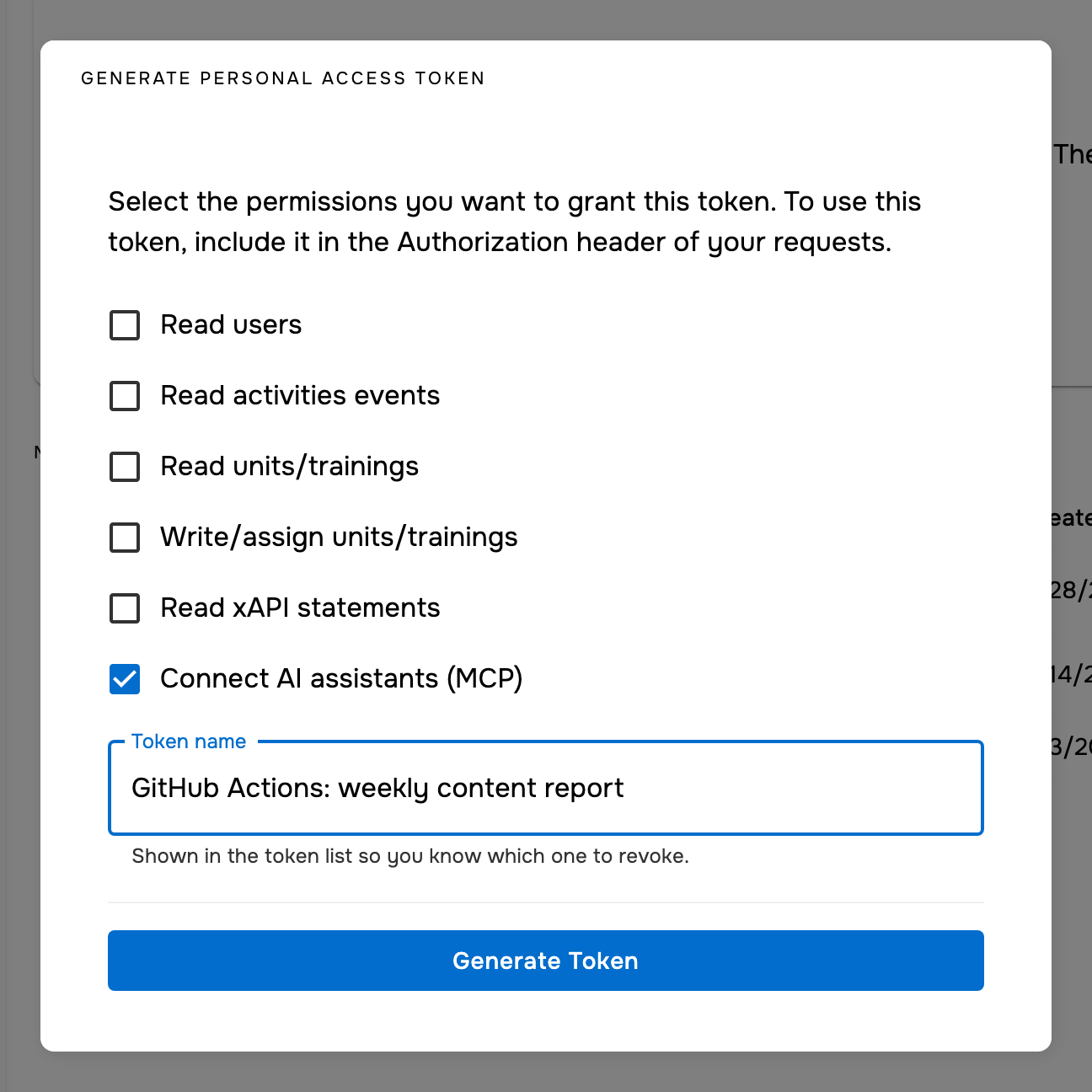
GitHub Actions: weekly content report. The name is how you’ll find the token when it’s time to revoke it.4
Generate and copy
Select Generate Token, copy the token, and store it somewhere secure right away. Juno shows it only once — if you lose it, revoke it and create a new one.
Connect with a token
Point your client at the server URL without?workspace= — the token already identifies your workspace:
Authorization header of every request:
.mcp.json for Claude Code reads the token from the JUNO_MCP_TOKEN environment variable, so the token itself never goes in the file:
Use a token in CI
Store the token as a secret in your CI system and pass it to the job as an environment variable. In GitHub Actions:1
Add the token as a repository secret
In your GitHub repository, go to Settings → Secrets and variables → Actions, select New repository secret, name it
JUNO_MCP_TOKEN, and paste the token.2
Pass the secret to your job
Map the secret to an environment variable on the step that runs your MCP client:Replace the
run command with however your job starts its MCP client. A client set up like the .mcp.json example above picks the token up from the environment, and GitHub masks the secret in job logs.Keep tokens safe
- Treat a token like a password. Keep it in a secret store — never in code, in a file you commit, or in a URL.
- Create one token per job or system, named after it, so you can revoke one without breaking the others.
- Don’t share a token between people or add it to a shared assistant connector. Everyone using it would act as you, with your Admin permissions.
- Replace tokens before they expire: create a new token, update the secret, then revoke the old one.
Revoke a token
Revoke a token as soon as it’s no longer needed, or right away if it may have been exposed.1
Find the token
Go to Admin → Security → Developer Settings. The MCP tokens list shows every MCP access token in your organization, with its name, who created it, when it was created, and when it expires.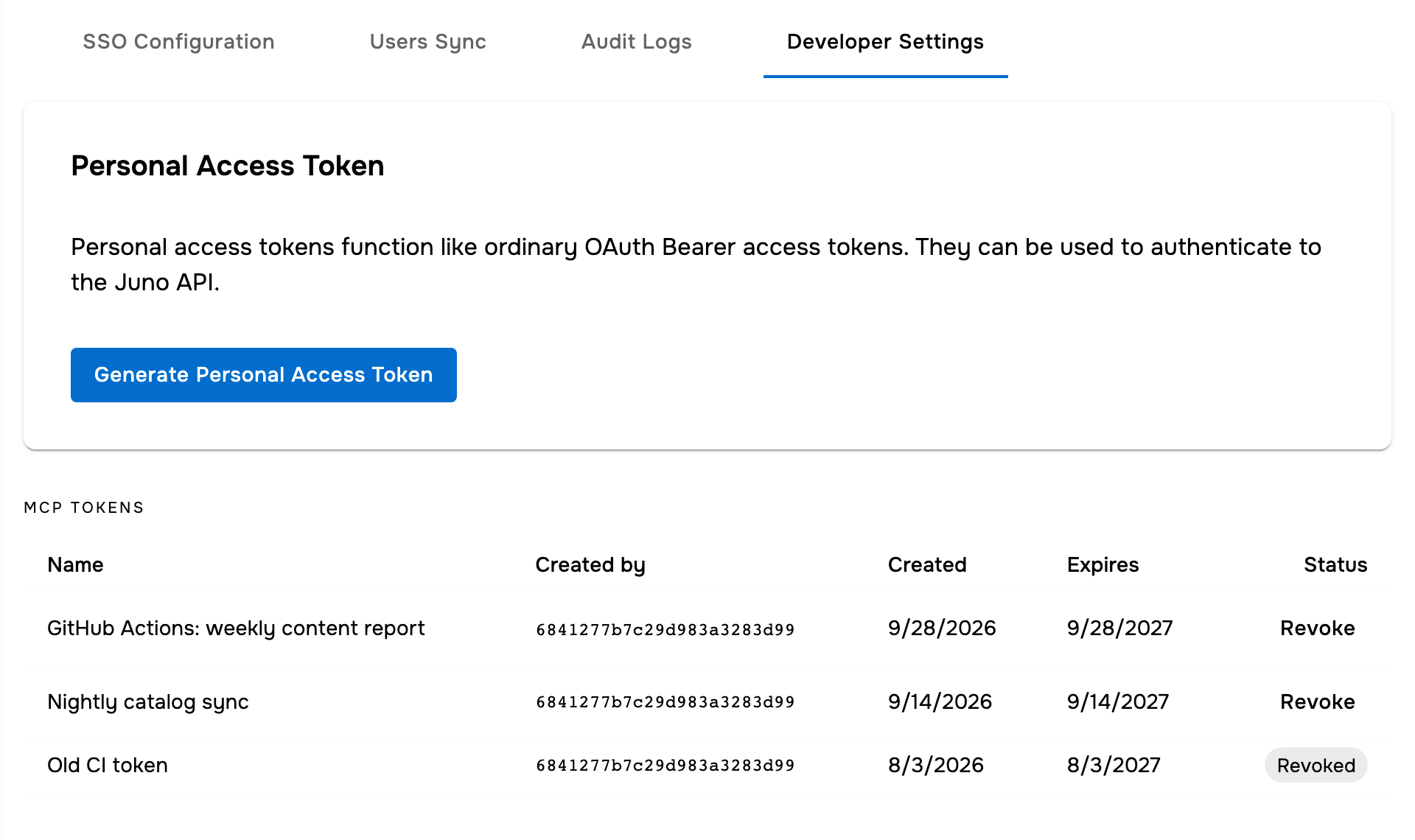
2
Revoke it
Select Revoke on the token’s row, then confirm. The token stops working immediately, and anything still using it starts failing. Revoking can’t be undone.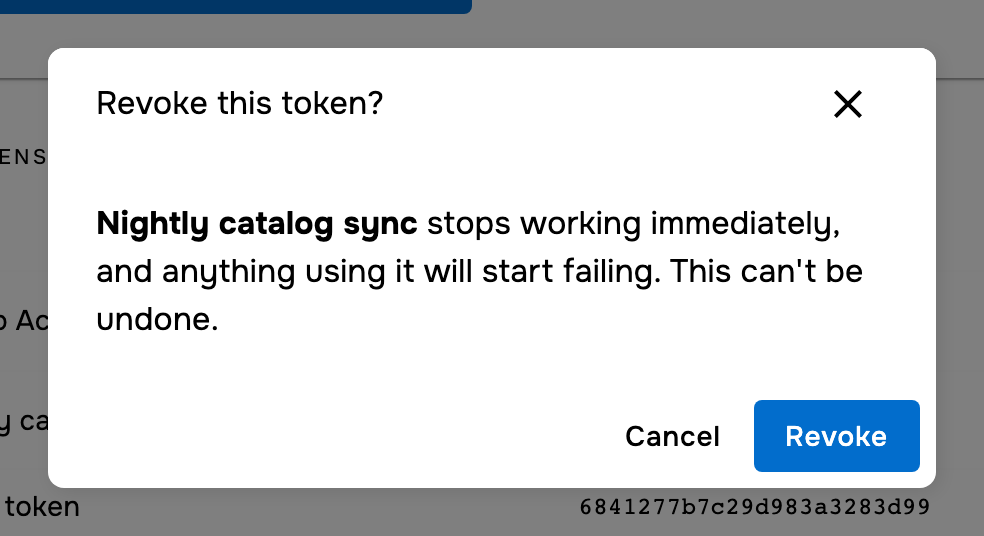
The MCP tokens list appears once your organization has at least one MCP access token. Anyone with the Admin and IT Admin roles can revoke any token in the list, not only their own.
If a token stops working
Juno rejects a token with a401 Unauthorized response when:
- It was revoked (the list shows Revoked), or it has expired — check its Expires date.
- The Admin who created it was deactivated or removed from your organization.
- It was sent to the Juno REST API instead of the MCP server.
- The header isn’t exactly
Authorization: Bearer <token>, or the token was copied incompletely.