

The home page
When you log in, you land on your Home page (/career). It opens with a greeting, a row of cards showing what needs your attention, and the Juno assistant’s input at the bottom.
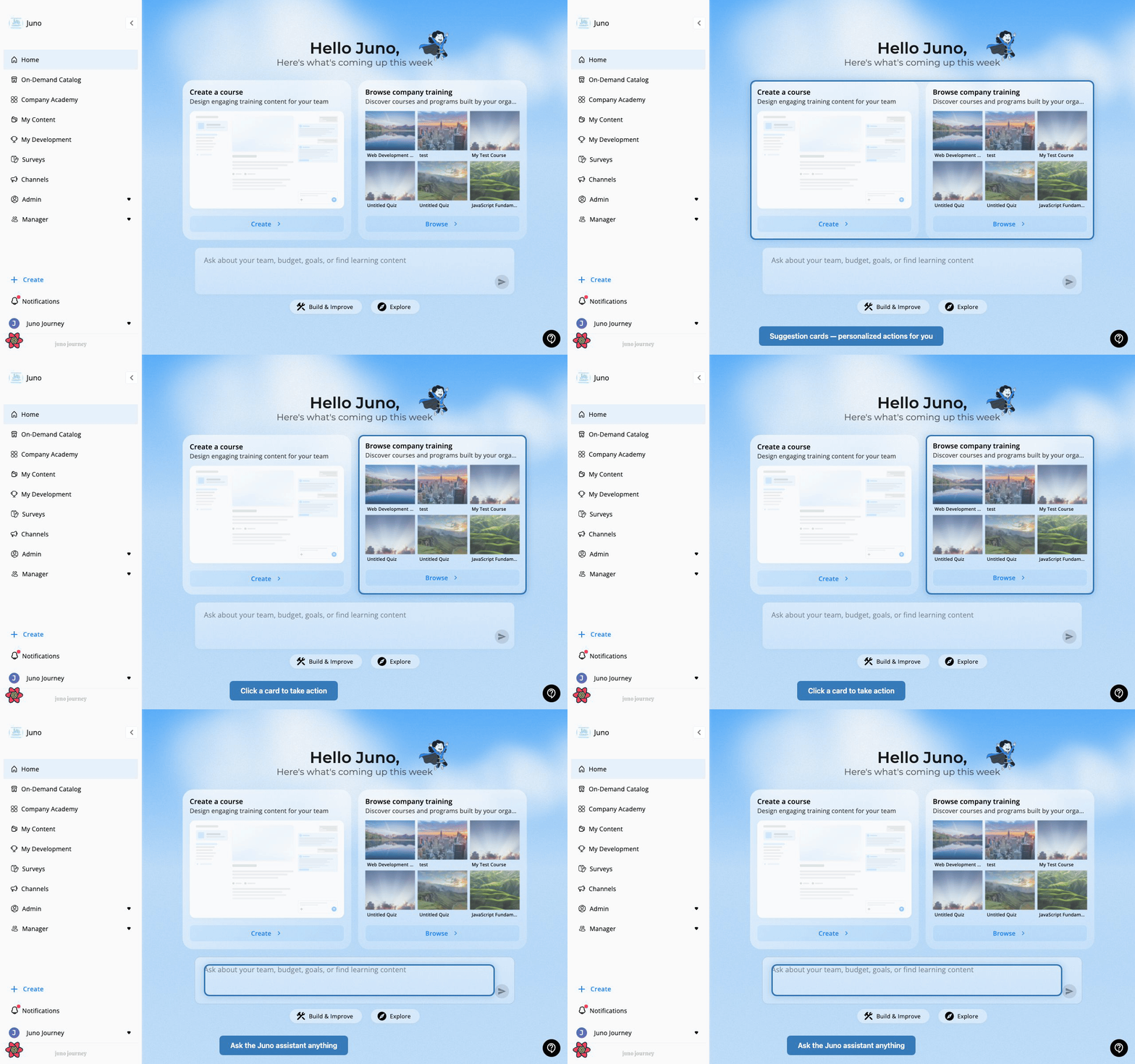
Juno assistant
At the bottom of the home page is the Juno assistant — an AI you can talk to in natural language. What you can ask:“Ask about your team, budget, goals, or find learning content”Use the category pills — Stay on track, Insight, Build & Improve, and Explore — to browse suggested prompts, or type freely. Examples:
- “What assignments are due soon?”
- “Show me my team’s learning progress”
- “Find learning on project management”
- “What’s my current learning budget?”
The Juno assistant must be enabled by your administrator. If you don’t see the chat input on your home page, contact your admin.
The sidebar
The left sidebar is your main navigation. What appears depends on your role and which modules your organization has activated.
Below these, expandable sections appear when they apply to you:
- Groups — your groups. See Groups.
- Manager — your team’s employees, content, analytics, and budget. It appears when people report to you.
- Admin — platform management. It appears for Admins and most area admins. See Admin Overview.
Your organization can rename sidebar items and hide some of them, so your sidebar may differ from this list. See Settings & Customization.
- Create — quick-create menu for new content
- Notifications — opens your notification panel for assignments, feedback, events, and system messages
- Your name and avatar — opens your account menu, described below
If your organization is on the self-serve Journeys plan, the sidebar is shorter and includes My Assignments and Settings, plus Upgrade for admins. See The Journeys Plan.
Your account menu
Select your name or avatar at the bottom of the sidebar to open the account menu.
My Profile is where you manage your skills and certifications, and the settings icon at the top of the panel opens your notification and language settings. See First Login.