

/career) is where you land when you sign in. The new Home page is built to fit on one screen: a greeting at the top, a row of cards showing what needs your attention, and the Juno assistant’s input.
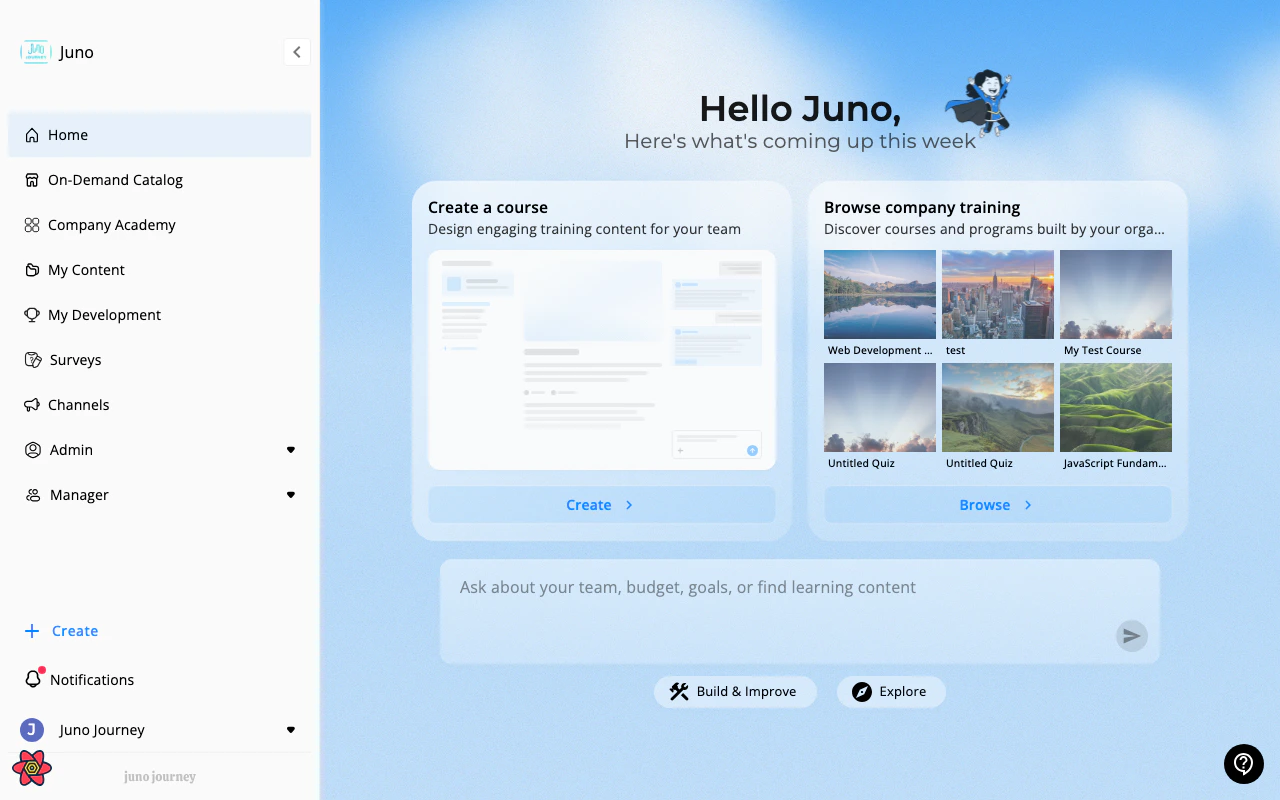
The greeting
The top of the page greets you by name, next to a character your organization can swap for its own artwork or hide entirely. On a desktop screen, the New Homepage switch sits above the greeting at the left when you have it. Admins also get a Customize homepage button at the right.Cards
Below the greeting is a single row of three cards. Each one shows a title, a short description, a live preview of the underlying data, a headline number, and a button that takes you where you can act. Some cards are always available because they always have something to show. They depend on the modules your organization uses:
Others appear only when they apply — an assignment about to come due, a budget request waiting on you, a voucher you haven’t used, a session starting soon, a waitlist spot that opened, or Upcoming Events when you have sessions coming up. Cards for something time-critical carry an URGENT badge.
Your admins can also hand-pick cards and place them in a view: Channels shows channels they chose, Start here shows learning they chose, Upcoming due dates gathers everything due soon, and Your budget & top picks pairs your budget with popular learning. See Homepage Views.
Card actions
Open a card’s ⋯ menu to:
Pinning is covered in Homepage Views, along with switching between views.
Quiet cards
Some cards only report something when there’s a reason to. If there’s nothing to say, the card doesn’t vanish or claim a false all-clear — it tells you plainly why it’s quiet:
If a card can’t load its data it says so instead of looking the same as “nothing due” — so an empty card is always an answer you can trust. When there’s nothing to suggest anywhere, the row fills with a calm “You’re all caught up” card.
The Juno assistant
On the new Home page, the Juno assistant is a chat input. Type a question and press enter, and the conversation takes over the whole page — the greeting and cards fade out and the assistant’s answer fills the space. Leave the conversation to return to your cards. By default the input sits under the cards. If your organization chose the Stack layout, it sits above them instead. Under the input is a row of category pills — Stay on track, Insight, Build & Improve, and Explore. Select one to see suggested prompts for that category rather than starting from a blank input. The assistant can search your organization’s learning, answer questions about your team and budget, pull learning data into a table right in the chat, and carry out actions such as assigning learning or sending a reminder — always showing you what it’s about to do first. See Juno Assistant for the full picture, and Suggestion Chips for the prompt categories.How Home looks
Admins choose a look for Home, and it applies to everyone in the organization. Studio is the default. The other looks are Paper, Horizon, Clean, Deep, Keys, Night, Aurora, and Mono. A look changes the colors, type, and cards, and it styles the Juno assistant’s chat too. Under any look except Studio, today’s date appears under your greeting. Looks use your organization’s brand color. To see what each one gives you, see Homepage Views (Admin).What managers and admins see
Home shows the same shape to everyone; what changes is which cards are offered.
Admins also get controls nobody else sees: Customize homepage, to choose a look, a layout, and a background for the whole organization, and the ability to build homepage views for other people. Both are covered in Homepage Views (Admin).
Switching between home pages
If your organization joined Juno before July 2026 and the new Home page is turned on for your role, the top-left corner has a New Homepage switch with a Beta badge. Turn it on to try the new Home page, or off to go back to the classic one. The choice sticks until you change it. On a phone the switch sits in the header instead. Organizations that joined more recently don’t have the switch.New people whose role has the new Home page start on it by default.