

Admin → Employees (/admin/0) is where you manage every user in your org — accounts, roles, managers, custom attributes, bulk imports/updates, deactivation, and exports. Employees tab — user management table
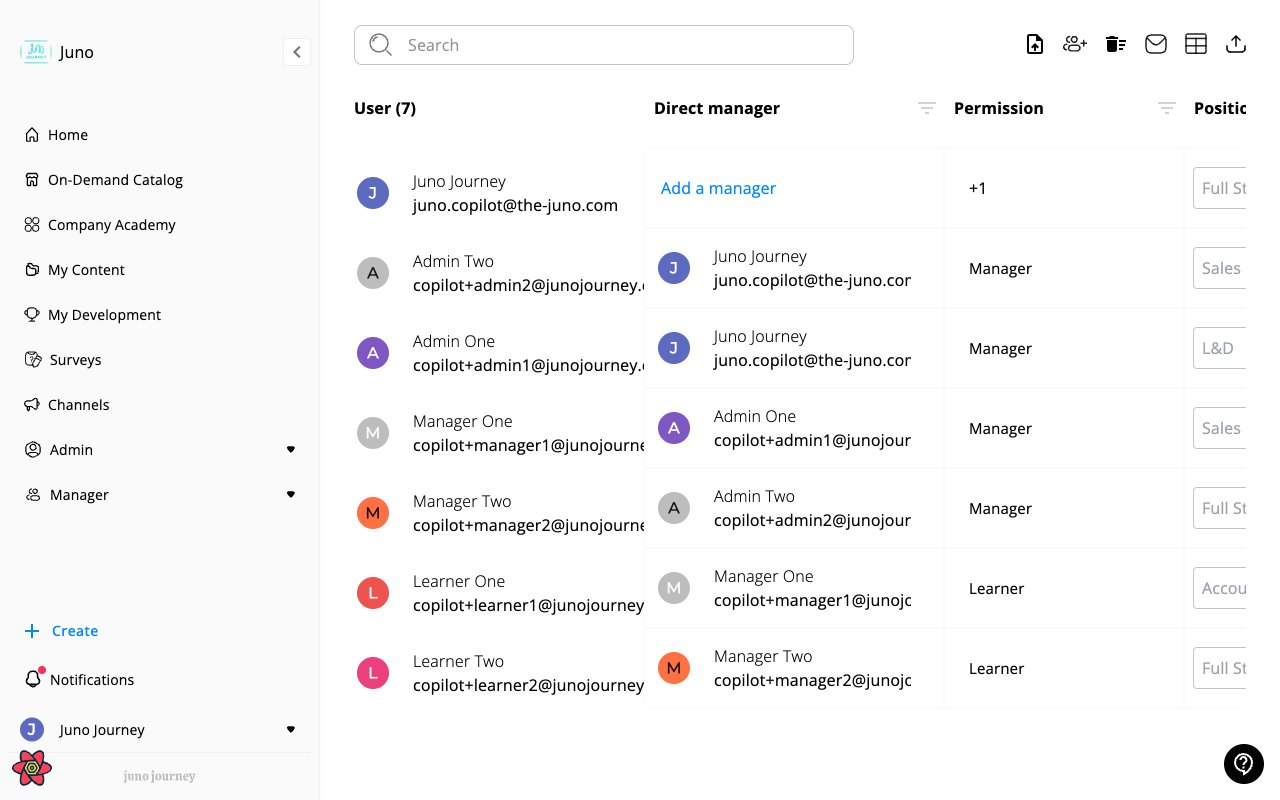
Access to this tab requires either the Admin role or a People domain admin role. Several actions on this page are gated by additional feature flags — see the action tables below.

The users table

Each row is one user. The table supports server-side search, filter, sort, and column visibility. Use the column picker (checkbox icon in the top bar) to toggle which columns are visible. Users table with column picker open
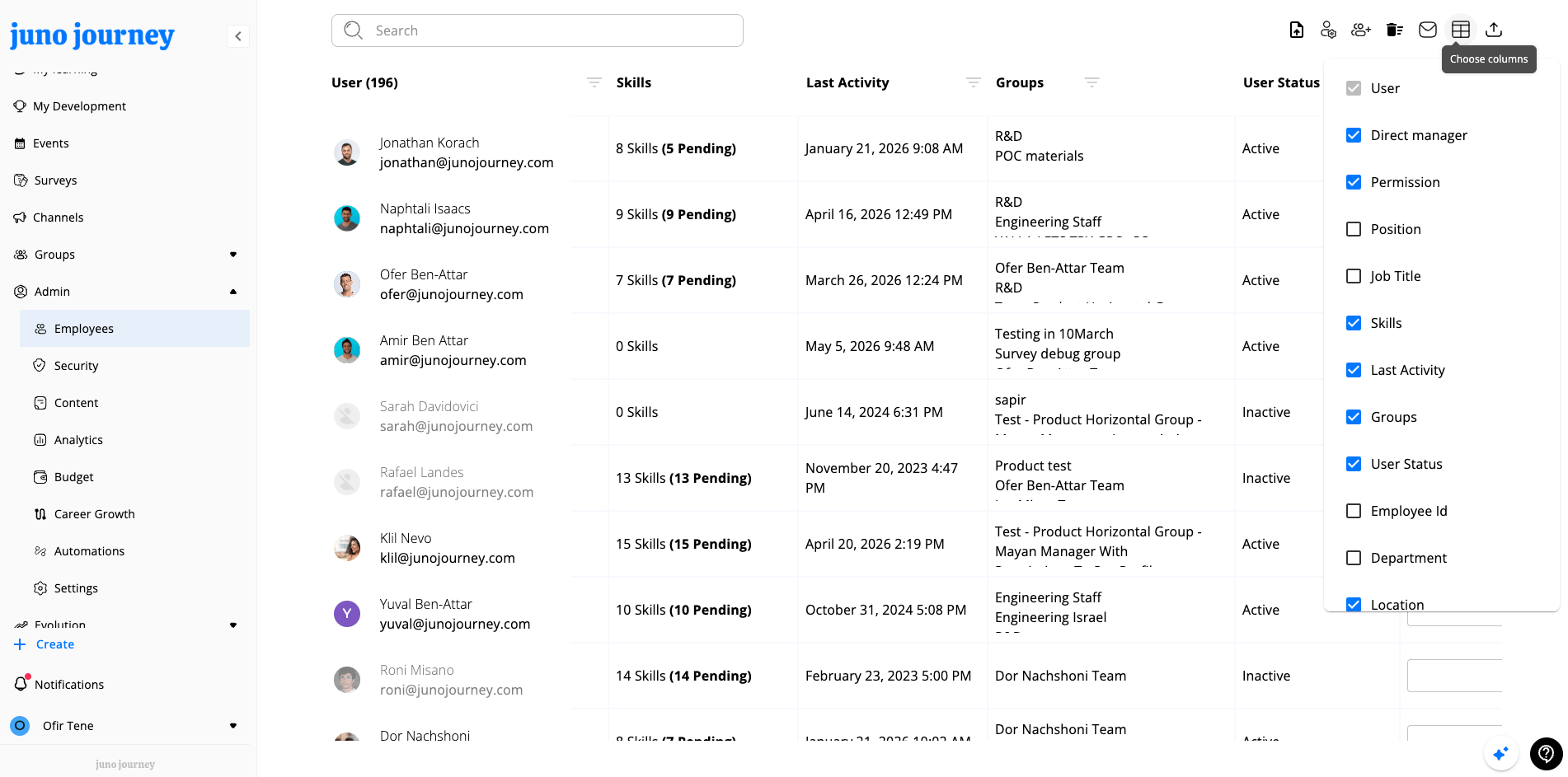
ColumnSortFilterDefaultNotes
User✓ (autocomplete)Avatar, name, email
Direct Manager✓ (autocomplete)Reporting line
Permission✓ (role enum)Role level
Last Activity✓ (date range)Most recent login/action
SkillsCount of skills on the user
User Statusactive / inactive / invited
Managers✓ (autocomplete)optionalFull manager hierarchy (ancestors)
Groups✓ (group picker)optionalGroup memberships
Department✓ (autocomplete)optionalOrg unit
Company✓ (autocomplete)optionalCompany / sub-org
Legacy table also exposes: Position, Job Title, Employee ID, Location, User Type, Hire Date, Deactivation Date, Phone Number. Free-text search across the table is at the top.

Top-bar actions

Buttons appear conditionally based on role and feature flags.
ActionWhat it doesGated by
Add UsersOpen the create-user form (single user).addUser route permission ≤ effective People role
Update Users from CSV4-step wizard to bulk-update users from an Excel/CSV file.UPDATE_USERS_EXCEL flag
Manage Custom AttributesCreate / edit / delete custom user attributes.CAN_ADD_USERS_CUSTOM_ATTRIBUTES flag
Sync UsersTrigger a sync from a configured directory integration (SCIM/SSO).People domain role > Admin and users-integration mapping configured
Send Invitation EmailSend (or resend) the invite email to all pending/never-logged-in users in the current filtered view.Effective People role ≥ Admin (5)
Bulk Delete UsersWizard to delete many users by uploading a list of IDs.Support level ≥ 2 (Juno staff)
Deactivate Users from Excel/CSVWizard to bulk-deactivate users by uploading an Excel or CSV file of email addresses.DEACTIVATE_USERS_EXCEL flag and Support level ≥ 2 (Juno staff)
Generate POC PasswordsGenerate temporary passwords for demo/POC tenants.Tenant purpose === "demo"
ExportDownload the current filtered view as Excel (or CSV).
Column pickerToggle column visibility.

Adding a user

Click Add Users to open the create form. The dialog supports adding multiple users in one go (User #1, User #2, …) and a top-right Send Invitations checkbox controls whether invite emails go out on submit. Add user dialog Fields:
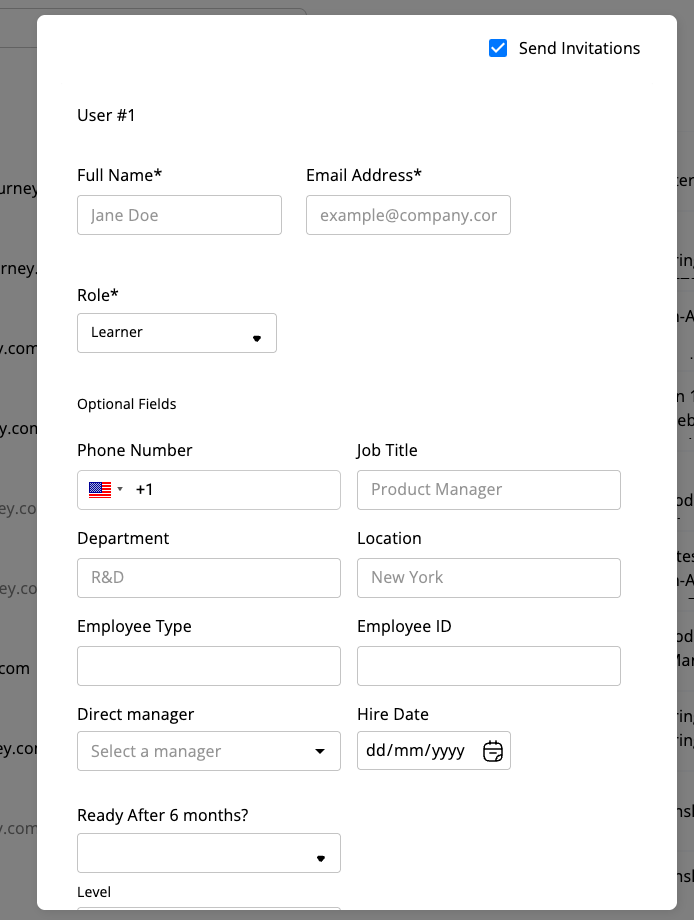
FieldRequiredNotes
Full name
Email addressconditional*Required unless phone is provided
RoleFiltered to roles ≤ your own; defaults to Learner
Phone numberInternational format with country flag
Job titleFree-text
DepartmentFree-text
LocationFree-text
Employee TypeFree-text
Employee IDExternal ID
Direct managerAutocomplete from existing users
Hire Datedd/mm/yyyy
Custom attributesAll attributes defined under Manage Custom Attributes appear at the bottom of the form (see screenshot — “Ready After 6 months?”, “Level”, etc.)
* Email or phone is required. When Send Invitations is checked, new users with an email receive a welcome / magic-link email immediately.

The user detail page

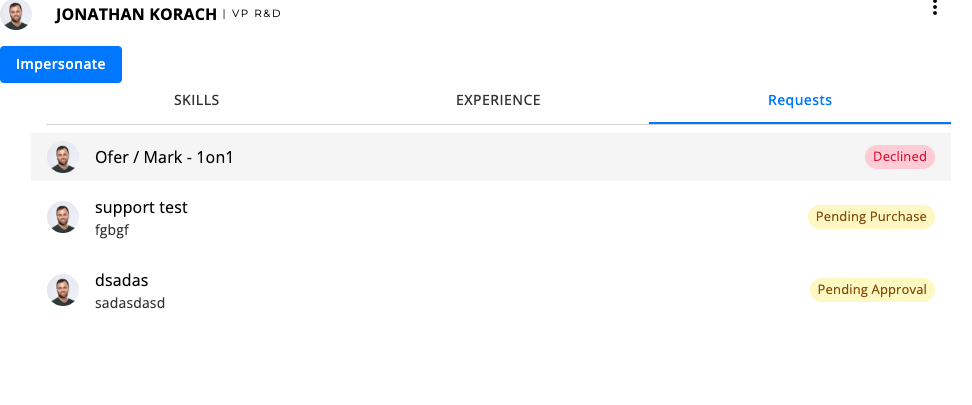
Click a user’s name to open their detail page. It has tabs for Skills, Experience, and Requests, an Impersonate button (when allowed), and a three-dot actions menu in the top right. User detail page — Requests tab
User actions menu

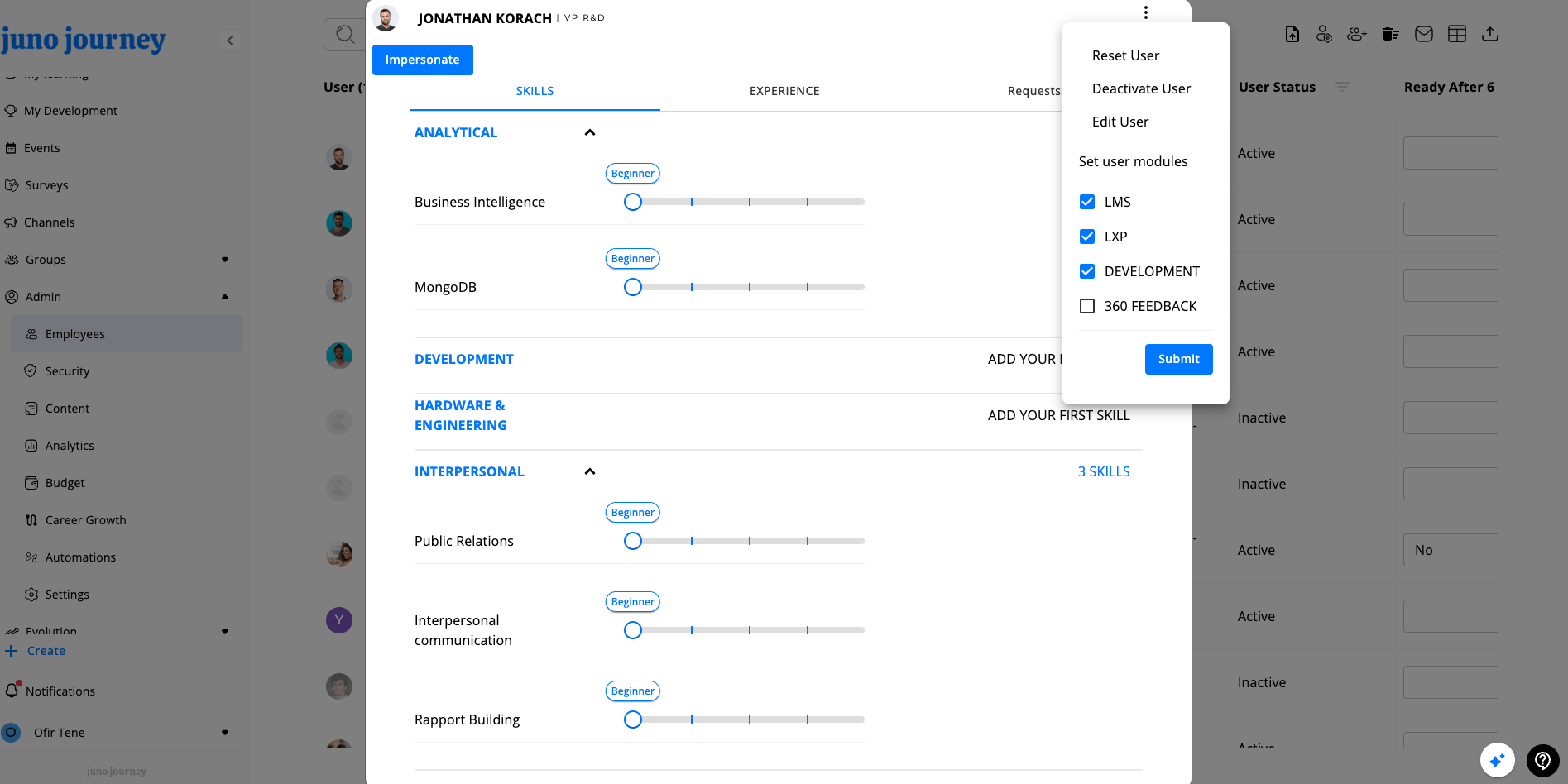
The three-dot menu in the user detail header exposes the per-user actions: User actions menu with module submenu
ActionWhat it doesGated by
Edit UserOpen the user form pre-filled. Email is read-only in edit mode — every other field can be changed.CAN_EDIT_USERS flag
Reset UserReset the user’s data/state (org-defined).CAN_RESET_USER flag
Deactivate UserBlock sign-in; preserve data.CAN_DEACTIVATE_USER flag
Delete UserPermanently delete an already-deactivated user (only appears once user is inactive).CAN_DEACTIVATE_USER flag
Set user modulesInline checkbox group right in the menu: LMS, LXP, DEVELOPMENT, 360 FEEDBACK. Click Submit to apply.CAN_EDIT_MODULES flag
Transfer ownershipReassign content/objects owned by the user.CAN_TRANSFER_OWNERSHIP flag
ImpersonateSign in as this user (separate button on the header, not in the menu).LMS-only tenant configuration

Edit user dialog

Same layout as Add Users, with the email field disabled. All other fields (including custom attributes) can be changed. Edit user dialog

Update users from CSV

A 4-step wizard launched from the top bar. Use it to update many users at once (it does not create new users — use Add Users for that, or contact support for bulk-create from file).
  1. Upload file.xlsx or .csv.
  2. Map columns — match each spreadsheet column to a user field (displayName, primaryEmail, phoneNumber, role, department, location, jobTitle, modules, employeeId, managerId, userType, hireDate, custom attributes).
  3. Migration policy — pick how conflicts are resolved (overwrite, skip, append for list-typed fields).
  4. Preview — review the diff before applying.
Errors and unchanged rows are surfaced in the preview step.

Bulk deactivate users from Excel/CSV

Use this when you need to deactivate many users at once — for example, after an offboarding batch, an acquisition cleanup, or a contractor rotation. It’s faster than opening each user and clicking Deactivate User, and it only requires the list of email addresses. The action is gated by the DEACTIVATE_USERS_EXCEL feature flag (default: blocked) and requires Support level ≥ 2 (Juno staff). Look for the person-off icon in the Employees top bar.

What it does

  • Reads email addresses from one column of an .xlsx or .csv file.
  • Matches them to users in your tenant case-insensitively by primaryEmail.
  • Sets inactive: true on each matched, currently-active user (same effect as the per-user Deactivate User action — sign-in is blocked, data is preserved, and the user’s effective role becomes BLOCKED).
  • Skips users that are already inactive and reports emails that don’t match any user.
It does not delete users, transfer ownership, or change roles. To remove a user permanently, deactivate first and then use Delete User on the user detail page.

Limits and safeguards

ConstraintValue
Max emails per file5,000
Min emails per file1
File types.xlsx, .csv
Juno internal emails (@the-juno.com, @junojourney.com)Excluded by default; check Allow Juno internal emails to include them
Invalid or malformed emailsJuno skips them automatically and shows the count on the preview

Wizard steps

  1. Upload file — drop in an .xlsx or .csv. Juno treats the first row as a header. Optionally check Allow Juno internal emails before uploading.
  2. Pick the email column — if the file contains more than one column that looks like emails, select which one to use. Juno skips this step when it detects only one email column.
  3. Preview (dry run) — Juno runs a server-side dry run and shows three groups:
    • To deactivate — active users Juno will deactivate, with name and email.
    • Already inactive — matched users that are already deactivated (no-op).
    • Not found — emails with no matching user in the tenant.
  4. Confirm — click Deactivate to apply. The result shows deactivatedCount and any failedEmails that errored during the write.

Example file

A single column named email is enough:
email
alex@example.com
sam@example.com
jordan@example.com
Extra columns are fine — you’ll pick the email column in step 2.

API reference

The wizard calls two endpoints. Both require an authenticated session with Support level ≥ 2.
MethodPathPurpose
POST/api/users-management/deactivate-users-excel-dry-runPreview matches without writing
POST/api/users-management/deactivate-users-excelApply the deactivation
Request body (both endpoints):
{
  "emails": ["alex@example.com", "sam@example.com"],
  "allowJunoInternalEmails": false
}
Dry-run response:
{
  "toDeactivate": [
    { "_id": "…", "primaryEmail": "alex@example.com", "firstName": "Alex", "lastName": "Doe" }
  ],
  "alreadyInactive": [
    { "primaryEmail": "sam@example.com", "firstName": "Sam", "lastName": "Lee" }
  ],
  "notFound": ["jordan@example.com"]
}
Apply response extends the dry-run shape with the write outcome:
{
  "toDeactivate": [ /* … */ ],
  "alreadyInactive": [ /* … */ ],
  "notFound": [ /* … */ ],
  "deactivatedCount": 1,
  "failedEmails": []
}

Custom attributes

Manage Custom Attributes opens a dialog where you can define org-specific user fields. Click + Create New Attribute to add one; use the pencil/trash icons to edit or delete an existing attribute. Manage Custom Attributes dialog Each attribute has a type:
TypeStored as
Textstring
Numbernumber
Datedate
Yes / Noboolean
User referenceanother user (gated by CAN_SEE_USER_TYPE_CUSTOM_ATTRIBUTES)
Per attribute you can also set:
  • Visible to managers — appears on the user record for managers viewing their reports.
  • Editable by managers — managers can change the value (otherwise read-only for them).
Custom attributes show up:
  • In the user create / edit form
  • As mappable columns in Update Users from CSV
  • In the row data (if you add the column via the column picker)
Editing or deleting an attribute is done from the same dialog. The page reloads after creation to refresh schema-dependent UI.

Search, filter, and sort

  • Search — free-text input at the top, matches name / email / employee fields.
  • Per-column filter — filter icon in each column header (autocomplete, date range, group picker, role enum, etc.). See the table above for which columns are filterable.
  • Sort — click the sort icon on sortable columns (Permission, Last Activity, Skills, User Status, Department, Company).
  • Column visibility — the column-picker icon (top bar) toggles optional columns.
Filters and sort are persisted in the URL — share the link to share the view.

Bulk actions

Triggered from the top bar (not from row selection):
  • Send Invitation Email — sends to all users in the filtered view who are active and have never logged in.
  • Bulk Delete Users — Juno-support tool; uploads a file of user IDs, previews, then deletes.
  • Deactivate Users from Excel/CSV — Juno-support tool; uploads an email list, previews matches, then deactivates.
  • Update Users from CSV — described above.

Export

Click Export to download the currently filtered view as Excel (default) or CSV. Only visible columns are exported. When the User column is included, the export expands it into: displayName, primaryEmail, employeeId, department, jobTitle, inactive, location, hireDate, managerDisplayName, managerPrimaryEmail, managers. Hidden columns are not exported — toggle them on via the column picker first if you need them.

Roles

Numeric values from @juno/constants:
RoleValueTypical use
Learner1Default end-user
Instructor2Can author/teach content
Manager3Manages direct reports
Manager-Instructor4Both
Admin5Full platform admin
Owner6Org owner
Owner-Impersonate7Owner with impersonation
Juno (staff)8Internal Juno role
Support10Juno support
Blocked99Deactivated / no access
Domain admins (People, Content, Budget, etc.) get admin-level access scoped to one domain — see Roles & Security.
Last modified on May 24, 2026