

Overview
When viewing Training Analytics, select one or more learners in the table — action buttons appear in the toolbar. Which actions are available depends on the content type and the selected learners’ state.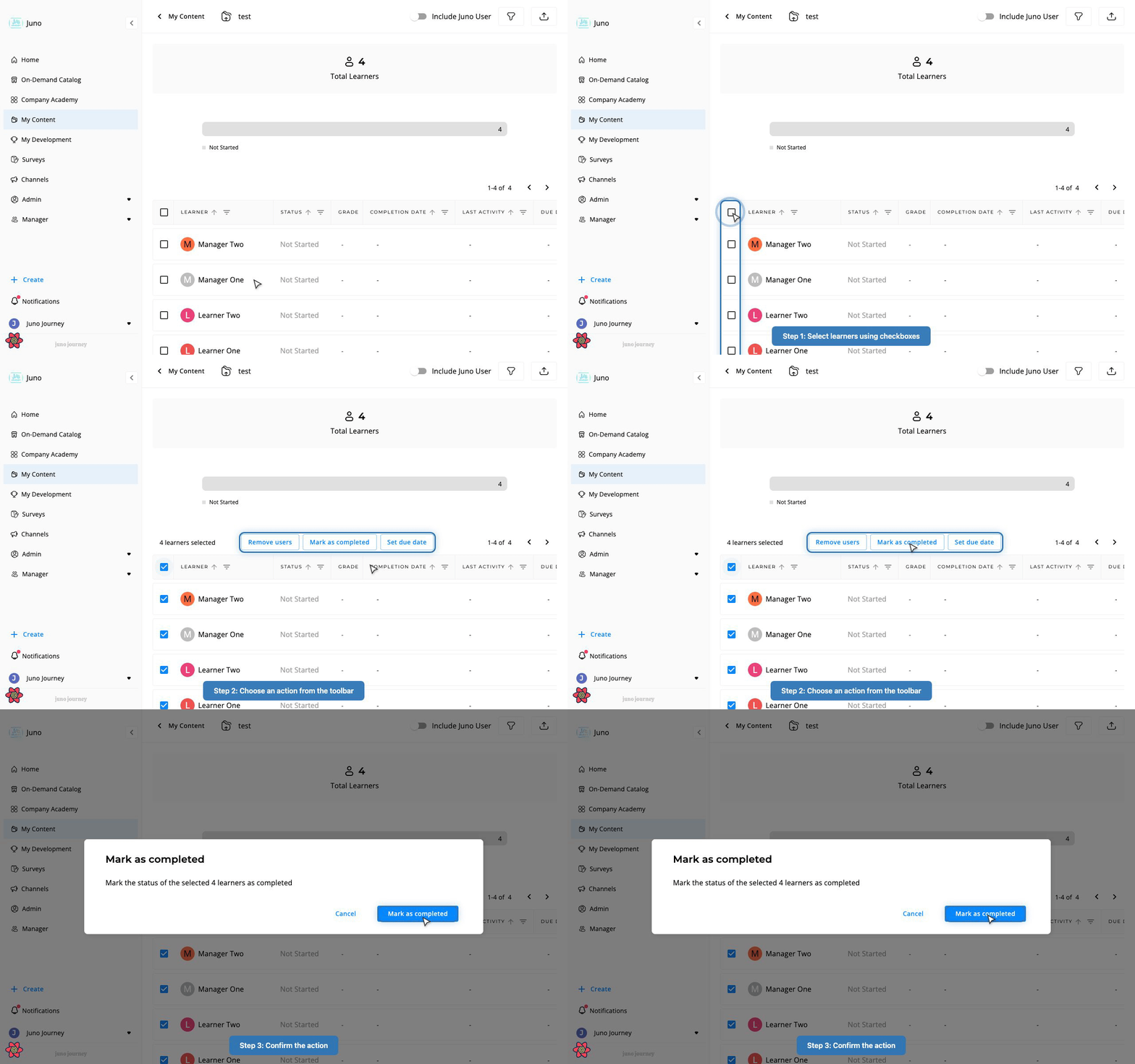
Action availability
Actions reference
Remove users
Unenrolls selected learners from the training. Available for all content types, regardless of learner state. Removing follows the same rules as assigning: you see Remove users only if you can assign the unit, and you can remove only people you could assign. A manager who assigns to their team removes only their team. See Who can assign learning.1
Select learners
Check one or more learners in the analytics table.
2
Click Remove users
Click Remove users in the action toolbar.
3
Confirm
Review the count of affected learners and confirm.
Mark as completed
Force-completes selected learners. Learners who already completed are skipped (the dialog shows the skipped count).1
Select non-completed learners
Check one or more learners who haven’t completed.
2
Click Mark as completed
Click Mark as completed in the action toolbar.
3
Confirm
Review the count and confirm.
Available for courses and SCORM content only.
Release results
Reveals quiz grades to selected learners. Only appears for quizzes configured with grade reveal set to “Let me choose when to send results” — and only for learners whose quiz has been graded but results not yet released.1
Select graded learners
Check learners whose results haven’t been released yet.
2
Click Release results
Click Release results in the action toolbar.
3
Confirm
Confirm to release grades to the selected learners.
Only available for quizzes with grade reveal set to “Let me choose when to send results.”
Add attempt
Gives selected learners one additional quiz attempt. A notification is automatically sent to affected learners. Only available when the selected learners have:- Used all their allowed attempts
- Not passed the quiz
- Been graded
1
Select learners who exhausted attempts
Check learners who failed and have no remaining attempts.
2
Click Add attempt
Click Add attempt in the action toolbar.
3
Confirm
Confirm — learners receive a notification about the extra attempt.
Adjust grade
Manually change the score for submitted quiz learners.1
Select submitted learners
Check one or more learners who have submitted the quiz.
2
Click Adjust grade
Click Adjust grade in the action toolbar.
3
Enter new grade
Enter the new score and confirm.
Allow editing
Lets learners re-edit and resubmit their quiz after submission. A notification is automatically sent to affected learners.1
Select submitted learners
Check one or more learners who have submitted the quiz.
2
Click Allow editing
Click Allow editing in the action toolbar.
3
Confirm
Confirm — learners receive a notification that they can now re-edit.
Reset progress
Clears all progress, attempts, scores, and records for selected learners. Only available for learners who have started the content.1
Select started learners
Check one or more learners who have started the content.
2
Click Reset progress
Click Reset progress in the action toolbar.
3
Confirm
Review the warning and confirm.
Available for courses, quizzes, and SCORM content. Not available for Journeys or surveys.
Set due date
Set, update, or remove due dates for selected learners. Learners who already completed are skipped.1
Select non-completed learners
Check one or more learners who haven’t completed.
2
Click Set due date
Click Set due date in the action toolbar.
3
Select a date or remove
Pick a calendar date, or check “Remove due date instead” to clear existing due dates.
4
Confirm
Confirm to apply the due date change.
Submit for learners
Auto-submits the quiz on behalf of selected learners who haven’t completed it.1
Select non-completed learners
Check one or more learners who haven’t submitted the quiz.
2
Click Submit for Learners
Click Submit for Learners in the action toolbar.
3
Confirm
Confirm to submit on their behalf.
This action may not be enabled for your organization.
Notify
Send a notification or reminder to selected learners with an optional custom message.1
Select learners
Check one or more learners.
2
Click Notify
Click Notify in the action toolbar.
3
Add message (optional)
Optionally write a custom message to include in the notification.
4
Send
Confirm to send the notification.
This action may not be enabled for your organization.