Admin → Content (/admin/1) is where you see how learning content is performing, manage activities across your org, and run external content, events, and certifications. Content & Learning — Internal Content Analytics
Most sub-tabs require an Admin or domain-admin role for Content (or Events for the Events tab). Some tabs additionally require the LMS or LXP module — see each section below.

Sub-tabs at a glance

Sub-tabUse it to…Requires
Internal Content AnalyticsSee enrollment, completion, and progress across all internal content. Drill into a single course/Journey to see who’s stuck.LMS module + content domain ≥ Manager
Learning ManagementPower-user table of every learning activity (one row per user × content). Build saved views with custom columns and filters; export.Content domain > Manager
External Content ManagementTrack third-party content that your learners are actually engaging with (requested, completed, recommended).LXP module + content domain > Learner
Events ManagementManage live/virtual events, sessions, and attendees from a single table.LMS module + events domain ≥ Manager
Certification ManagementView who holds which certificates, bulk-upload certificates from Excel, and export.LMS or Development module + content domain ≥ Manager
Content Management (deprecated)Older flat content list. Use Internal Content Analytics instead.

Internal content analytics

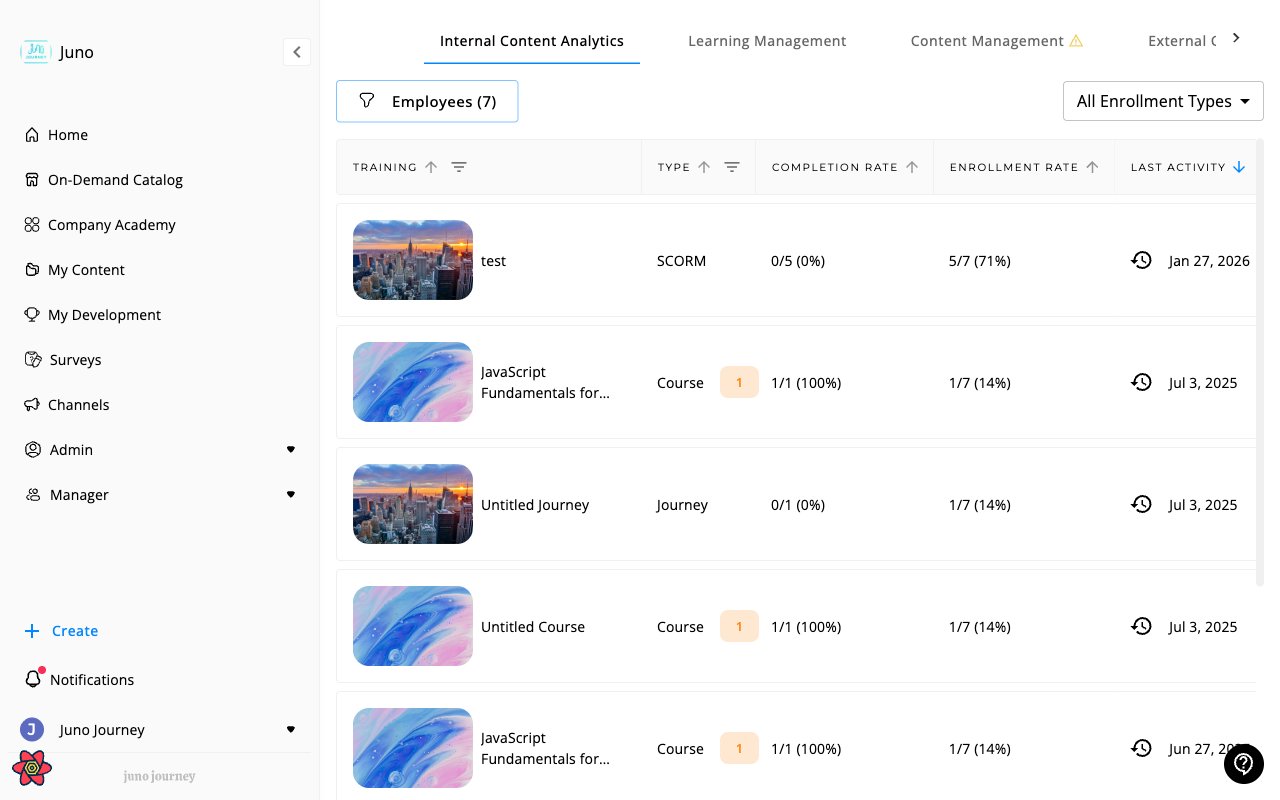
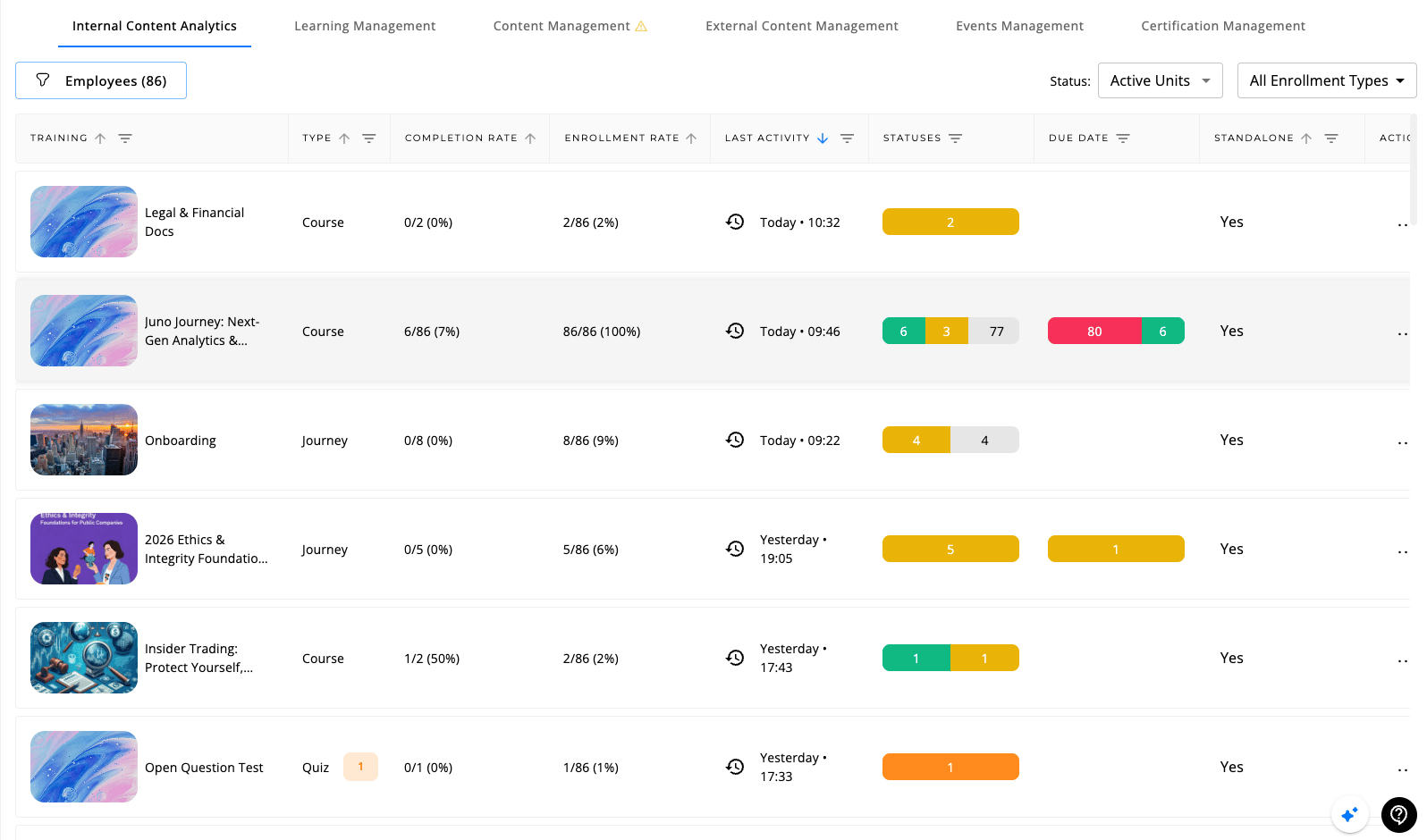
Why use it: answer “how is our internal content performing, and where are people getting stuck?” Each row is a piece of content with a live snapshot of enrollment, completion, and progress distribution. Click a row to drill into per-learner analytics for that content item. Internal content analytics — main table
Enrollment-type filter

The All Enrollment Types dropdown (top right) changes which enrollments the rates count. This is the most-asked-about control on the page — it changes the meaning of every percentage. Enrollment-type dropdown

OptionWhat it countsWhen to use
All Enrollment TypesEvery enrollment (assigned and self-enrolled)Default. The full picture.
AssignedOnly enrollments created when an admin/manager assigned the contentAuditing mandatory training, compliance, onboarding plans.
Self-EnrolledOnly enrollments where the learner self-enrolledMeasuring organic interest / catalog pull.
These are filters over the same data (assigned vs self is recorded on each usersUnit); they do not change anything on the content itself.

Status filter (Active vs Archived)

The Status dropdown next to it switches between two scopes: Status dropdown — Active Units / Archived Units

  • Active Units (default) — content that is live for learners.
  • Archived Units — archived content. Stays in analytics but is hidden from learners’ academy view. Archive is reversible from the row’s action menu.

Employee filter

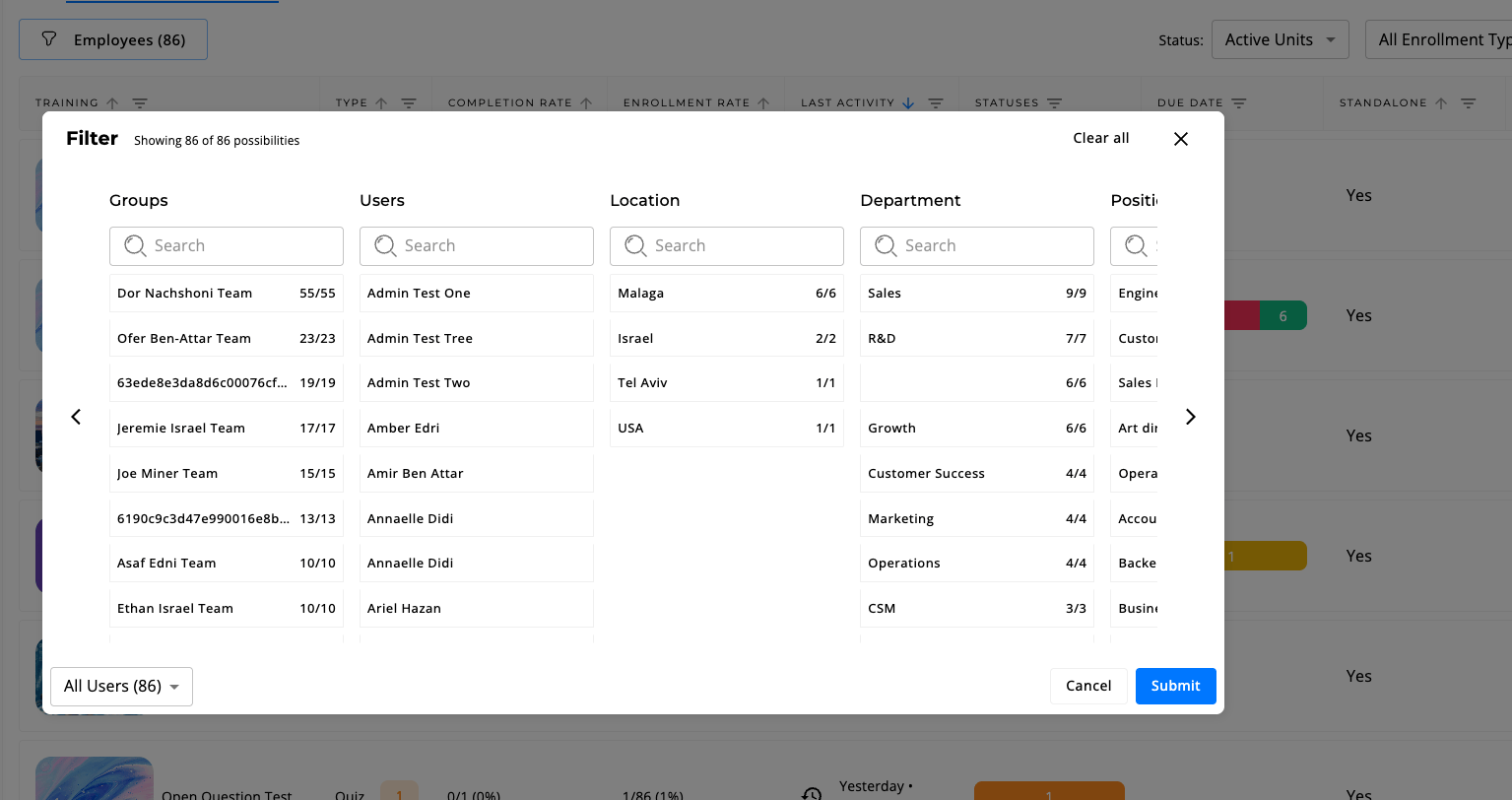
The Employees (N) button (top left) opens a multi-tab filter dialog so you can narrow the table to enrollments for specific cohorts of users. Tabs: Employee filter dialog
  • Groups — pick one or more user groups.
  • Users — pick individual users.
  • Location, Department, Position — filter by user attributes.
The dropdown at the bottom-left of the dialog (“All Users (N)”) summarises the resulting cohort. Submit applies the filter to every metric in the table.

Columns

ColumnWhat it shows
TrainingTitle + thumbnail of the content item
TypeCourse / Journey / Quiz / SCORM / Article / Video / Audio / Podcast / MOOC / Document / Survey
Completion RateCompleted users / enrolled users
Enrollment RateEnrolled users / total in current cohort
Last ActivityMost recent learner activity on this content
StatusesColoured stacked bar — distribution of not started / in progress / completed
Due DateStacked bar of due-date status (overdue / approaching / on-track), where applicable
StandaloneYes / No — whether the unit is consumed standalone or only as a step inside a larger Journey
ActionsThree-dot menu (see below) — only when CAN_SEE_CONTENT_MANAGEMENT_v2 is on

Per-row actions

ActionWhat it does
AssignAdd the content to selected users’ assigned list (sends notification by default).
NotifySend a nudge email to enrolled or assigned users (e.g., reminder before a due date).
Archive / UnarchiveHide from learners while keeping analytics intact. Reversible.
View content (admin only, v2)Jump to the content’s live page (Journey or unit preview).

Learning management

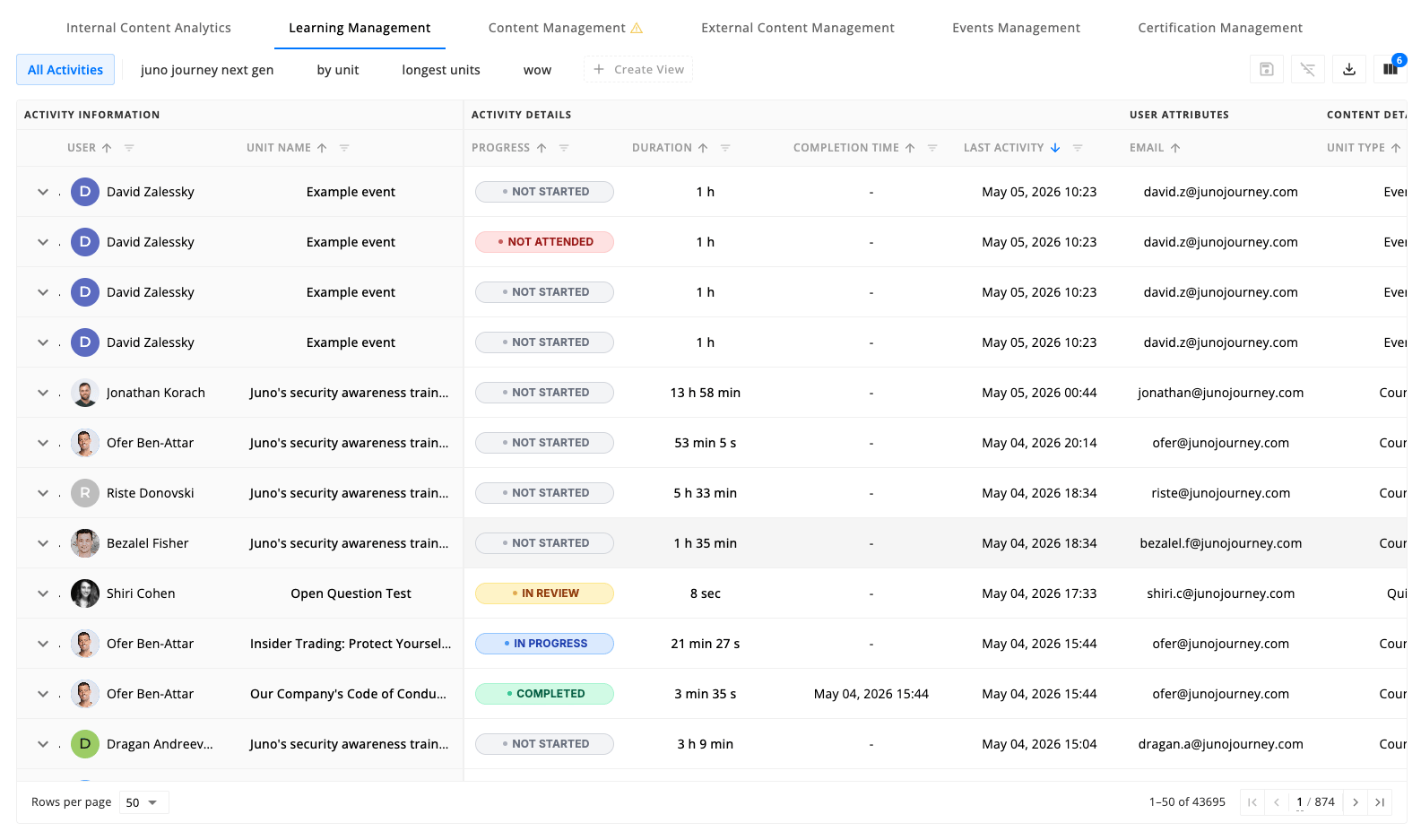
Why use it: the most granular view in Juno — one row per (learner × activity). Use it when you need to answer questions the analytics tab can’t, e.g. “show every R&D employee whose Compliance 2026 is overdue, with their manager and hire date, exported to CSV”. The new data table (behind the USE_JUNO_DATA_TABLE_LEARNING_ACTIVITIES flag) is built around three power-user concepts: views, column manager, and CSV export. Learning Management — saved views and table

Views

A view is a saved configuration of filters + sort + column order + column visibility. Every admin can create their own; views can be shared via URL. What a view stores:
  • Filters (per column conditions)
  • Sort order
  • Hidden columns (and hidden column groups)
  • Column order
Per-view actions in the view tab bar:
  • Save — persist the current configuration (button shows only when there are unsaved changes).
  • Rename — edit the view’s name inline.
  • Duplicate — clone the view as a new starting point.
  • Copy share link — share the view config with another admin via URL.
  • Delete — remove the view (your views only).
If you switch views with unsaved changes, you’ll be prompted to save or discard.

Save the default view as a new view

The All Activities tab is the default view. It can’t be overwritten, but any customization you make on it can be captured as a new named view. When you change filters, sort, grouping, hidden columns, or column order on All Activities, the toolbar save icon becomes active and switches to Save as new view. You’ll be prompted to name the new view in three situations:
TriggerPrompt
You click the toolbar Save as new view iconInline dialog asking for a view name.
You click another view tab with unsaved customizations on All Activities”Save as new view?” — name the view to keep your changes, or Discard to switch without saving.
You navigate away from the page with unsaved customizations on All Activities”Save as new view?” — name the view and Save & Leave, or Discard.
View names must be unique. If you enter a name that matches an existing view, the dialog shows an inline error and the save button stays disabled until you change it. Names are capped at 100 characters.
Switching from All Activities to a saved view with the Discard option resets the table to its default state. To keep your filters and column layout, select Save as new view and give them a name.

Column manager

The column-manager popover groups columns into groups that can be toggled together, and lets you drag and drop to reorder columns. The same popover and reorder behaviour works whether you’re in the flat table or a grouped view, so muscle memory carries between the two. To reorder, open the column manager, then drag a column (or a whole group) by its handle to the new position. The change applies immediately and is saved with the current view.
GroupColumns
Activity Information (always visible)User, Unit Name
Activity DetailsProgress, Duration, Completed, Last Activity, Assigned, Started, Due Date, Submitted, Graded, Score, RSVP, Enrollment Type
User AttributesEmail, Department, Location, Direct Manager, Company, User Status, Job Title, Role, Manager Email, Hire Date, User Type, User ID
Content DetailsUnit Type, Provider, Created, Added to Academy, Language, Expected Duration, Creator, Price, Certificate, Tags
Event DetailsEvent Name, Session Start, Session End, Session Location, Instructors, Label
External LearningProof, Proof Type, Proof Submitted, Request, Request Status, Request Type, Request Tag, Request Created, Last Approver, Last Approval
Survey DetailsFeedback Survey, Survey Status, Survey Completed
Column visibility is per-view — each view can show a different slice. Toggle whole groups off when they aren’t relevant (e.g., turn off Event Details + External Learning when you only care about self-paced training).

Label column (Event Details)

Shows the event label for the session — the same colored chip that appears on the event itself (for example, Mandatory, New Hire, Compliance). The cell renders the label name on its configured background color; rows that aren’t sessions show -. Use the column filter to show only activities tied to one or more labels. Filtering is multi-select, so you can combine labels (e.g., Mandatory + Onboarding) to scope the table to those sessions only. When to use it
  • Audit attendance against a specific compliance or onboarding label.
  • Split event activities from self-paced training in a saved view.
  • Export a CSV of all session enrollments that carry a particular label.

Proof Type column (External Learning)

Shows one or more proof-of-completion types attached to an external learning activity — for example, Certificate, Signature, or a custom tag. Because a single activity can carry multiple proof types, the column accepts multi-value filter (select any combination from the filter popover). The Request Tag column works the same way: it shows tags applied to an external-content request (used for Qualiopi audit trails and custom categorization). Both columns’ filter states are persisted in the URL, so you can bookmark or share a view with those filters pre-applied. When to use them
  • Build a Qualiopi audit view by filtering Proof Type to Signature and exporting.
  • Segment external requests by custom workflow tag using Request Tag.

Tags column (Content Details)

Lists every content tag attached to the unit — outlined chips, with up to three visible and a +N more tooltip for the rest. Tags reflect the taxonomy you assign in the content editor (topic, skill area, audience, and so on) and are available on every unit type. The column filter is multi-select and matches activities whose unit carries any of the chosen tags. Combine it with other filters (Provider, Department, Status) to build views like “all in-progress activities tagged leadership for the EMEA region.” When to use it
  • Build saved views per tagged learning track without listing every unit by name.
  • Export completion data for a topic taxonomy (e.g., everything tagged security).
  • Find untagged content by inverting the filter against a known tag set.

Toolbar actions

  • Save view / Save as new view — active only when there are unsaved edits. On a saved view it updates that view in place; on All Activities it opens the Save as new view dialog.
  • Clear all filters — badge shows how many filters are active.
  • Export to CSV — exports the current view’s visible columns, applying the current filters/sort. Backed by BigQuery, so very large exports are supported.

Row expansion

Click a row to expand into a sub-table for related events, sessions, or sub-records (e.g., a Journey row expands to its children).

Grouped views

Switch from the default row-per-(learner × activity) layout into a grouped view to roll the table up by any attribute. For example, group by Department, Unit Type, Provider, or Direct Manager to see one row per group with aggregated metrics. What you can do in a grouped view:
  • Aggregate numeric columns — each numeric column shows a metric per group. Pick the aggregation from the column header.
  • Pre-group filter — narrow the underlying activities before they’re rolled up (e.g., group by Department but only over the last 30 days of activity).
  • Drill down — click any group row to expand into the underlying activities behind that aggregate.
  • Export — CSV export respects the grouped layout and current aggregations.
When you group by Unit, events that have multiple sessions show one row per session instead of collapsing every session into a single event row. This keeps per-session totals (enrollment, attendance, duration) visible at a glance, and the drill-down on a session row filters back to that specific session’s activities.

Available aggregations

ColumnAggregationsDefault
Duration (time spent)SUM, AVGSUM
PriceSUM, AVG (shown with the currency symbol)SUM
ScoreAVGAVG
Count metrics (enrolled, completed, started, etc.)COUNTCOUNT
Use SUM when you care about totals (“how many learner-hours did Sales spend on Compliance 2026?”). Use AVG when you care about per-learner intensity (“what’s the average time a learner spends on this Journey?”).

Breakdown columns

In a grouped view, add breakdown columns to see the full mix of statuses for a group in one column instead of one numeric column per status. Each breakdown renders as a single-cell stacked bar. Hover any bar to see each bucket’s label, count, and percentage.
Breakdown columnBucketsScope
Learning status breakdownCompleted, In progress, Not started, Failed, OverdueNon-event content (courses, videos, articles, SCORM, Journeys, quizzes)
Attendance breakdownAttended, No-show, UpcomingEvent-type content only (events, webinars, meetings, ILT, workshops)
RSVP breakdownGoing, Maybe, Not going, No responseEvent-type content only — pre-event intent, before attendance is recorded
Purchase request breakdownApproved, Awaiting approval, Awaiting purchase, Declined or canceledExternal (marketplace) activities only
Each breakdown scopes to one row type so the labels always match the activity’s lifecycle. A course never falls into the Attendance breakdown, and an event never falls into the Learning status breakdown — buckets that don’t apply contribute 0. When to use them
  • Learning status breakdown — answer “how is each department progressing through this Journey?” in a single column instead of stacking Completed / In progress / Not started side by side.
  • Attendance breakdown — see at a glance which sessions had high no-show rates when you group by Unit (one row per session).
  • RSVP breakdown — gauge expected turnout for upcoming sessions before the event happens.
  • Purchase request breakdown — track the marketplace approval funnel by Department or Provider.

RSVP and attendance metrics

When you group an events-heavy view (for example, by Unit or Department), the Engagement section exposes individual count columns for each RSVP and attendance state:
MetricWhat it counts
GoingPeople who accepted the invitation
MaybePeople who responded tentatively
Not GoingPeople who declined the invitation
No ResponseInvitees who never replied
AttendedPeople marked as having shown up
No-showPeople who registered but didn’t attend
RSVP fields capture pre-event intent (Going / Maybe / Not Going). Attendance fields capture what actually happened after the session. Juno tracks the two separately, so a learner who RSVP’d Going but didn’t show up appears under both Going and No-show. Non-event content contributes 0 to every RSVP and attendance metric.

Purchase request metrics

For organizations using external content with approval workflows, the Progress section includes individual columns for each request state — Approved Requests, Requests Awaiting Approval, Requests Awaiting Purchase, and Declined / Canceled Requests. Internal content has no request workflow and contributes 0 to each.
The Not Started metric counts every activity a learner hasn’t opened yet — both assigned and voluntary. This aligns with how Completed and In Progress are counted, so the three buckets add up to the same total population on every row.
When the data-table flag is off, the older LearningActivitiesTable renders instead — same intent, fewer features (no saved views, no column groups, no grouped-view aggregations).
Managers see a scoped version of this table at Managers → Content → Learning Activities, automatically filtered to their direct reports — see Learning Activities (Managers).

External content management

Why use it: see what third-party content is actually being consumed by your org — what providers, what items, by whom. Useful for renewing licenses, curating the catalog, and chasing down spend. The table is scoped to external content with real activity (completed, in progress, recommended, or requested) — not the whole catalog. External Content Management
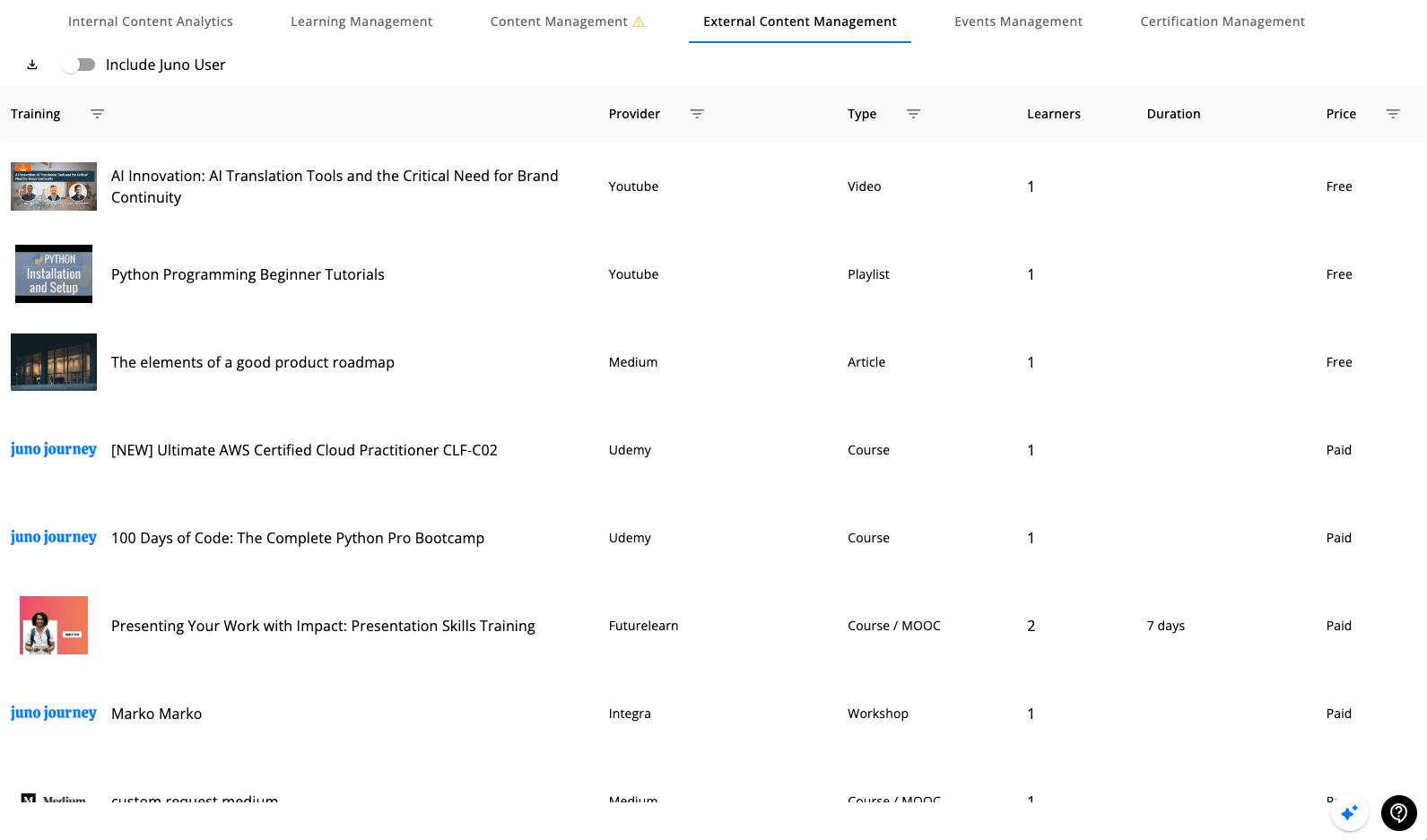
Columns

ColumnWhat it shows
TrainingTitle + thumbnail
ProviderUdemy, Coursera, LinkedIn Learning, etc.
TypeContent type from the provider
LearnersAvatar list of users who engaged
DurationExpected time to complete
PriceFree or Paid

Filters

Title (text), Provider (autocomplete), Type (autocomplete), Free/Paid. There’s also an Include Juno User switch — toggle to include/exclude the synthetic Juno test user.

Per-row click

Opens the content detail dialog with engagement breakdown.

Events management

Why use it: one table for every event in the org — instructor-led training, webinars, workshops — with attendees and sessions accessible from the same row. Events Management
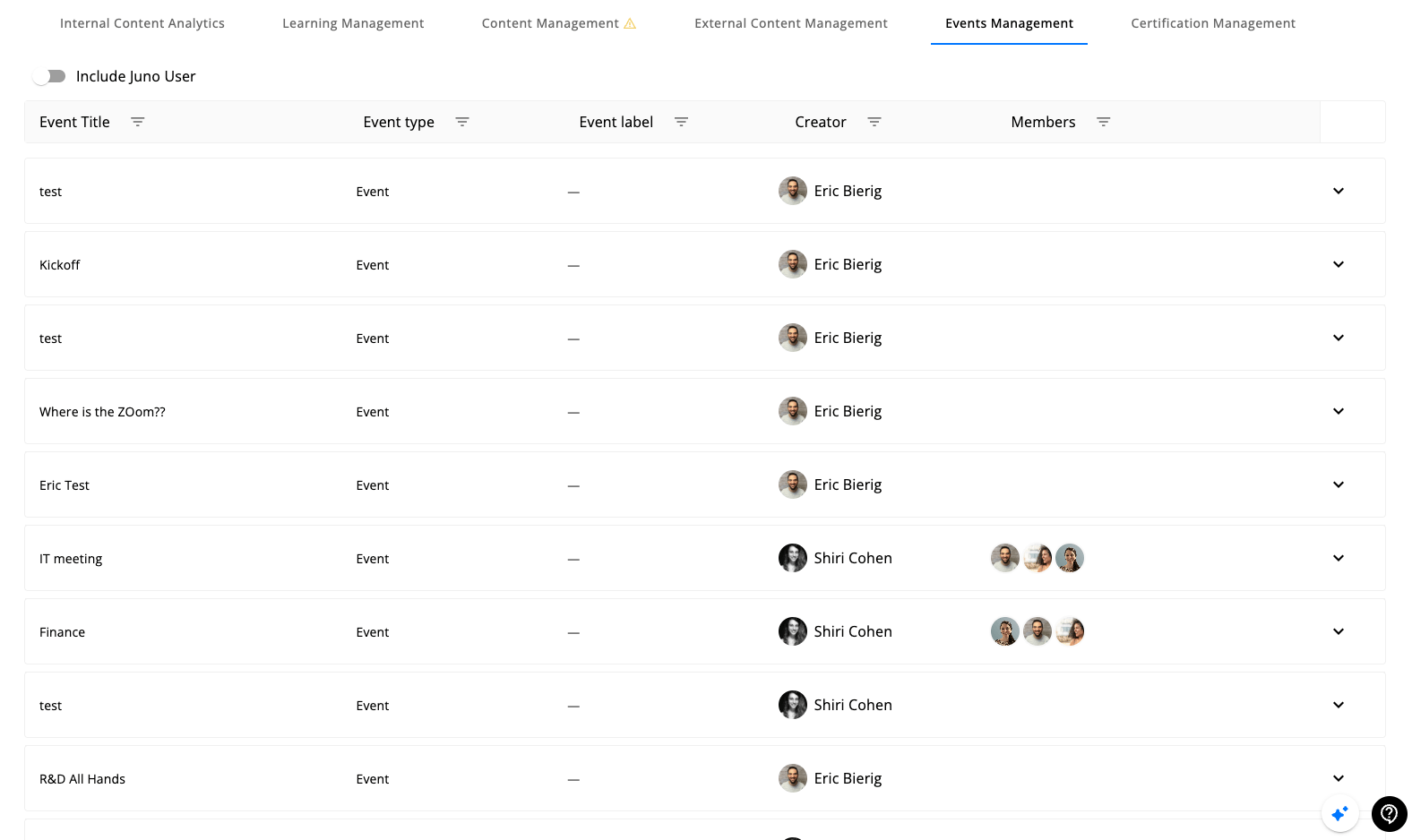
Columns

ColumnWhat it shows
Event TitleTitle of the event
Event typeEvent / ILT / Webinar / Workshop
Event labelTag/label assigned to the event
CreatorWho created the event
MembersAvatar list of attendees

Row expansion

Each row has a chevron on the right — expand to see sessions and attendees inline (sessions list, with start/end, location, instructors, RSVP status).

Filters

Title, Type, Label, Creator, Members. Plus the Include Juno User switch.

Certification management

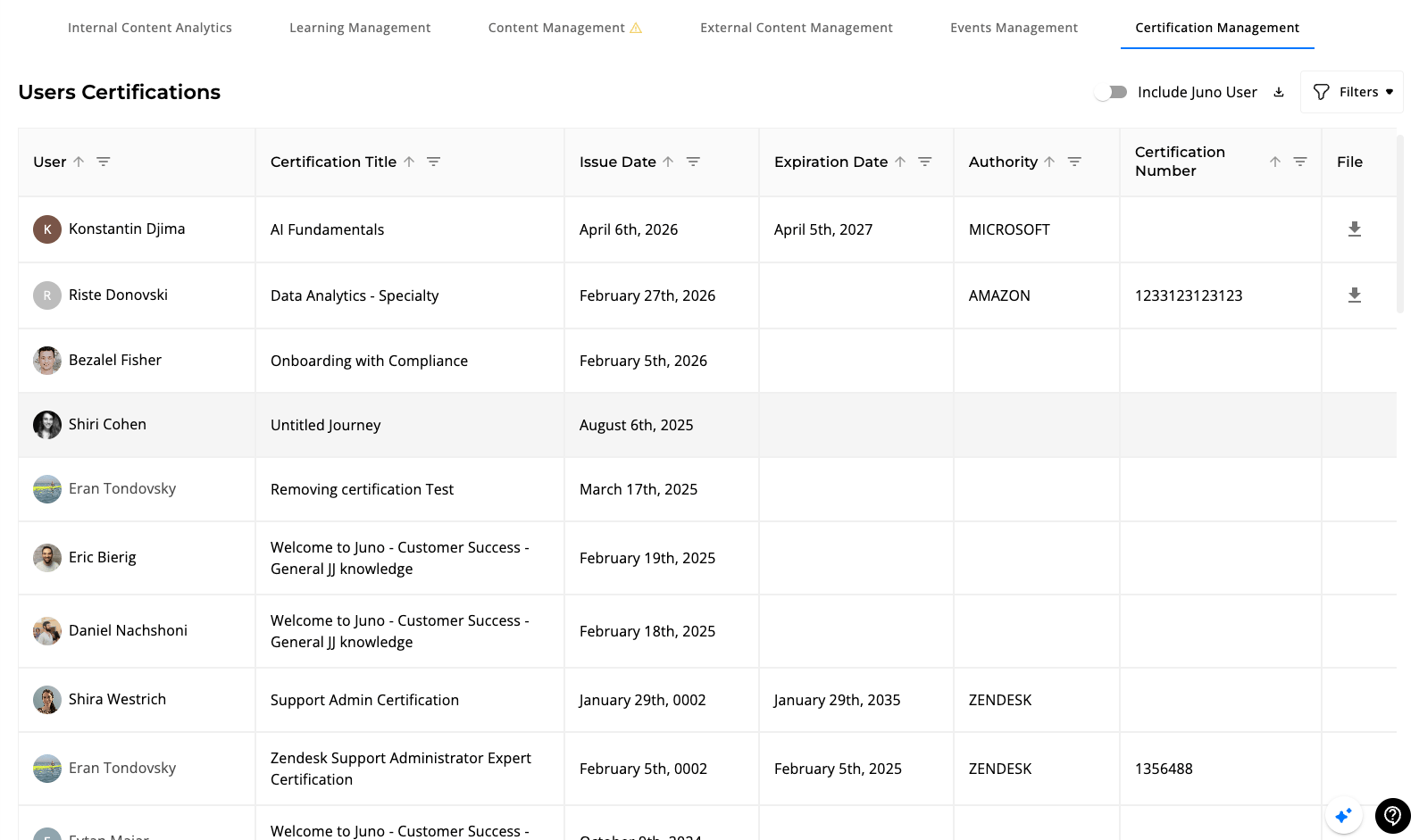
Why use it: a roster of who holds which certificates, with bulk upload for legacy/external credentials and CSV export for HR / compliance. The page is titled Users Certifications. Certification Management — Users Certifications
Top-bar actions

ActionNotes
Upload Certificates (Excel/CSV)Bulk-add certificates from a spreadsheet — useful for migrating credentials issued outside Juno. Gated by CAN_SEE_ADD_CERTIFICATES_EXCEL.
Export (download icon)CSV of the current filtered view.
FiltersNarrow the table by user attributes.
Include Juno UserToggle to include/exclude the synthetic test user.

Columns

ColumnWhat it shows
UserAvatar + name
Certification TitleCertificate name
Issue DateDate earned/uploaded
Expiration DateEmpty if no expiry configured
AuthorityIssuing body (Juno, Microsoft, Amazon, Zendesk, etc.)
Certification NumberExternal cert/serial number
FileDownload link for the uploaded proof file (when CAN_PROFILE_TABS_IN_LMS is on)

Per-row click

Opens the user’s profile scoped to certificate analytics (their full certificate history). See also: Certifications for the learner-facing view, and Roles & Security for who can issue/revoke.

Key behaviors and nuances

  • Archive ≠ Delete. Archive is reversible and hides content from learners while keeping analytics. Delete (handled outside this view) is permanent.
  • Drafts are visible to authors and admins only; they don’t appear to learners until published.
  • Views are per-user, but shareable via URL. Sharing a view shares its configuration, not its data — the recipient sees the table scoped to their own permissions.
  • Exports respect the current view — only visible columns and current filters/sort. Toggle a column on before exporting if you need it.
  • Enrollment-type filter changes the meaning of every percentage on the Internal Content tab — verify which mode you’re in before sharing a screenshot.
  • The Include Juno User switch (off by default) controls whether the synthetic internal test user (junojourney.com accounts created for QA) is counted in the table — turn it on when validating QA setups, leave it off for real-org reporting.

Reusing vs. duplicating content

Two ways to copy content with very different propagation rules. See the dedicated page for the full walkthrough: Reuse and Duplicate.
ConceptEdits propagate?
DuplicateNo — independent copy
ReuseYes — linked to the original

Last modified on June 8, 2026