

Set up the Salesforce side
The Juno package ships everything the connection needs, including the app that handles OAuth. There is nothing to configure and no credentials to exchange — you only choose who connects.1
Assign the integration permission set
In Salesforce Setup > Permission Sets, assign Juno Learning Integration to the user who will authorize the connection. Activity records are created as this user, so pick a durable account rather than an individual who might leave.
2
Assign read access to everyone else
Assign Juno Sales User to reps, RevOps, and anyone who should see learning activity and the shipped reports. It grants read-only access — see who sees what.
3
Add the related list to your Contact layout
Go to Setup > Object Manager > Contact > Page Layouts, open the layout your reps use, and drag Juno Learning Activities from Related Lists onto the page. Useful columns: Event Type, Unit Name, Assigned At, Started At, Completed At, Quiz Result, Grade.Do the same on the User layout if you sync staff learners.
Earlier pilot orgs required enabling OAuth on the app and sending Juno a consumer key and secret. The packaged app carries its own credentials, so neither step applies — if a runbook still tells you to do this, it predates the package.
Connect from Juno
1
Open the Salesforce card
Go to Admin > Integrations > Salesforce.
2
Choose the environment
Production signs in at your live org; Sandbox signs in at a test org.
3
Select Connect and sign in
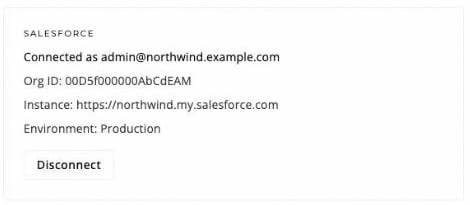
Sign in as the integration user holding the permission set. After approval you’re returned to Juno and the card shows the connected org.
Choose what syncs
Connecting your org turns activity sync on with all seven event types enabled, so records start appearing straight away. Two settings then control what flows:- Which events sync — tick or clear them under Activity events written to Salesforce. See choosing which events sync.
- Which learners are covered — staff, customers, or both, on the provisioning settings.