

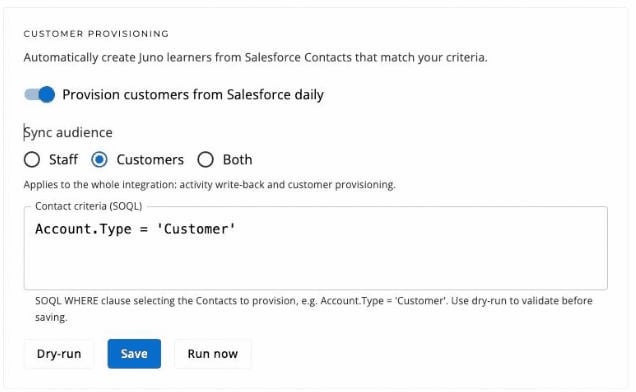
Choose who gets access
1
Open Customer provisioning
Go to Admin > Integrations > Salesforce. The Customer provisioning card sits under the connection card.
2
Write the criteria
The criteria is a Salesforce WHERE clause selecting the Contacts to provision — for example
Account.Type = 'Customer'. It runs against your own org with your own fields, so anything your Salesforce reports can filter on works here.Not sure what you can filter on? Select Show available fields to list the Contact fields in your org, custom ones included, with their API names. Selecting a field adds it to the criteria. Juno reads only the field names here — no Contact data is fetched until you dry-run.3
Preview with Dry-run
Select Dry-run to preview exactly what would happen — how many Contacts match, who gets created, updated, or deactivated, and any email changes — without changing anything. Dry-run works on unsaved criteria, so iterate until the numbers look right.
4
Save and enable
Turn on Provision customers from Salesforce daily and select Save. Juno syncs nightly from then on. Run now applies the saved criteria immediately — it asks for confirmation first, because matching Contacts become learners and previously provisioned learners who no longer match are deactivated.
Choose the sync audience
Sync audience — Staff, Customers, or Both — applies to the whole integration: it controls whose activity writes back to Salesforce as well as customer provisioning. Staff are your employees; customers are the learners this page creates.What a sync run does
Deactivation has four guardrails:
- Zero matches deactivate nobody. A criteria typo that matches no Contacts never locks everyone out.
- A large batch is refused wholesale. A run that would deactivate more than a tenth of your provisioned learners (or 5, whichever is higher) is skipped entirely rather than applied piecemeal — that pattern is far more often a bad criteria than genuine churn.
- A partial read deactivates nobody. If the Contact read hits its record cap, that run skips deactivation — absence can’t be trusted when the list is incomplete.
- Only plain learners are auto-deactivated. Anyone provisioning promoted above Learner is left alone and logged; deactivate them manually if that’s what you want.
How provisioned customers sign in
Provisioned learners sign in with a magic link — no password to set, nothing to install:- They open your organization’s Juno sign-in page and enter their email address (the one on their Contact).
- Juno emails them a sign-in link, valid for one hour.
- Selecting the link signs them in as a learner — they see what’s assigned to them, browse what you’ve shared, and their activity syncs back to your org.
Deactivated learners can’t request new sign-in links, and links they already received stop working.