

Certifications are in beta and roll out gradually. Until they are on for your organization, Journeys award certificates the way described in Certifications for learners.
Certificates and certifications
Journeys that already issue a certificate keep doing so. When you are ready, convert them so you can manage every credential from one place (see Certifications from a Journey).
Where to find it
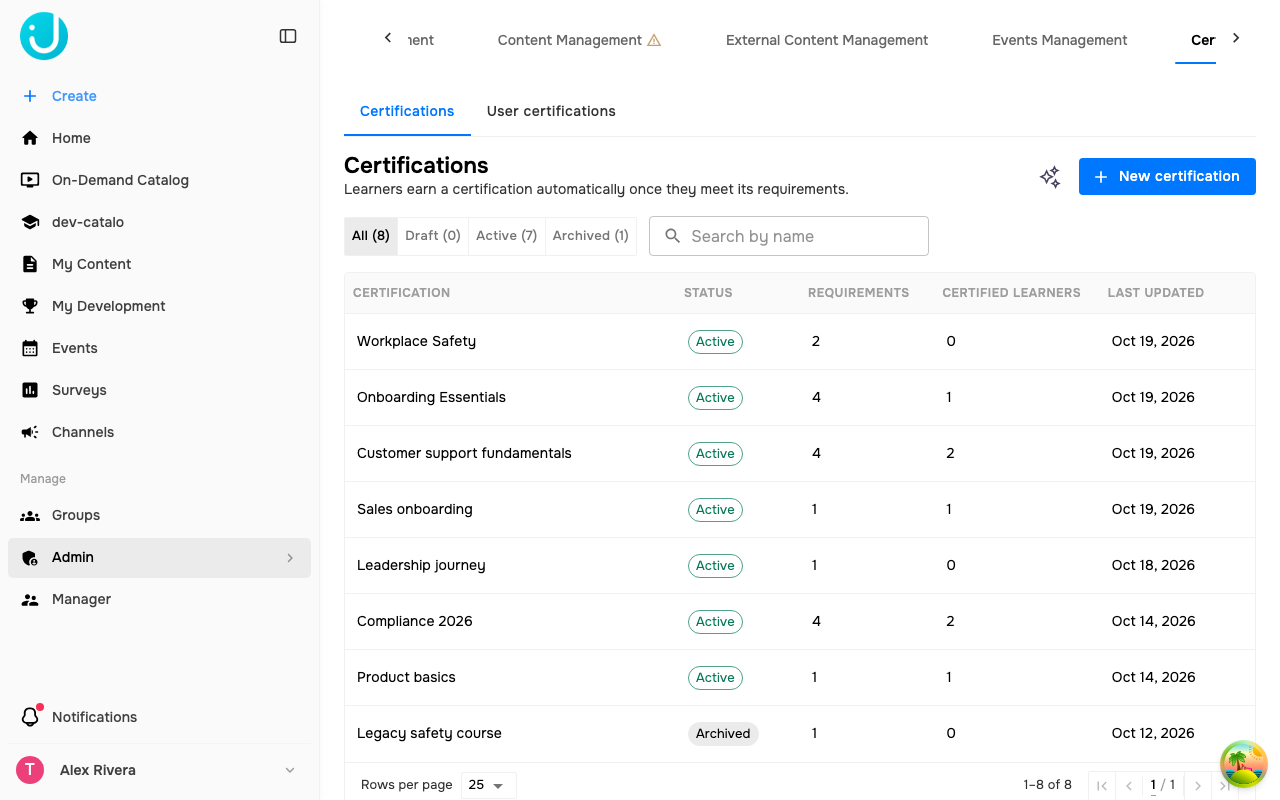
Go to Admin → Content → Certifications. The tab has two views:- Certifications — the definitions you manage.
- User certifications — every certificate your learners hold. See User certifications.
The Certifications list
The list shows every certification with its status. Filter with the All, Draft, Active, and Archived toggles (each shows a count) and search by name.
Select a row to open the certification. Two actions sit above the list:
- New certification starts a draft.
- The Automations icon opens the certification automations — the triggers that fire when a certification is earned, when it is about to expire, or when a learner qualifies and waits for approval. See Certification triggers.
Create a certification
1
Start a draft
Select New certification. Give it a name (required) and a description that tells learners what the credential stands for.
2
Pick or design the certificate
Under Certificate design, select Design certificate to build the document learners download. You can also leave this empty for now and add a design later; the preview panel on the right shows the design as you go.
3
Set expiration and awarding
Under Expiration, keep No expiration or choose Expires and set a period or a date. Under Awarding, choose whether learners earn it automatically or after you approve them.
4
Limit the audience (optional)
Add Audience groups or Audience people if only some learners may earn it. Leave both empty so anyone can.
5
Add the requirements
Build the rule under Requirements (see Build the requirements), then select Create draft.
6
Activate it
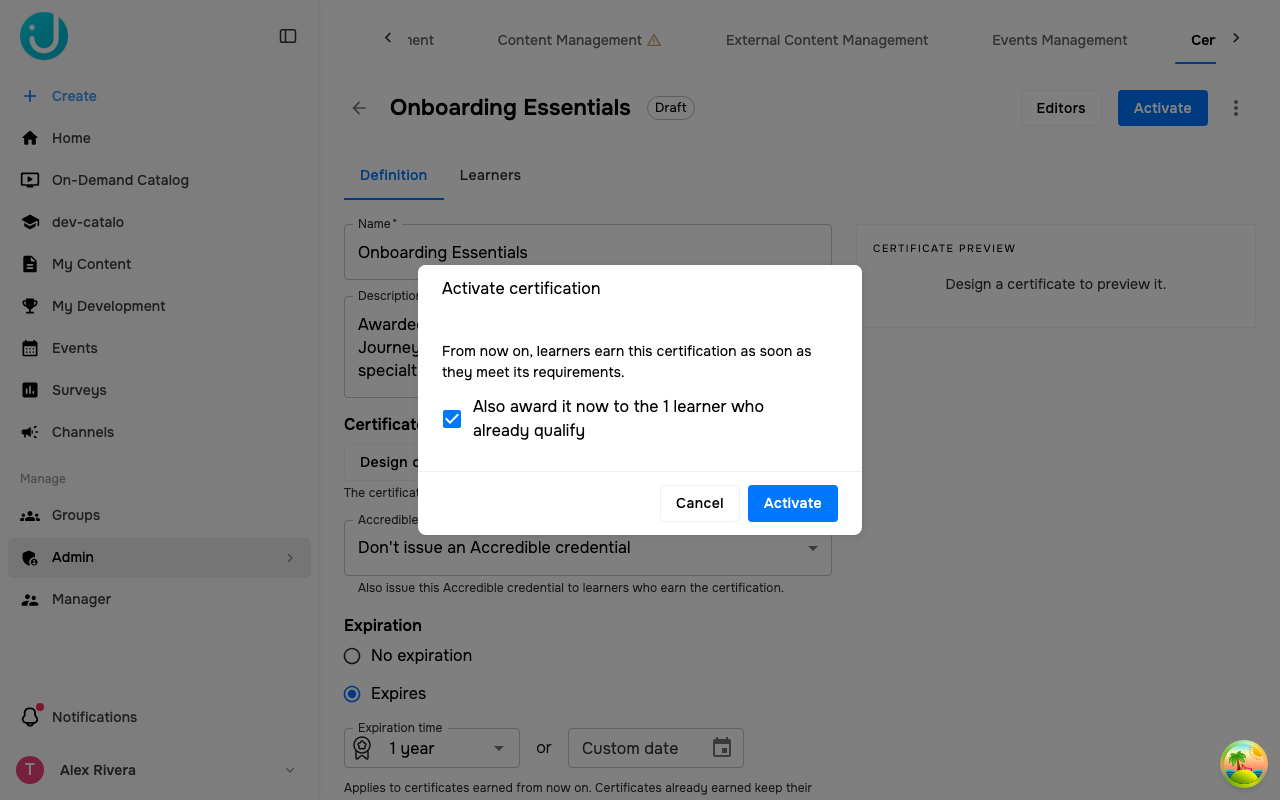
Select Activate. From now on, learners earn the certification as soon as they meet its requirements. The dialog also offers to award it right away to learners who already qualify.
Settings
Build the requirements
Requirements are a rule that reads as a sentence: Learners must meet all / any / at least N of these requirements. Each requirement is one item of content and the action that satisfies it:
Juno picks the action from the content type; you only choose the content.
- Select Add content. The Add required content dialog lists your courses, Journeys, modules, quizzes, SCORM units, tasks, and events. Tick one or more and select Add.
- To combine conditions, select Add group. A group has its own all / any / at least N setting and its own requirements. Groups nest up to three levels deep.
- To drop an item, select Remove requirement; to drop a whole group, Remove group.
- Onboarding certification — all of: Complete “Company onboarding” (Journey), Pass “Security basics” (quiz).
- Product specialist — all of: Attend “Product deep dive” (event), and a group with at least 2 of: Complete “Pricing”, Complete “Integrations”, Complete “Support playbook”.
Activate, award, and archive
A certification awards only while it is Active. The actions in the header change with the status:
Save your changes first; the actions stay disabled while the form has unsaved edits.
Activate opens a dialog that checks who already meets the requirements. Keep Also award it now to the learners who already qualify ticked to award them on activation, or untick it so only learners who qualify from now on earn it.
 Award existing learners runs the same check later — for example after you change the rule. Saving a rule change on an Active certification opens this prompt automatically. Learners who already hold the certification keep it, whatever the new rule says.
Archive stops the certification: learners stop earning it, and everyone who already holds it keeps it. You can restore an archived certification as a draft.
Award existing learners runs the same check later — for example after you change the rule. Saving a rule change on an Active certification opens this prompt automatically. Learners who already hold the certification keep it, whatever the new rule says.
Archive stops the certification: learners stop earning it, and everyone who already holds it keeps it. You can restore an archived certification as a draft.
Awards are permanent. Editing the rule, resetting a learner’s progress, or removing someone from the audience never takes a certificate away. To remove a certificate from one learner, use User certifications.
Learners tab
Open a certification and select Learners to see where everyone stands.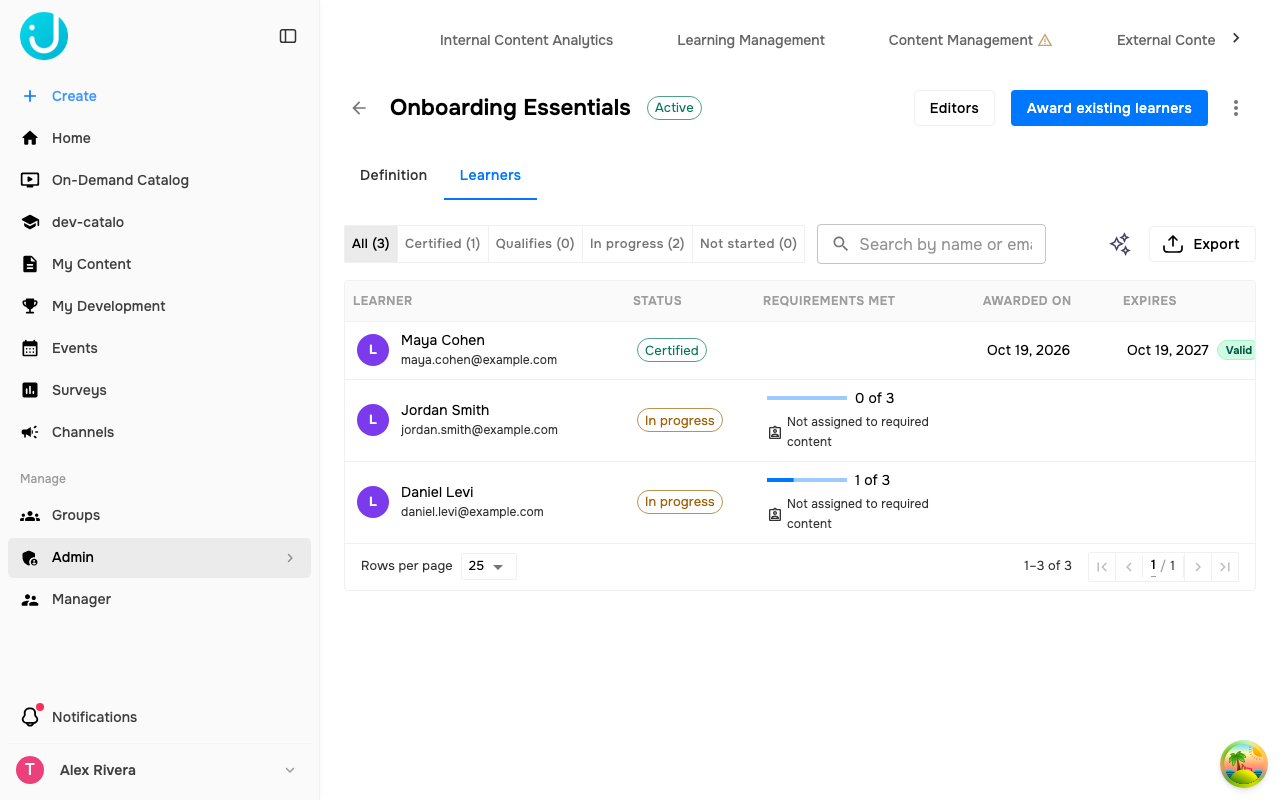
Filter by status (each toggle shows a count) and search by name or email.
Award a learner
Learners with the Qualifies or Awaiting approval status have an Award button. Select it and confirm to award the certification now. With automatic awarding, Qualifies is usually short-lived: Juno awards within moments of the learner meeting the last requirement.Learner details
Select a learner to open their details: the status, the award and expiration dates when awarded, and the requirements checklist with a tick next to each item met. For certified learners the checklist reflects the current rule; the award stays even if they no longer meet it.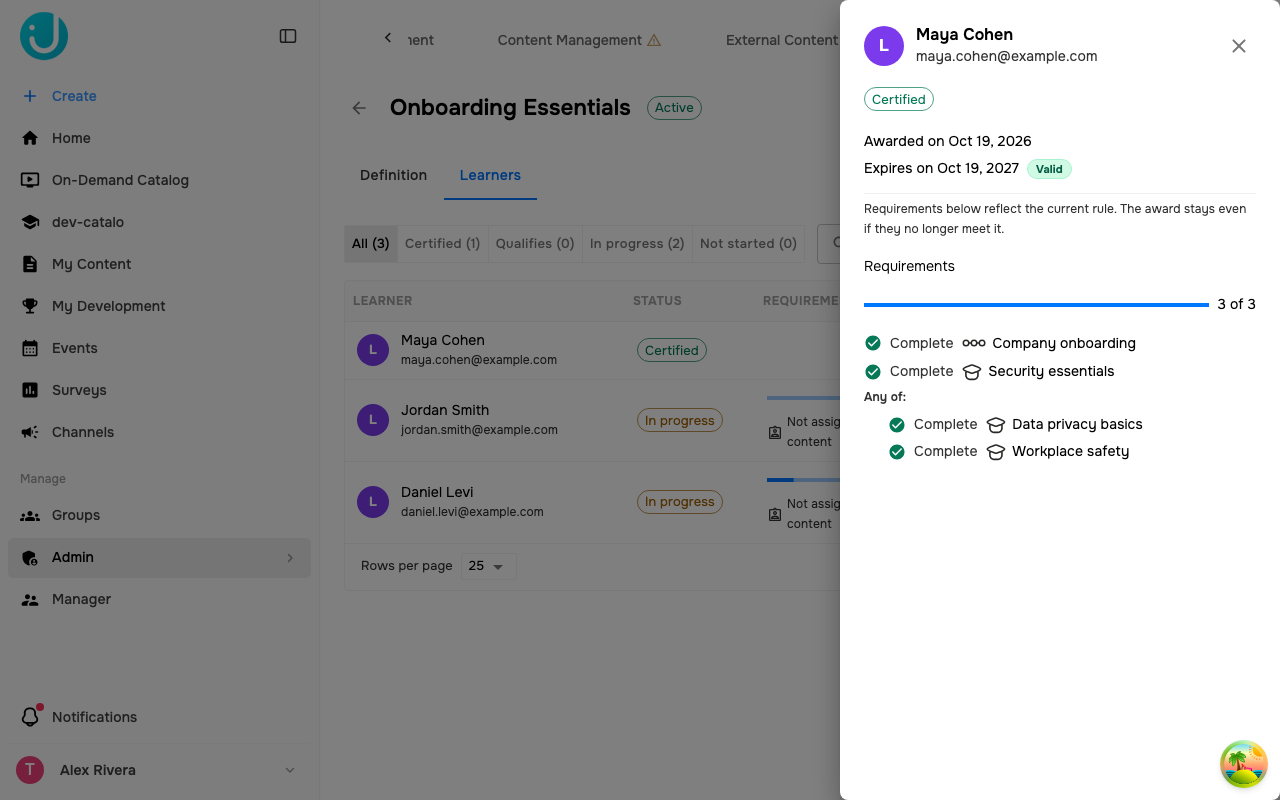
Assign missing content
When a learner isn’t assigned to content the rule requires, the Not assigned to required content hint opens Assign content. Tick the items to assign — rows already Done or Assigned are marked, and events point you to Assign from the event — then select Assign. The learner gets the default assignment email. A line under the list tells you whether the selected content lets them meet the requirements.Export
Export downloads the current view as a spreadsheet with Name, Email, Status, Requirements met, Requirements, Awarded on, and Expires. The tab lists up to 10,000 learners, certified learners first.Certification editors
Give someone who isn’t a Content Admin the right to manage one certification. Select Editors in the header to open Certification editors, search for people under Add editors, and select Save. Editors can change, activate, archive, and award that certification; Admins always have access.- The person who created the certification is always an editor (marked Creator) and can’t be removed.
- Editors reach their certifications from Admin → Content → Certifications, which is the only Admin page they see.
- If you remove yourself and you aren’t an Admin, you lose access to the certification once you save.
Certifications from a Journey
Open a Journey in the editor and select Certifications in the top bar. The popover lists the certifications that require this Journey — with a green check when an Active one does — and lets you:- Create certification — opens a new draft named after the Journey, with one requirement: Complete the Journey. Add more requirements, a design, and expiration, then activate it.
- Convert to certification — shown when the Journey still issues a legacy certificate. Conversion creates a certification with the Journey’s design and expiration, so you can manage it with your other certifications.
- Open — jumps to a certification you can edit. If you can’t, the popover says to ask an Admin.