

Overview
When your request is approved and the provider doesn’t use voucher codes, you get a virtual credit card — a one-time or subscription card with a set limit, scoped to the approved purchase. You use it at the provider’s checkout the same way you’d use any credit card. For request-code vouchers (Udemy, Coursera, etc.), see Learning Requests → Provider voucher code.Where to find your card
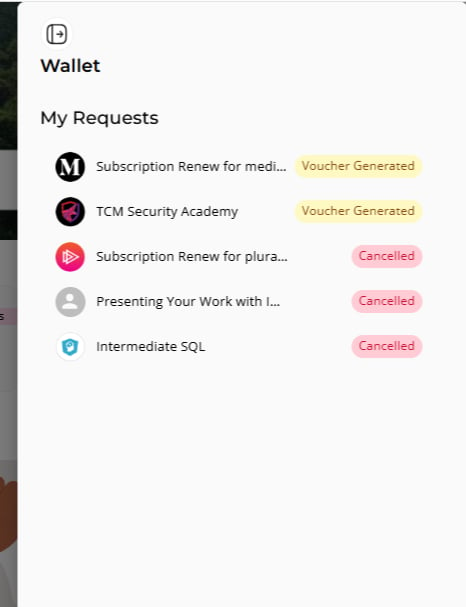
- Open My Wallet (wallet icon, top-right of the Catalog).
- Click the approved request.
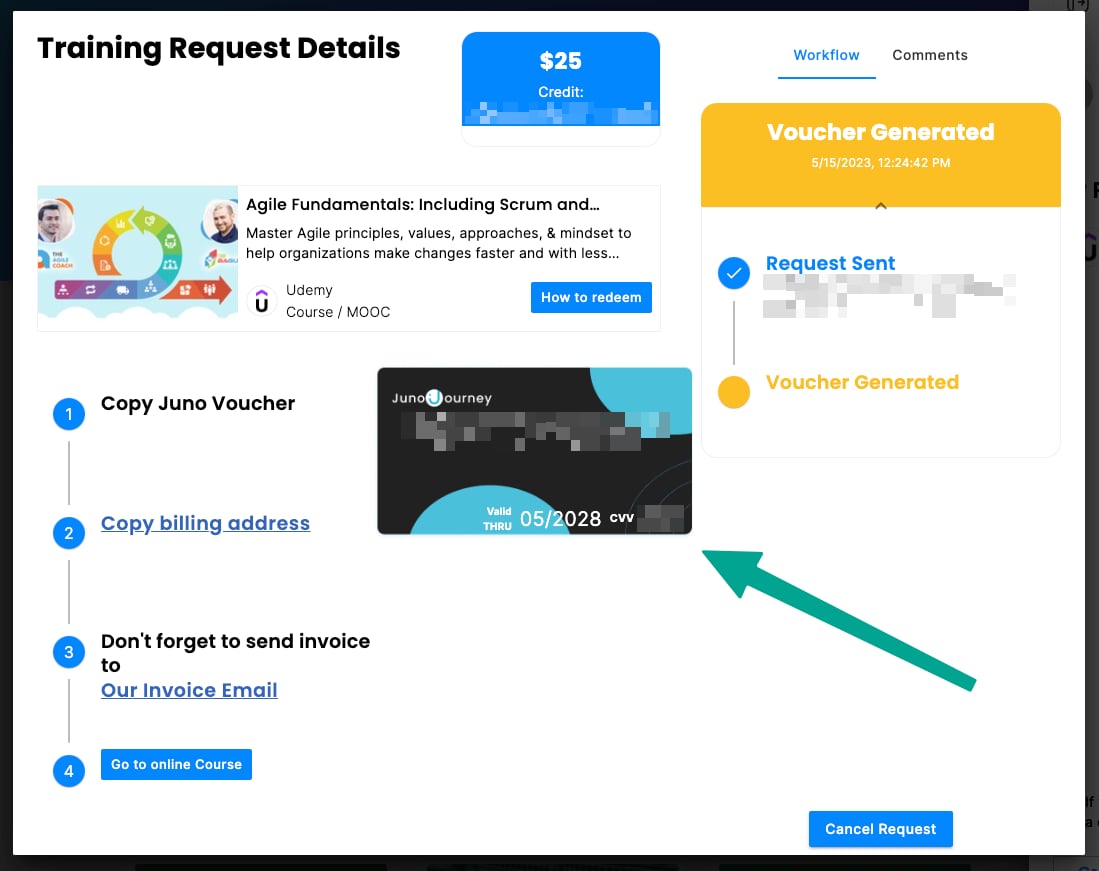
- The request dialog opens with the card displayed.
- Card number — click to copy
- Expiration date (Valid Thru) — click to copy
- CVV — click to copy
- Cardholder name
- Amount limit — the approved budget for this card
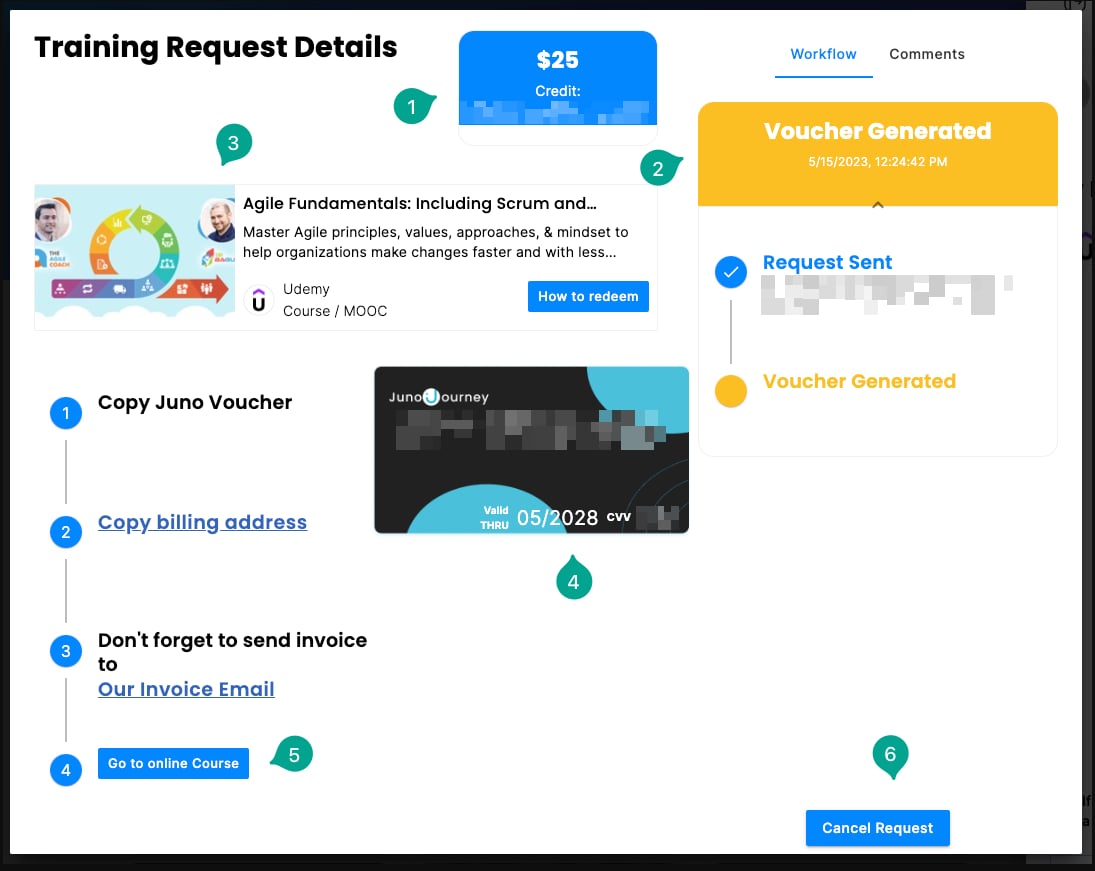
The request dialog
Once the voucher is generated, the request dialog shows:- Voucher amount: how much the voucher is worth.
- Status: the current status of the request.
- Item: the course, content, or item the voucher is for.
- Card details: card number, expiration date, and CVV.
- Go to online course: a direct link to buy the item with the voucher.
- Cancel Request: cancels the voucher. Unused budget returns to your wallet.
Your home page also surfaces an actionable card for requests that need your attention — clicking it opens the same request dialog.
How to use it
- Open the provider’s checkout for the approved purchase.
- Click each field on the card in your request dialog to copy it.
- Paste the number, expiration, and CVV at checkout.
- Use the cardholder name shown.
- Complete the purchase.
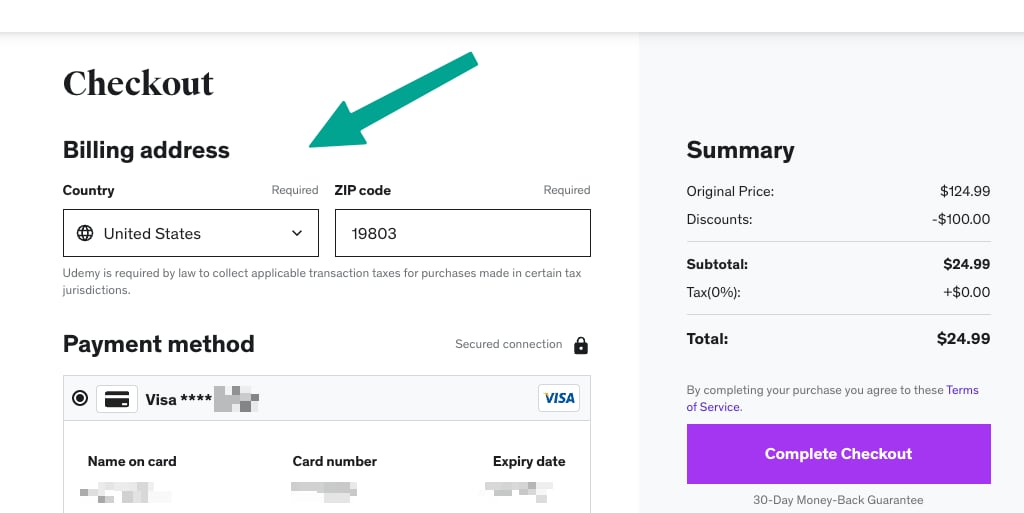
Billing address
If the provider asks for a billing address, click Copy billing address in the request dialog and use that address. If you use a different one, the purchase may be declined.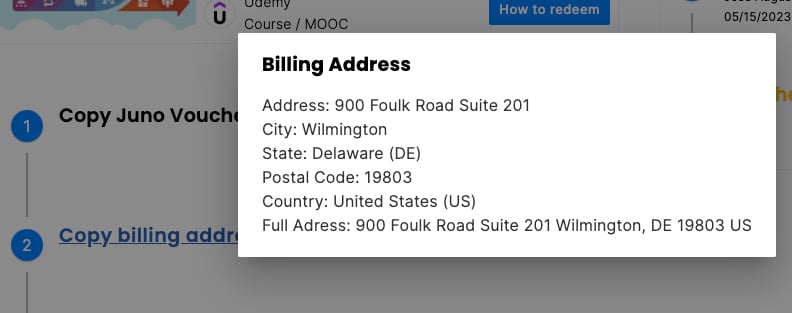
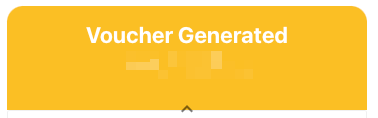
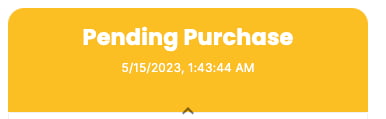
Voucher statuses
To see a voucher’s status, open My Wallet in the On-Demand Catalog. Your organization’s approval process decides which statuses you’ll see.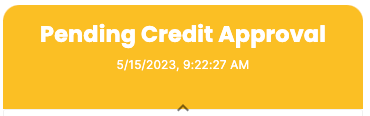


Send your invoice
After you buy, the provider emails you an invoice. Send it to Juno. To find the address, click Our Invoice Email at the bottom of the request dialog.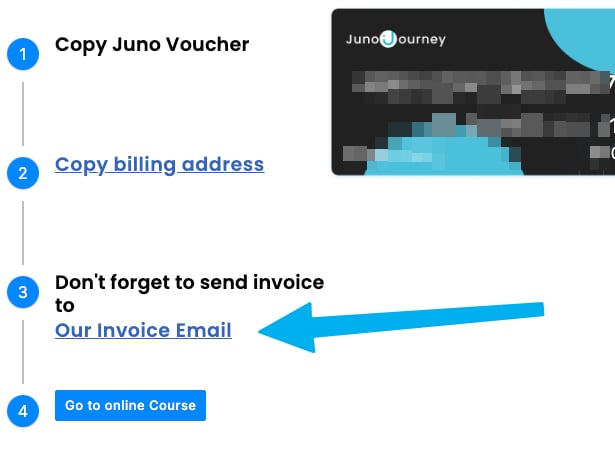
Subscription card vs. one-time card
The admin sets the card type when approving:
You don’t pick this — it’s set based on the content. If you tried to charge a one-time card a second time and were blocked, contact your admin to re-issue or convert it.
Subscription amounts and cancellation
For a subscription that runs longer than one month, the request dialog shows the full cost:- Amount card: a line such as “6 monthly payments — $120 in total”.
- Charged so far: once the card has its first charge, the amount card adds a line such as “$40 charged so far”.
Card limits
Every card is locked down to keep spend on track. Your admin can configure any combination of:
The limits are picked to match the request you submitted — they’re not arbitrary. If a legitimate charge is blocked, open the request dialog and report it. Common reasons a charge gets blocked:
- The merchant on the bill is different from the merchant you bought from.
- The cost ran slightly higher than estimated.
- A recurring charge fell outside the configured window.
If your card is declined
A decline is usually one of:- The charge exceeds the approved limit
- The card is one-time and you’ve already used it
- The provider isn’t matched to the purchase the admin approved
- A subscription charge happened outside the expected pattern
- Open the request dialog.
- Click Report issue (or contact your admin directly).
- Your admin can adjust the limit, re-issue the card, switch the type, or convert the request to a reimbursement.