

What is LTI?
LTI (Learning Tools Interoperability) is an education industry standard for connecting an LMS to external learning tools. Juno supports LTI 1.3, the current secure version built on OpenID Connect. When you connect an LTI tool, Juno becomes the platform: it signs learners into the external tool (so they don’t log in again) and receives their results back automatically. An LTI tool appears in Juno as an LTI Unit — a single piece of learning you place inside a Journey, just like a course, video, or SCORM package.How a learner takes an LTI Unit
1
Open the Unit
The learner opens the LTI Unit in a Journey and selects Launch content.
2
Secure launch
Juno signs the learner into the external tool and opens it in an embedded frame (or a new tab). No separate login is needed.
3
Complete the activity
The learner works through the activity in the external tool at their own pace.
4
Grade returns to Juno
When the tool reports a result, Juno records the grade and marks the Unit complete — the Journey progress updates automatically.
Completion and grading
The external tool decides when the activity is done and what score to send. Juno supports two evaluation methods, set when you create the LTI Unit:The grade and completion are recorded against the learner’s progress. If a learner finished the activity in the external tool but Juno still shows it incomplete, the tool may not have sent its result yet — see Troubleshooting.
Before you start
Connecting an LTI tool is a two-way exchange: you give Juno a few details about the tool, and Juno gives you back identifiers and URLs to paste into the tool. You only do this once per tool.Registering an external tool
1
Open the LTI registration screen
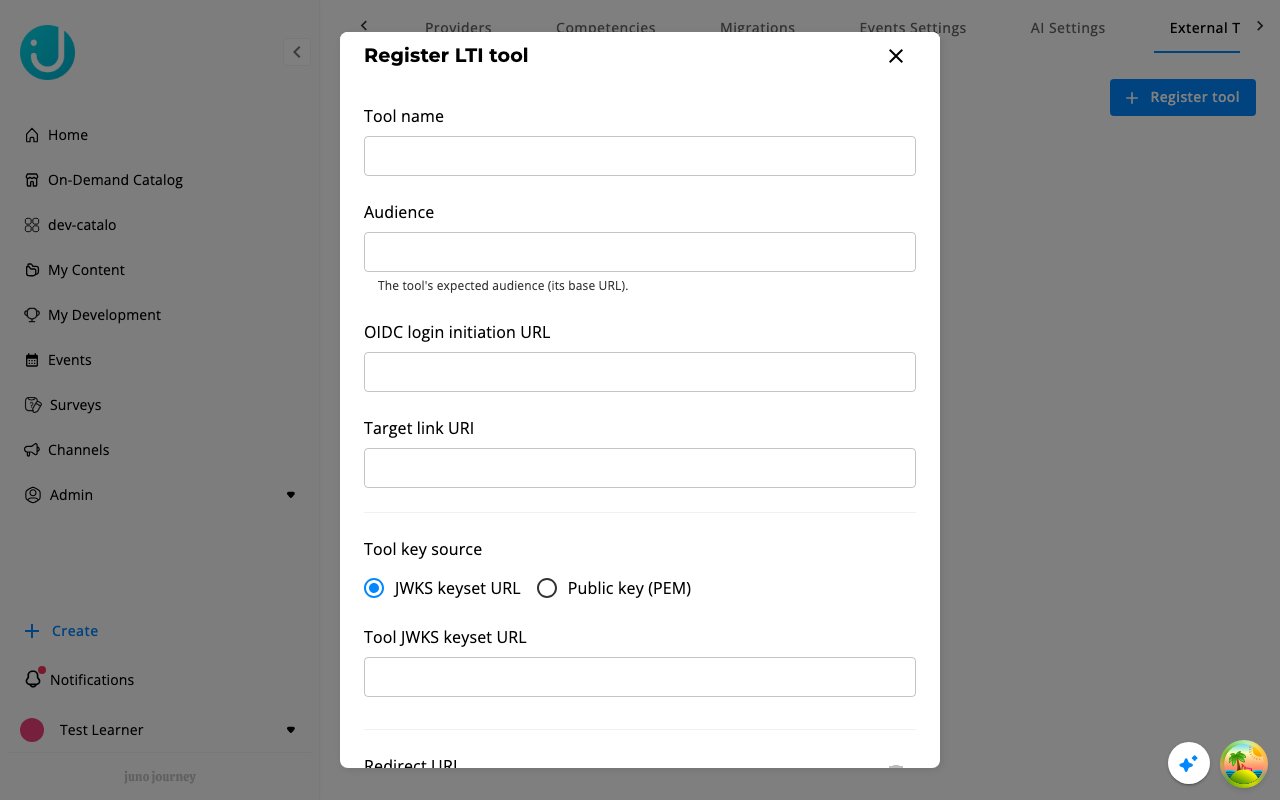
Go to Admin → Settings → External Tools (LTI) and select Register tool.
2
Enter the tool's details
Fill in the tool name, its audience, OIDC login URL, target link (launch) URL, at least one redirect URI, and the tool’s key source — either a JWKS keyset URL or a public key (PEM). Save.
3
Copy Juno's identifiers back to the tool
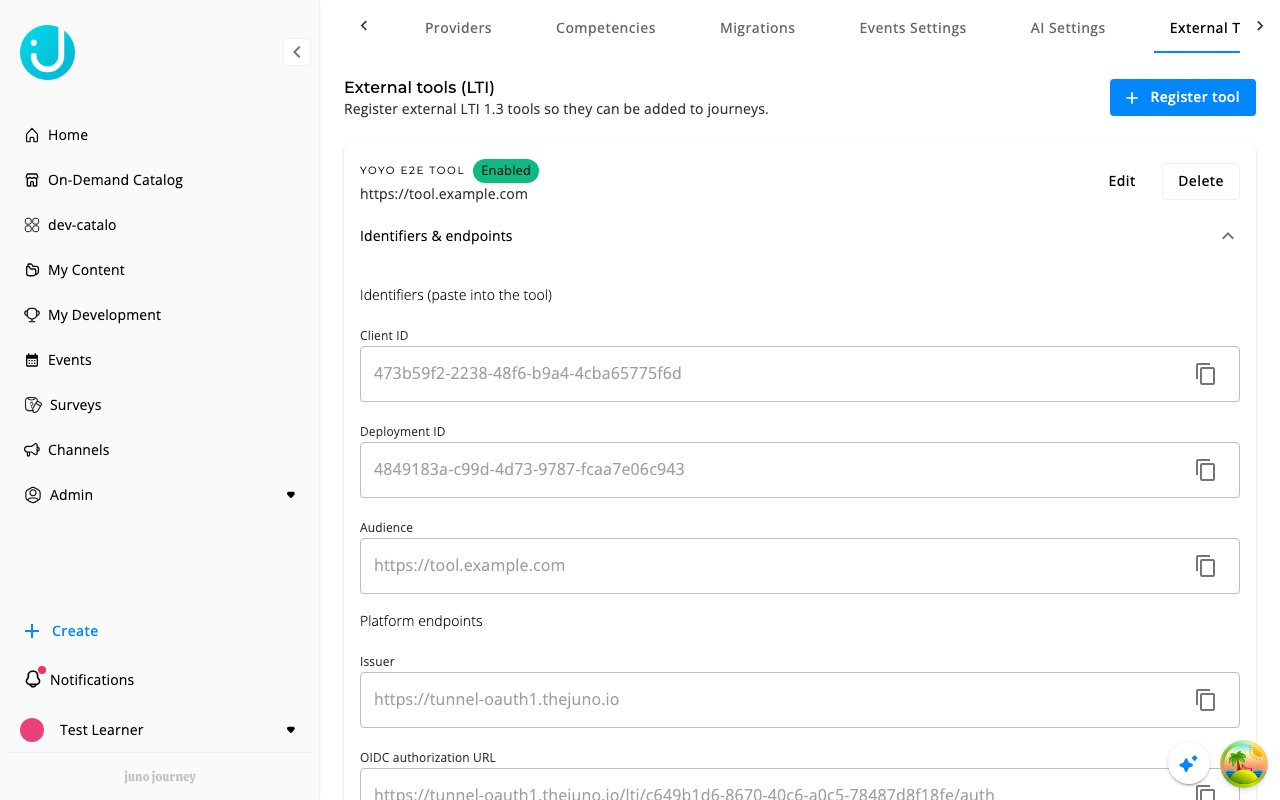
Expand Identifiers & endpoints on the saved tool. Copy the generated Client ID, Deployment ID, and the platform endpoint URLs (issuer, authorization, access token, public JWKS) into the external tool’s LTI configuration.
4
Confirm the connection
Most tools provide a test launch. A successful test confirms both sides are wired correctly.
Adding an LTI Unit to a Journey
The step picker is different in the current Journey builder and in the new one. Choose the tab that matches your screen. The new Journey is rolling out gradually.- Journey builder
- New Journey builder
1
Open a Journey and add a step
In the Journey builder, select + to add a step, then choose LTI tool.
2
Configure the Unit
Give the Unit a title, pick the External tool from the list of registered tools, and choose the completion evaluation method (By completion or By score). Add optional custom parameters if the tool needs them — for example, a Moodle activity published as an LTI tool requires its
id custom property, shown on Moodle’s published-content page.3
Create and publish
Create the Unit. It becomes step content in the Journey and is ready for learners to launch.
LTI Units are added from inside a Journey (the step picker), not from the standalone Create menu.