

What are career paths?
Career Paths give you a visual map of how roles are structured in your organization — where you currently sit and what growth opportunities exist. Open them from the Career Growth tab in My Development.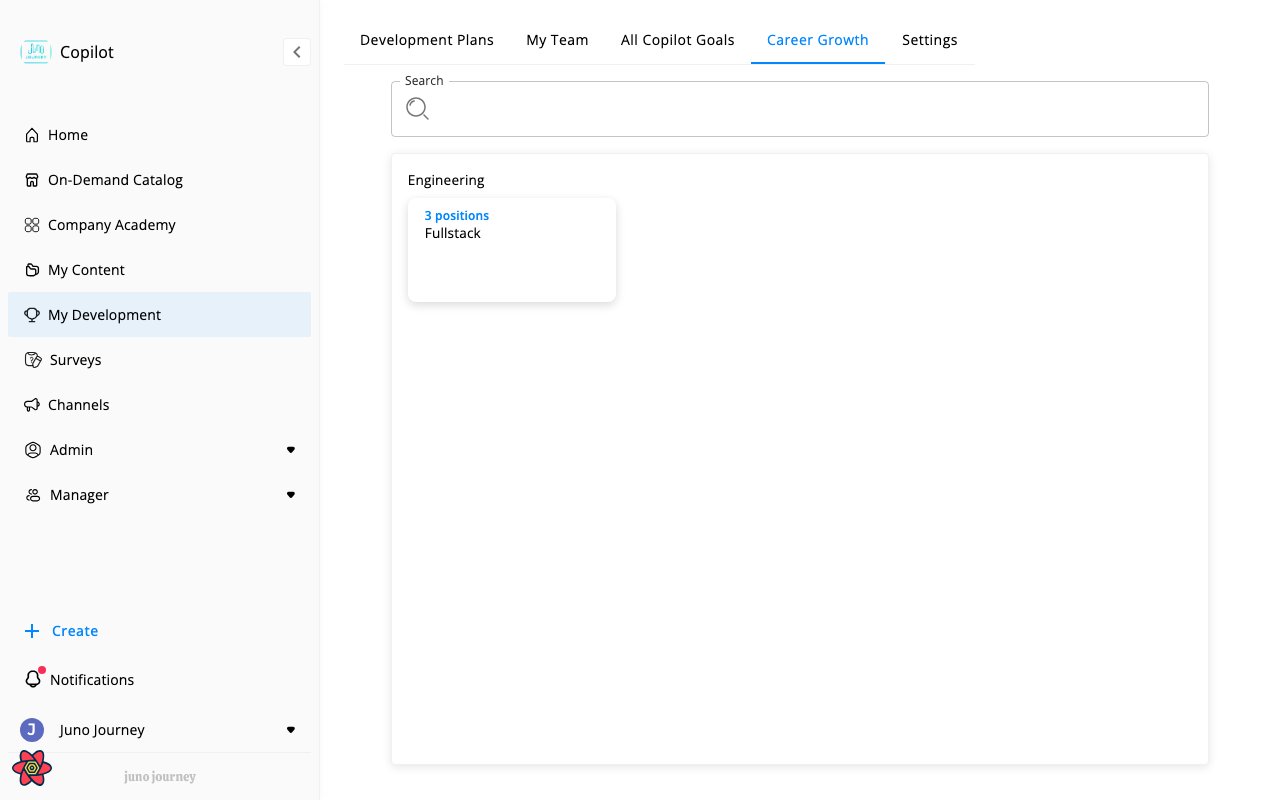
How career paths are organized
Your organization’s career paths are built from three levels:
Each position in a family represents a step in the career ladder. Positions can be:
- Individual Contributor — specialist/technical track
- Managerial — people leadership track
Where you start
Your position comes from your job title. Your admin matches job titles to positions, so you don’t pick a position yourself.- Your own family first. By default, Career Growth opens your family’s career ladder, with your position marked by your avatar and the note “Your current position”.
- All departments, if your organization allows it. Some organizations let you browse every department, family, and position. Then you also get a search box and an All Departments link.
- No position yet. If you see “Your job title is not assigned to any position”, ask your admin to match your job title to a position.
What you see
On the ladder, each position is a card. A card shows:- The track — Individual Contributor or Managerial — and the position title
- A Skills Growth bar that shows how close your current skill levels are to what the position expects. Your organization can rename “Skills”
- Your avatar, on your own position
Open a position
Select a position card to open it. You see:
Moving a slider under Current Level updates your own skill level.
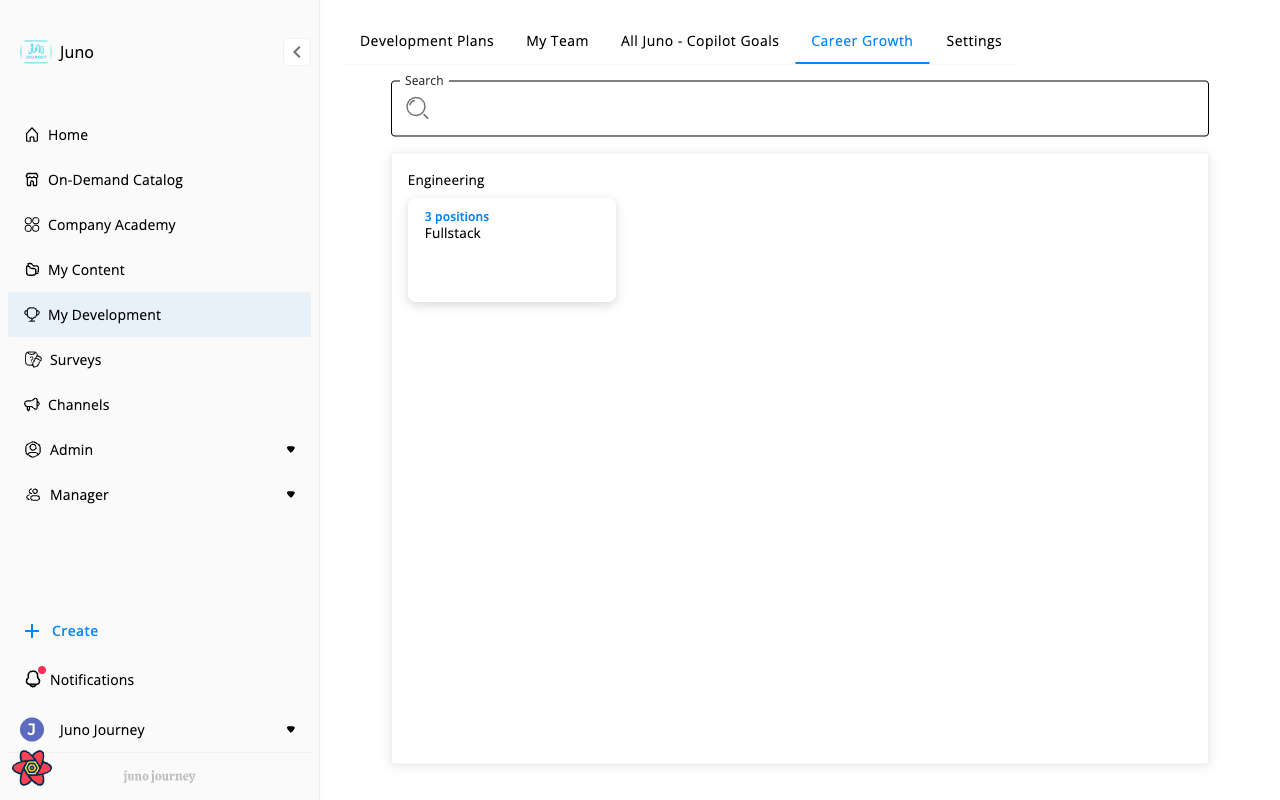
Search the map
Type in the search box to find a department, family, or position by name. Search ignores case.- A family card with matching positions shows N matching positions and lists up to three of them, with your search term in bold (+N more if there are others).
- Select a matching position to open its family at that position.
- Inside a family, matching positions are highlighted.
- Your search stays in place when you go back to All Departments.
Start a goal from a position
Select Grow My Career at the bottom of an open position. Juno lists the skills and competencies where your self-assessment shows a gap. Pick up to five and select Create a Goal. The goal focuses on what you picked. If you started from your own position, it’s about growing in your current role, not about a promotion. See Create a goal from a position for the full steps.How positions connect to development
Positions link directly to your development tools:- Skills & Competencies — each position defines what’s needed. Compare your current levels against the position to identify gaps. See Competencies & Skills.
- Personal Development Plan — your plan is based on your position. See Personal Development Plan.
- Goals — start a goal straight from a position, as above.