

Overview
A learning request is how you spend your budget. Pick something to learn, submit a request, the right approvers (set by your company’s policy) approve it, and the platform fulfills it — by issuing a voucher code, a virtual credit card, or reimbursing a receipt.Requesting a course
- Open the On-Demand Catalog (
/catalog). - Find the course (search bar, provider tile, or top-courses list).
- Click Request.
- Add a short justification if the policy requires one.
- Submit — the first approver gets a notification.
Custom requests
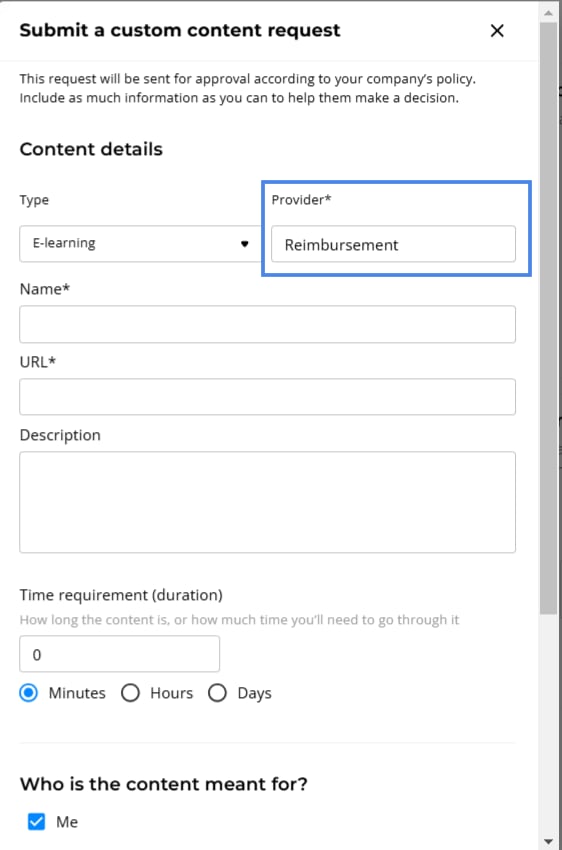
For content that isn’t in the catalog — a conference, a niche course, an externally-purchased subscription — use Submit Custom Request from My Wallet or the catalog footer. Fill in the form:
Pick the closest Type. Your organization’s credit policies can require approval for specific types, such as coaching, so the type can change who approves the request.
If your organization uses categories, the form also asks you to pick a Category. Managers and admins can also choose who the content is meant for.
Subscription requests
You can request a recurring subscription, such as a monthly plan from a provider. There are three ways to start:- Subscribe to Your Favorite Websites: on the catalog page, select a provider’s tile, then choose a plan.
- A provider’s plan: on a provider item page, such as Coursera, select a plan and Enroll.
- Custom request: choose Subscription as the Type in a custom request.
In Subscribe to Your Favorite Websites, you set the number of months directly, from 1 to 12.
If your organization limits subscriptions, you see Limited for one month and can request one month at a time.
A subscription link can also open the Subscribe to [provider] dialog. In it, choose a plan. For a monthly plan, choose how you pay and the number of months. Then pick the credit to use.
Total price and charges so far
A subscription request for more than one month shows the full cost, not only one month:- When you request on a provider page or in a custom request: a note shows the monthly price, the number of months, and the total, for example “Note! You’ll be charged 120 in total.”
- When an approver reviews: the approval dialog shows the number of monthly payments, the monthly price, and the total.
- In the request: the amount card adds a line such as “6 monthly payments — 40 charged so far”.
The amount charged so far appears only for subscriptions longer than one month, after the virtual card has its first charge.
Approval flows
Who approves your request depends on the Credit Policy your company has configured. Common shapes:- Direct manager only
- Direct manager → admin
- Skip-level manager → admin
- Department head → finance approver
- Multi-step chain for high-cost requests
- Auto-approval under a cost threshold
You don’t need to know the policy details — the request shows you what’s pending and who’s next. Admin configuration lives in Budget & Credits (Admin).
Request statuses
Fulfillment types
Once approved, requests are fulfilled through one of three flows. The flow is picked for you based on the provider and your org’s setup.Provider voucher code
After approval, the code appears on your home page and inside the request dialog. You’ll also receive an email if email notifications are on. To redeem:- Open the request dialog (from the home card or My Wallet).
- Copy the code.
- Click Redeem on [Provider] to open the provider’s site.
- Enter the code at checkout.
- Return and click Mark as used.
Reimbursement
Reimbursement covers cases where a voucher won’t work, for example:- The provider doesn’t accept credit cards, or declines the voucher because of its own payment policies.
- You already paid, and your organization agreed to cover the cost.
- Pay the provider out-of-pocket.
- Open the request dialog and upload your receipt (PDF, JPG, or PNG).
- Wait for admin review.
- Get reimbursed via your org’s standard expense process.
Virtual credit card
A short-lived card with a fixed limit issued to you for the approved purchase. Full detail in Vouchers (Credit Cards).Subscription card vs. one-time purchase
When the request needs a virtual credit card, the admin sets it up as either:- One-time — single charge. After a successful payment, the card locks and the front blurs in your dialog so it can’t be reused by mistake.
- Subscription — recurring billing. The card stays active for ongoing charges (monthly SaaS, annual subscriptions).
Tracking your requests
Three places to see request state:- Home page — pending and actionable requests appear as agent cards.
- My Wallet (top-right wallet icon) — full list, filter by status.
- My Library — once content is provisioned, it shows up here.