

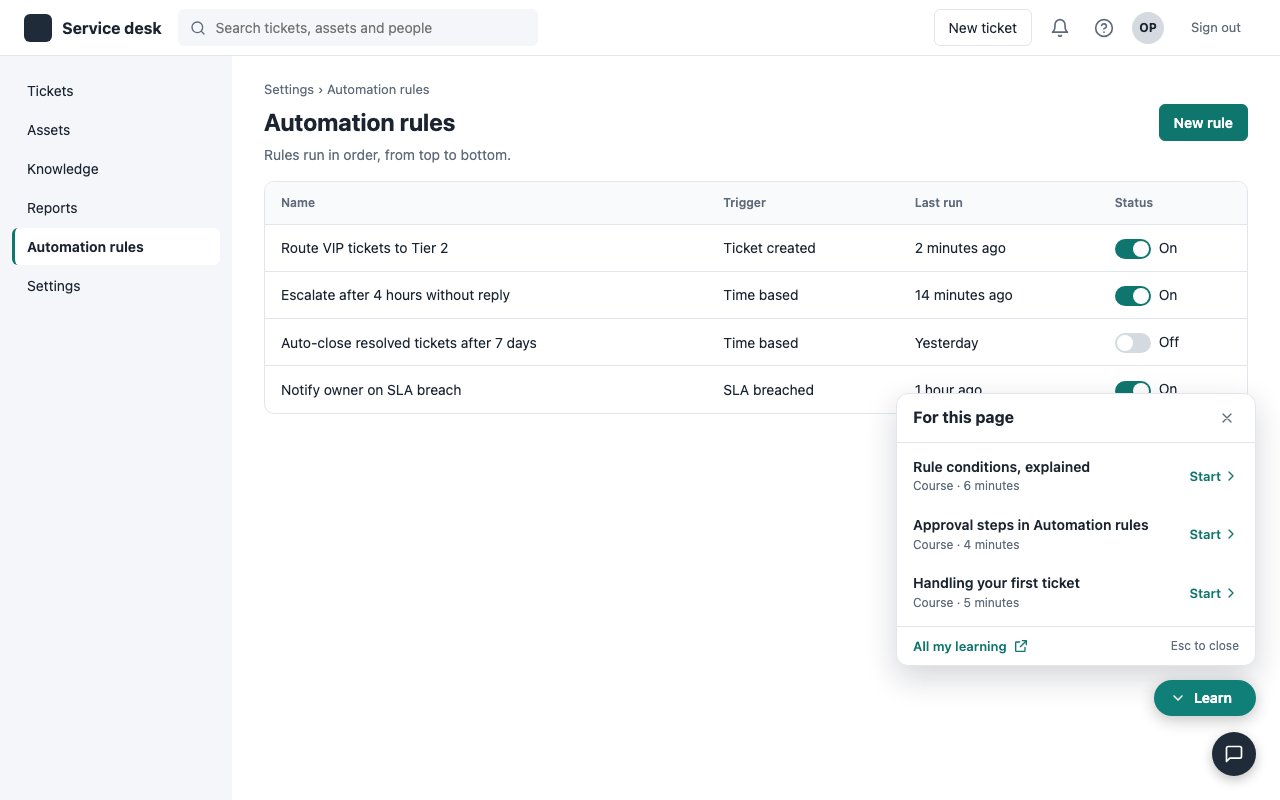
The in-app launcher is in beta. Admins decide where the button shows, and for whom, in In-app launcher.
How it works
- In Juno, an admin writes rules on Admin > Settings > In-app launcher: which pages show the button, for which users, and which learning it opens
- Your page loads Juno’s script. The script calls your
getTokenfunction, which gets a short-lived token from your backend, then asks Juno for this user’s rules - The button shows on the pages a rule matches. The script matches pages itself, so your page addresses never leave the browser
- A click opens the learning: your backend signs a sign-in token, and the user lands in Juno, signed in as a learner
- Learners only. New users are created as learners. Someone who is an admin or manager in Juno is asked to sign in to Juno directly.
- No button when something’s wrong. If your
getTokenor Juno fails or doesn’t answer within 3 seconds, the page shows no button, and nothing else on the page changes. The script tries five more times, waiting 2, 4, 8, 16 and 32 seconds in between, so a slow first answer, or a user who signs in within about a minute, still gets the button. A refusal from Juno (see Troubleshooting) ends it at once, except429rate_limited. - A new tab, or a panel. Juno opens in its own tab. When your admin sets Open learning in to A side panel on the page, it opens in a panel on your page instead, still signed in.
Before you start
The launcher signs users in with the same secret as Portal SSO. Your Juno admin generates it: see Signing key for the in-app launcher. Install has everything to copy: the code for your app, the script tag, your site key, and the Content Security Policy lines.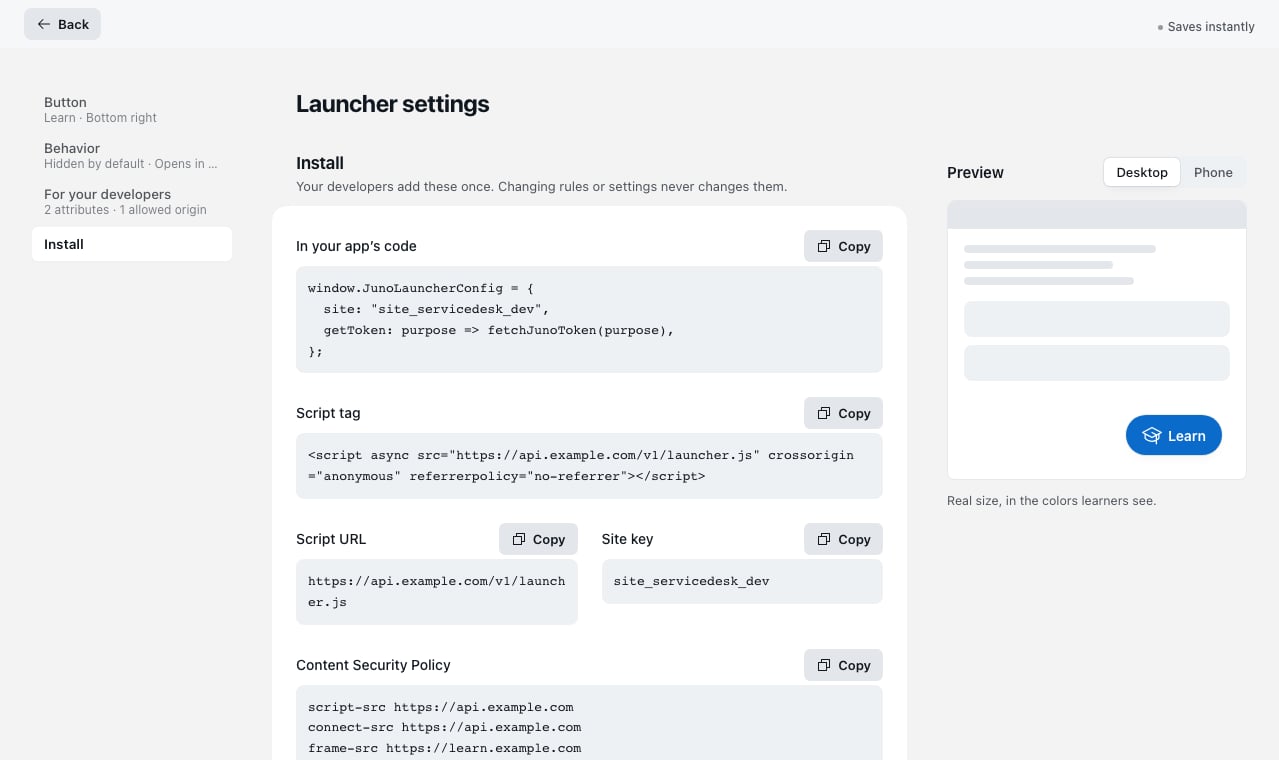
Step 1: Sign tokens on your backend
Add a route to your backend that signs a token for whoever is signed in. Shape it the way your API already works: Juno only needs the token, which yourgetToken function returns in Step 2. Your Portal SSO secret stays on your backend and never reaches the browser.
- The script asks for two kinds of token:
launcheron page load, andsigninwhen the user clicks - Protect the route like your other API routes: your sign-in session, and your usual protection against cross-site requests
- Don’t let anything cache the answer: each token works once
kid header:
A page-load token carries no email: Juno refuses a
launcher token with email or name, or with an email address in attrs, and the email reaches Juno only when the user clicks. attrs only decide which rules apply, and Juno doesn’t copy them onto the learner. Each key shows up for your admin under Learner attributes in the launcher’s settings the first time a page loads with it, and rules can then target it. To fill in the learner’s profile for reports and groups, send attributes on the sign-in token too: your admin maps them to Juno fields and custom attributes, as for Portal SSO.
Express route
Step 2: Add the script
In your app’s code, tell the launcher your site key and how to get a token. Then add Juno’s script to your pages. Copy both from Install: they carry your site key and Juno’s address.App code
Tag
getTokengets"launcher"or"signin"and returns a promise of the token string. If it rejects, or returns anything else, there’s no button, and the browser console says why.- Apps with their own menu entry for learning: set
launcher: "none"for no corner button, then callopen()from your menu. referrerpolicy="no-referrer"keeps your page’s address out of the request for the script.
JunoLauncherConfig in your bundle rather than an inline script, so a strict Content Security Policy needs no 'unsafe-inline'.
Show it to some users only
If only some of your users get the launcher (say admins, or one plan), load the script for them alone. Your other users load nothing, and neither your token route nor Juno hears from them. Rules in Juno can also targetattrs, but then every user loads the script.
React
shutdown() removes the button and forgets the user, so the next user who should get the launcher starts fresh, without a page reload. A page always runs one launcher, even when the script loads twice. Deleting JunoLauncherConfig covers a script still on its way when the user leaves: removing its tag doesn’t stop it, but with no config it starts nothing.
Open in a panel on your page
When your admin sets Open learning in to A side panel on the page, a click opens the learning in a panel on your page, so your users learn without leaving your product. Your install stays the same, apart from one Content Security Policy line.- Where it opens. A full-height panel on the side of the page, full screen on phones. Its header names what the panel shows, goes back to the list when the learning was picked from it, opens the learning it was opened on in a new tab, or closes the panel. Your page keeps working beside it.
- Only the learning. The panel shows learning, without Juno’s own menu or the rest of Juno. From a course, video or lesson, All my learning opens the full list, still in the panel, and the header follows the user to whatever they open next.
- As wide as the user wants. They drag the panel’s inner edge, or focus it and use the arrow keys, between 360 pixels and 960 pixels or 70% of the window, whichever is less. The browser keeps the width for the next panel in one
localStoragekey on your site,juno-launcher-panel-width. - Signed in while it’s open. The panel signs the user in with a fresh sign-in token from your
getToken, and no session stays in the browser after it closes, so the next person on a shared computer starts signed out. - Progress shows on your page. Each row in the list shows the progress Juno saved for that learning: a video’s watched share, a course’s share of finished sections, or completed. While the panel is open, its header follows along, and the button shows a ring with the share done of the learning the user left unfinished.
- Learning in order. When your admin sets a page’s learning to be taken in order, the list shows the next item once the user finishes the one before, as Step 2 of 3. It updates as soon as they finish, with no reload, and in a new tab once they come back to yours.
- Progress reaches your app. As the user learns,
on("progress")tells your page, for example to unlock a feature once a course is done. Progress is saved in Juno either way. - Your Content Security Policy needs
frame-srcfor your Juno address (see below).
Content Security Policy
If your app sends a Content Security Policy, add the lines from Install. They allow Juno’s script and its requests:frame-src line for your Juno address:
https://api-prod.the-juno.com and lands on your Juno address, such as https://acme.the-juno.com. If your policy limits form-action, add both hosts to it for the fastest sign-in. If you don’t, a click still works: it opens a Juno page that signs the user in, a moment slower.
JavaScript API
Once the launcher is up for a user,window.JunoLauncher has a small API. Your ready(launcher) gets it, and so does a juno:ready event on document (as event.detail). Neither fires when this user gets no button.
Troubleshooting
When there’s no button, the browser console says why and what to fix, in a line starting with[Juno launcher]. Juno’s own refusals also show in the network tab, as the answer to /v1/resolve: