

Create the key
1
Open Portal SSO
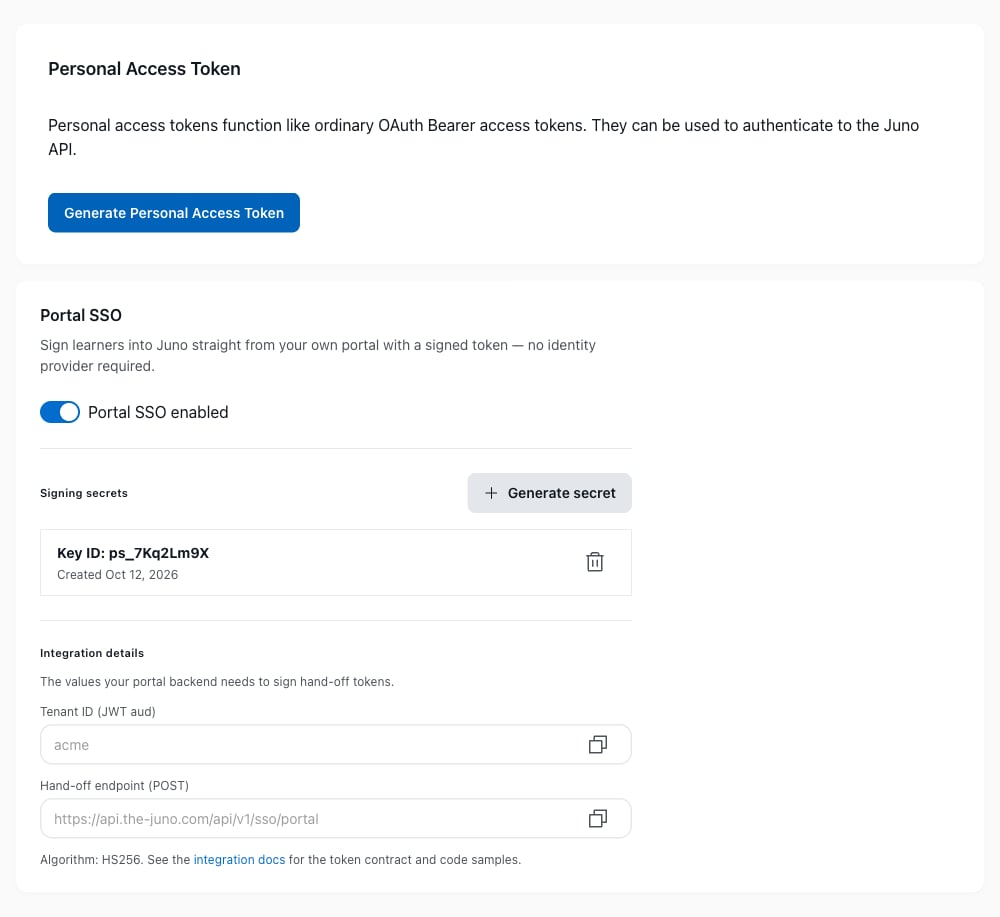
Go to Admin > Security > Developer Settings, and find the Portal SSO section.
2
Generate a secret
Under Signing secrets, select Generate secret, then Generate. Copy the Key ID (kid) and the Signing secret. The secret is shown only once, so copy it before you select Done.
3
Copy your tenant ID
Under Integration details, copy the Tenant ID (JWT aud).
4
Switch Portal SSO on
Turn on the switch, so it reads Portal SSO enabled. You can switch it on once a secret exists.
5
Hand the three values to your developers
Store the secret, its key ID, and the tenant ID in your backend’s secret manager, where your developers’ token route reads them. The secret never goes into browser code. See Install the in-app launcher.
Two secrets at most
Your organization can have two active signing secrets at once, each with its own key ID. Tokens signed with either one work, for the launcher and for Portal SSO. With two secrets, Juno says so and asks you to delete one before you generate another. The second secret is there for rotation: you switch your backend to a new secret before you delete the old one, so the launcher never stops.Rotate the secret
1
Generate a second secret
In Portal SSO, select Generate secret. Copy the new secret and its key ID. Two secrets are now active.
2
Switch your backend
Your developers sign with the new secret and put its key ID in the
kid header.3
Delete the old secret
On the old secret, select the delete icon, then Delete to confirm. Anything still signing with it stops working right away, and you can’t undo this.