

Overview
Udemy is a global online learning platform with courses across a wide range of subjects. You can request Udemy learning with your budget, either from the On-Demand Catalog or with a custom request.How to request
You have two options:- On-Demand Catalog: find the course in the catalog and click Request. See Requesting a course.
- Custom request: if the course isn’t in the catalog, submit a custom request with the Udemy course URL.
Enter the Udemy price
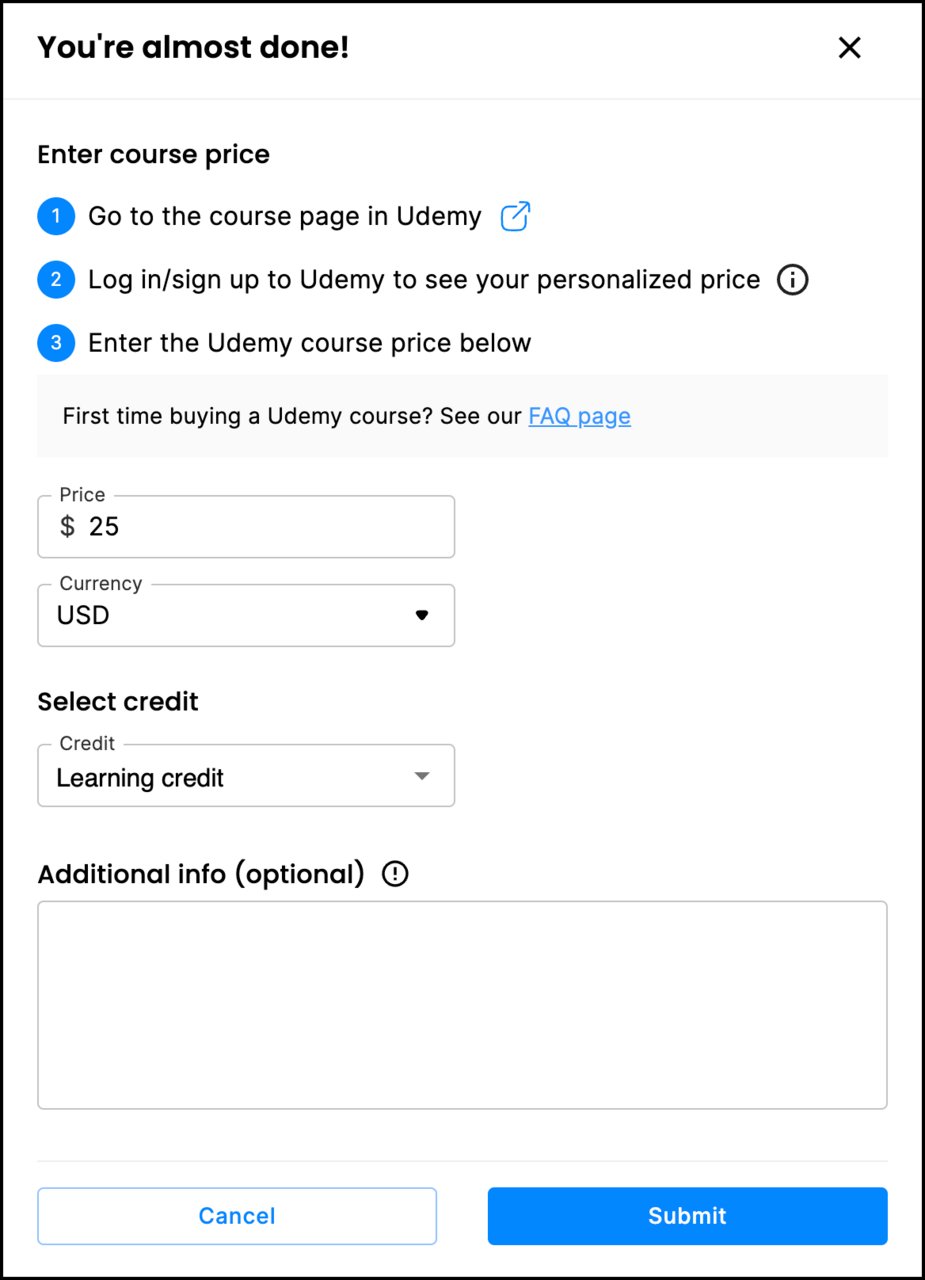
Udemy prices change often and can be personalized to your Udemy account. When you request a Udemy course, the request dialog asks you to confirm the current price:- Open the course page on Udemy.
- Log in or sign up to Udemy to see your personalized price.
- Enter that price in the request dialog, pick the budget to use, and submit.
After approval
Once your request is approved, it’s fulfilled through the flow your organization uses for Udemy, typically a provider voucher code. You’ll get an email, and the code appears in the request dialog under My Wallet.1
Open the request
Open the request dialog from your home page card or from My Wallet, and copy the code.
2
Go to Udemy
Click Redeem on Udemy. Log in to your Udemy account, or create one if you’re new to Udemy.
3
Buy the course
On the course page, click Buy now.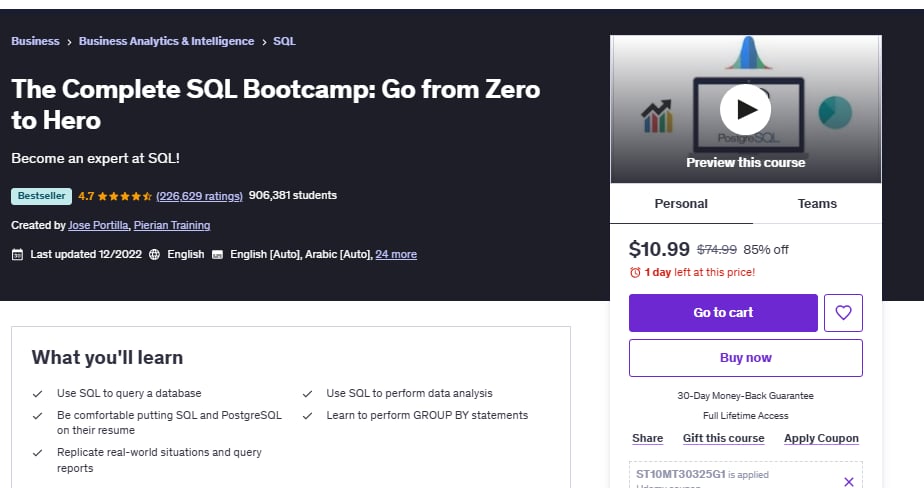
4
Apply the code at checkout
Enter the code at checkout and complete the purchase. Then return to the request dialog and click Mark as used.