

How guests register
1
The guest fills in the form
On the public page, the guest selects Register, picks a session if there’s more than one, and enters their name, email, and any extra fields.
2
Juno emails a confirmation link
The guest sees Check your email and gets an email with the subject Confirm your registration for the event name. Nothing is saved for them until they open the link. The link works for 48 hours.
3
The guest opens the link
Juno saves the registration and shows the result. Opening the link again shows the same result and never takes a second seat.
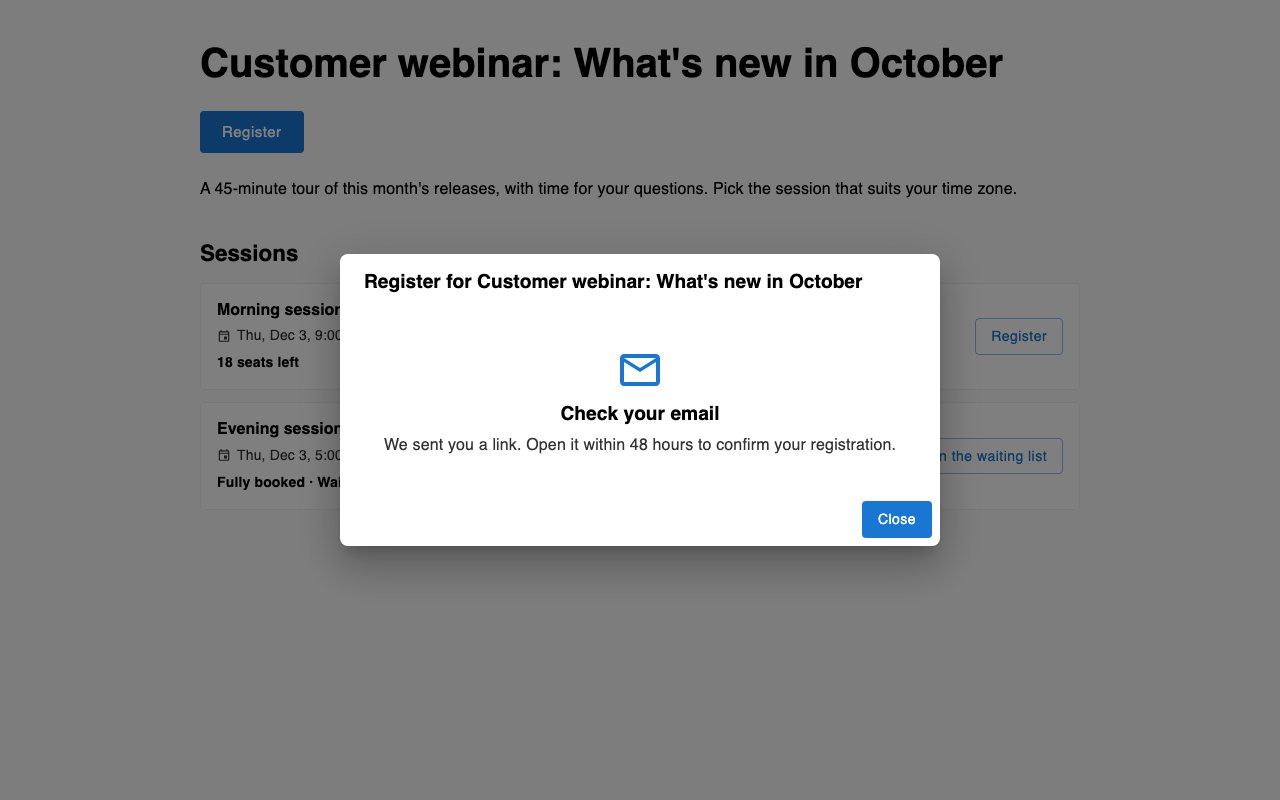
The seat is checked when the guest opens the link, not when they fill in the form. If the session filled up or registration closed in between, the page shows why, and the guest can try again while the link is still valid.
On an event with the attendance type Attend all sessions and more than one session, a guest gets a seat in every session or in none: if any session is full, the registration is refused.
If the guest’s email belongs to someone in your organization, Juno registers them as that person, not as a guest.
People signed in to Juno skip the email step: they register as themselves and get their result right away.
Sessions guests can’t book
The public page shows these sessions but won’t take registrations for them:- Paid sessions and sessions that need Manager Approval. Turning public registration on clears both from every session. If guests still see this, switch public registration off and on again.
- Sessions with registration closed, or that already took place.
- On an event with the attendance type Choose one session, a guest registered for one session can’t register for another.
Approve or decline guests
Guests waiting on a session appear in the session’s members panel under the Guest requests tab. It shows only when someone is waiting, and only to people who manage the event.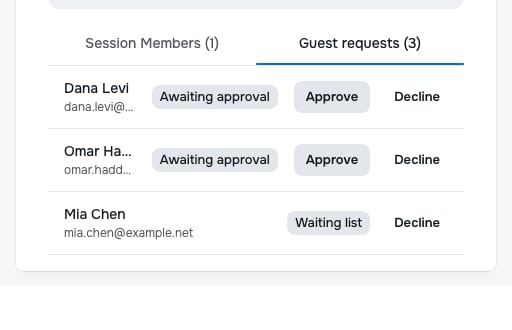
- Approve gives the guest a seat and sends them the invites. Approving never goes over the session’s limit: if the session is full, raise its Limit first.
- Decline asks you to confirm, then cancels the registration and emails the guest that it wasn’t approved.
Waiting list
Guests join a waiting list only when the session’s Limit policy is Automatically add next member from waiting list when someone declines. Set it in the event’s Advanced settings, or in a session’s advanced options. With any other limit policy, a full session refuses guests. When a seat frees up, Juno gives it to the person who has waited longest. A guest who gets a seat this way receives the same invites as any guest with a seat.What guests receive
When a guest gets a seat, whether right away, from the waiting list, or after you approve them, Juno sends:- A calendar invite, when the session is on a connected Google or Outlook calendar. The invite hides the guest list, so guests don’t see each other.
- A “You’re registered” email with the session time. For a session with a meeting link, its Join the session button opens the session’s check-in page. For an in-person session, the email gives the location and a View the event button.
Join link and attendance
The check-in page asks for the email the person registered with. When they select I’m here, Juno marks them as attended and, for a session with a meeting link, opens the meeting.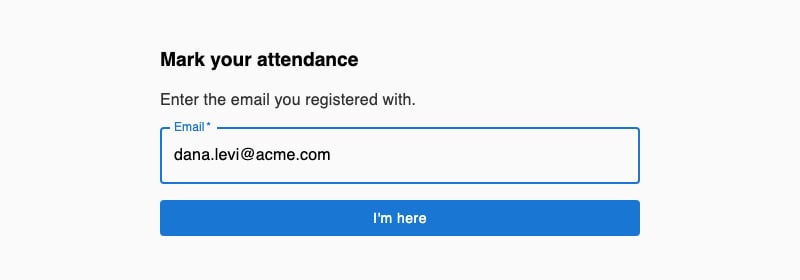
- Check-in opens 1 hour before the session starts and closes 1 hour after it ends. Outside that window the page says attendance can’t be marked right now.
- An email that isn’t registered for the session is refused, and the meeting link isn’t shown.
- On a public event, the session’s QR code opens the same page. Print it or show it on a screen, and in-person guests check in with their email. See QR code tracking.
- Members of your organization, and guests you added to the session yourself, check in the same way with their email.
- In a cohort session’s attendee table, the Method column shows QR code (public page) or Invite link (public page) for these check-ins. The page doesn’t prove that the email typed belongs to the person checking in.
Who sees the attendees
On a public event, learners don’t see who else is registered: no members list and no attendee counts. People who manage the event see the full members panel, including guests.Messages guests may see
Contact us at support@junojourney.com or open Support from your profile menu in Juno.