

Who can manage co-editors
Every co-editor can edit the Journey’s structure and settings. Step access only decides which steps they can edit too.
Add a co-editor
1
Open the Journey's settings
Open the Journey’s Manage view, go to Settings, and select Access in the left index.
2
Add the person
Under Co-editors, add the person. Juno saves them right away and opens What can name edit?.
3
Choose their steps
Choose All journey steps or Selected journey steps. For Selected journey steps, check the steps they can edit.
4
Choose linked copies
If the Journey has linked copies, check the ones they should co-edit.
5
Save
Select Save access.
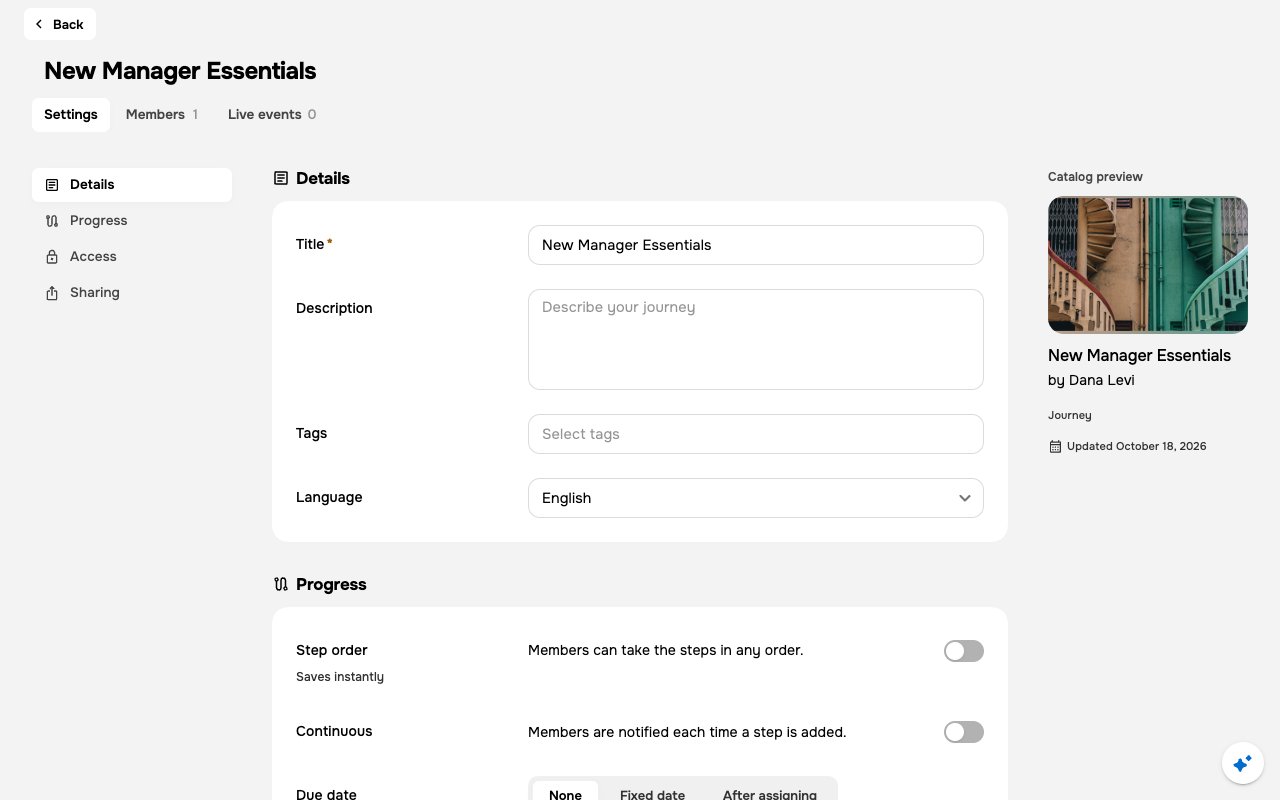
If you close the dialog without saving, the person stays a co-editor with All journey steps.
Step access options
With Selected journey steps, only steps added in the Journey editor are included automatically. A step added another way, such as through the Juno MCP server or the API, isn’t: open What can name edit? and check it.
Both options cover only the Journey’s own steps, the ones built in it. Linked copies aren’t part of them.
With Selected journey steps, a checklist shows each step built in the Journey and how many you checked, such as 2 of 5 journey steps selected. Select all checks every step; once all are checked, it changes to Clear all. If you check no steps, the co-editor can edit only the Journey’s structure and settings.
Either way, co-editors can always edit the Journey’s structure and settings.
Linked copies
A linked copy is a course added to the Journey from the library with Reuse › Linked Copy (quizzes and other units can be linked the same way). It’s linked to the original course, not copied, so co-editor access is granted on the course itself and applies everywhere it’s used (see Reuse vs Duplicate). All journey steps and Selected journey steps don’t include it. In What can name edit?, linked copies appear in their own Linked copies section, each with a Linked copy badge. What you see on each course depends on whether you can edit it:
Checking a course makes the person a co-editor of the course itself, everywhere it’s used, not only in this Journey. Unchecking it removes them from the course everywhere.
When you can edit two or more of the courses, Select all checks all of them and Clear all unchecks them. A count shows how many you checked, such as 2 of 3 editable linked copies selected. Courses you can’t edit aren’t counted.
When you change any linked copies, a note next to Save access sums them up, such as Also changes 2 linked copies everywhere they’re used.
Manage opens the course’s Settings › Access in a new tab, where you can see and change all of its co-editors. See Courses.
If some linked copies don’t save
Juno saves the Journey’s steps first, then each linked copy on its own. If some fail, the dialog stays open with Journey steps saved. Couldn’t update N linked copies. Try again. Select Save access again to retry. Juno sends only the linked copies that failed.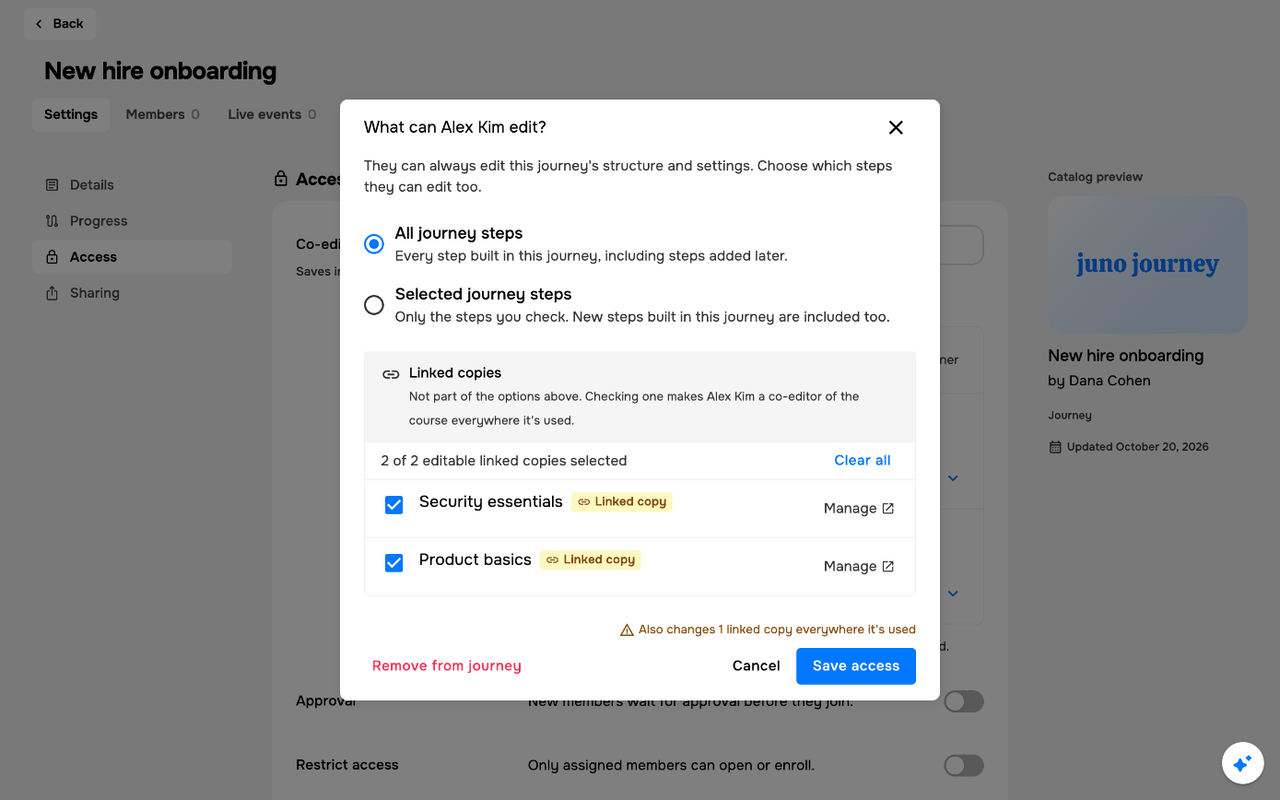
The co-editor list
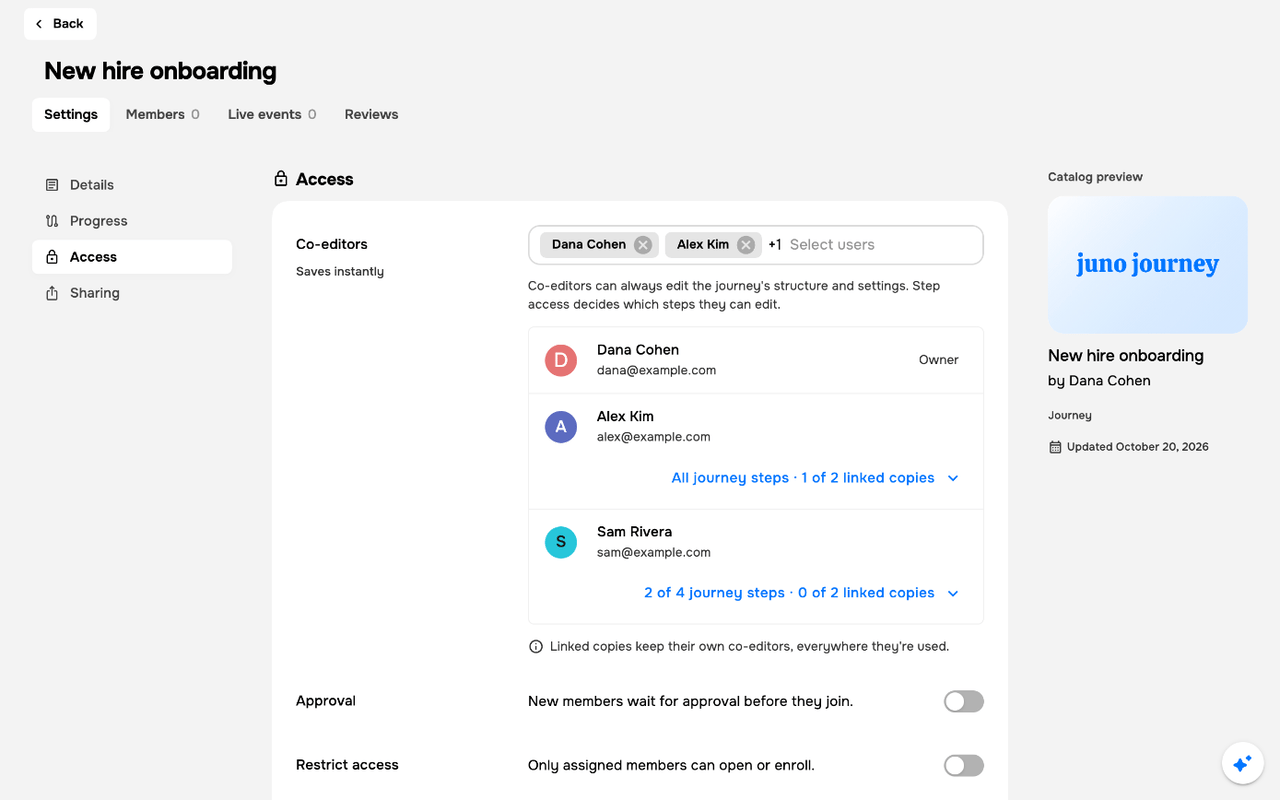
Under the Co-editors picker, a list shows the Journey’s owner and each co-editor, with their access:
When the Journey has linked copies, each co-editor’s label also shows how many of them they co-edit, even none, such as All journey steps · 0 of 2 linked copies or 2 of 4 journey steps · 1 of 2 linked copies.
Select a co-editor’s label to open What can name edit? again and change their access. When the Journey has linked copies, the note under the list reads Linked copies keep their own co-editors, everywhere they’re used.
Remove a co-editor
Remove the person from the Co-editors picker, or select Remove from journey in What can name edit?. Either way, Juno asks you to confirm first, with Remove name as co-editor? (or Remove N co-editors? when you remove several). Select Remove to confirm, or Cancel to keep them. A Journey always keeps at least one co-editor, so Remove from journey doesn’t show for the last one. Removing someone takes them off the Journey and all of its own steps. Linked copies they co-edit stay as they are: the dialog lists them under Linked copies stay as they are, with a Manage link on each course you can edit. To remove them from a linked copy too, do it on that course.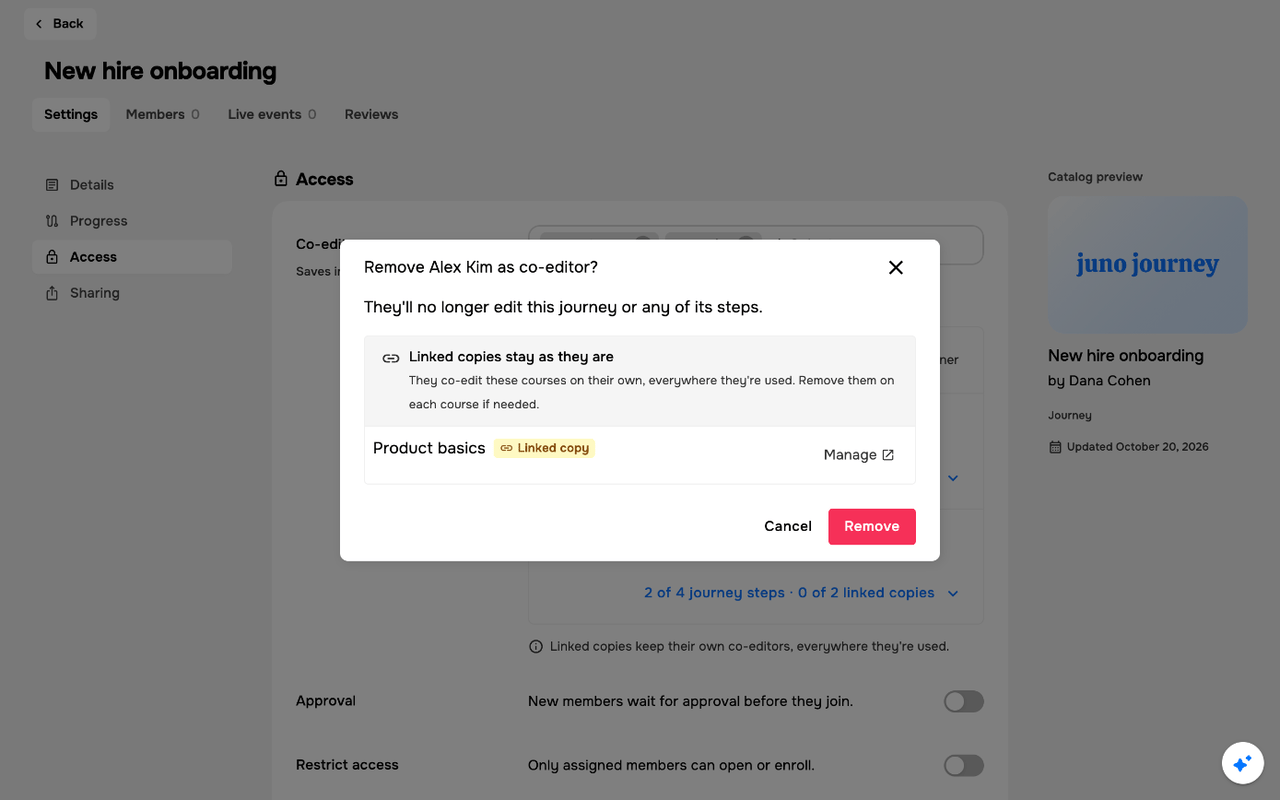
What a limited co-editor can do
A co-editor with Selected journey steps:- Edits the Journey’s structure and settings, plus only the steps they were given
- Opens the Journey’s other steps in preview only
- Can’t change who edits the Journey or its owner. In Settings › Access they see the co-editor list read-only, with the note You can edit some of this journey’s steps. Only the journey’s owner or an admin can change who edits it.